

Transcriptions overview
Transcriptions is Edisource’s interview workspace. Upload a recording, wait for the transcript, then edit speakers, pull quotes, and send a recap or story into Content Studio.
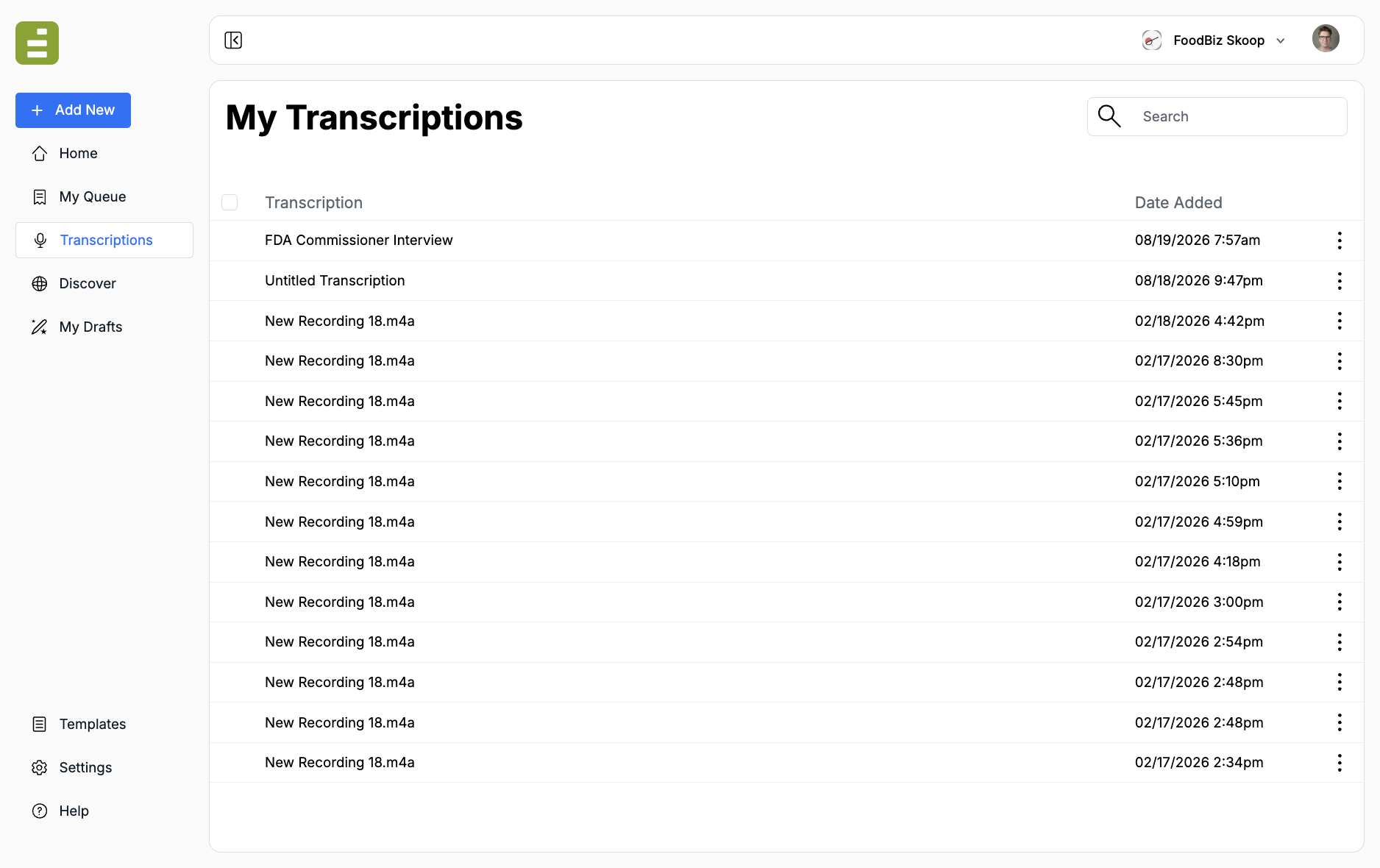
Open Transcriptions in the left navigation. My Transcriptions lists every completed file. Click a row to open it.
Use transcriptions when you have:
- An interview, panel, webinar, or earnings call
- A conference session you need to recap
- Audio or video you want to quote accurately
- Source material for a template
It is not a live recorder. You upload a finished audio or video file.
Upload a file
Section titled “Upload a file”- Click Add New in the left navigation
- Under Audio And Video Actions, choose Transcription
- Drop files onto Drop your files here, or click Add Files
- Wait until the modal shows that the transcription was submitted
- Click Done
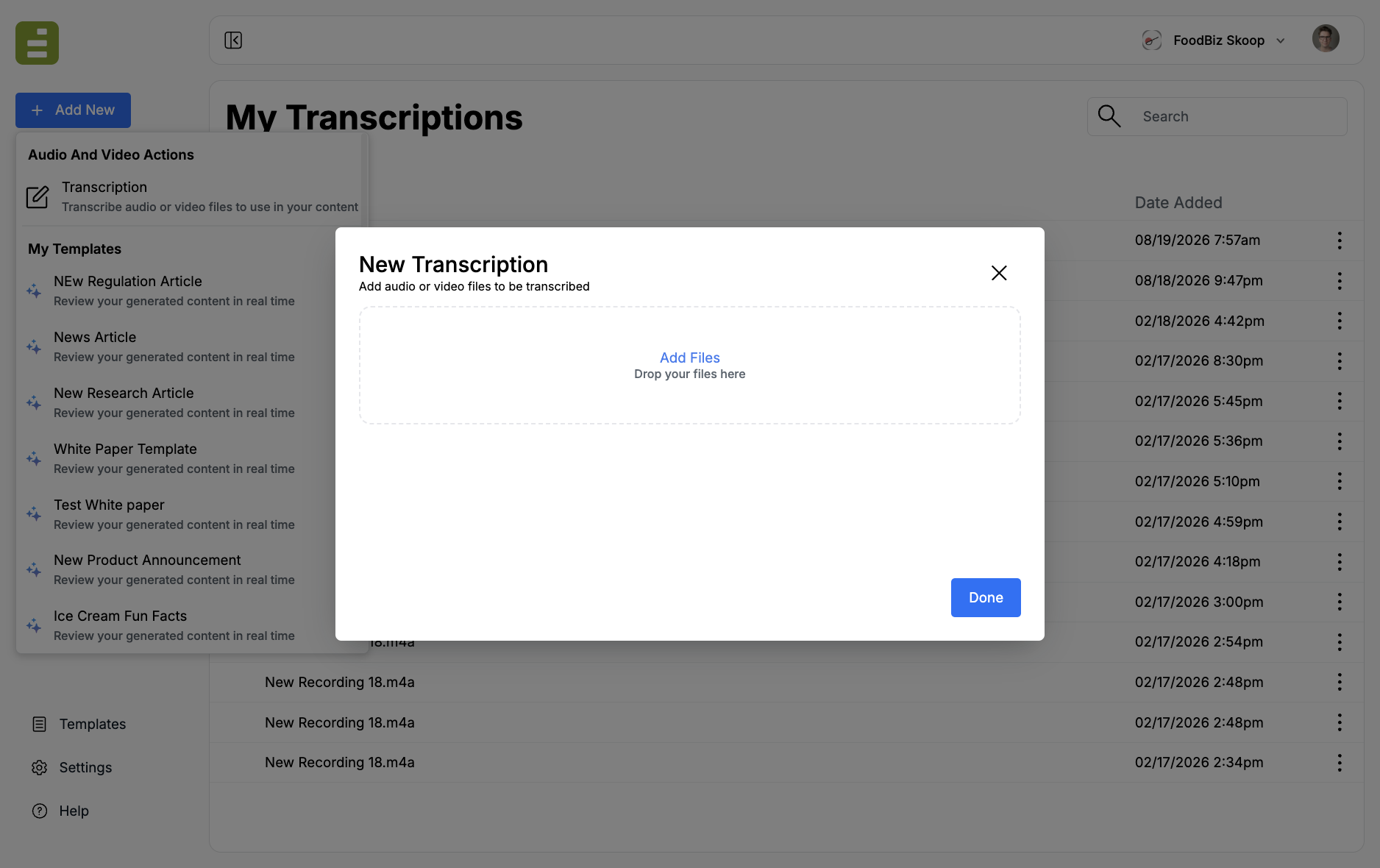
You can send more than one file at a time. Edisource accepts common audio and video formats such as MP3, M4A, and MP4.
Processing continues after you close the modal. A toast confirms that transcription started. Refresh My Transcriptions if the new row is not there yet.
The list starts with the original file name. Rename it from the row menu or from inside the transcript so editors can find it later.
What you get back
Section titled “What you get back”A finished transcript includes:
- Speaker-separated utterances with timestamps
- Playback of the original file
- Tools to correct speakers and wording
- Suggested actions for recaps, quotes, and drafts
- A chat that can answer questions about the session
The transcript also becomes source material. You can attach it to a template run, or send a chat excerpt into Content Studio with the recording already attached.
Review and edit covers playback, speaker names, and fixing utterances. Ask and draft covers suggested actions and sending work into Studio.