

Payloads and XML tags
When an editor publishes to a custom integration, Edisource builds one JSON object and POSTs it to the destination.
You control that object in two places on the integration form:
- Fields to send — standard story fields (
title,html, excerpt, image, SEO) - Custom XML from body — regions a template wrapped in tags, copied onto extra keys
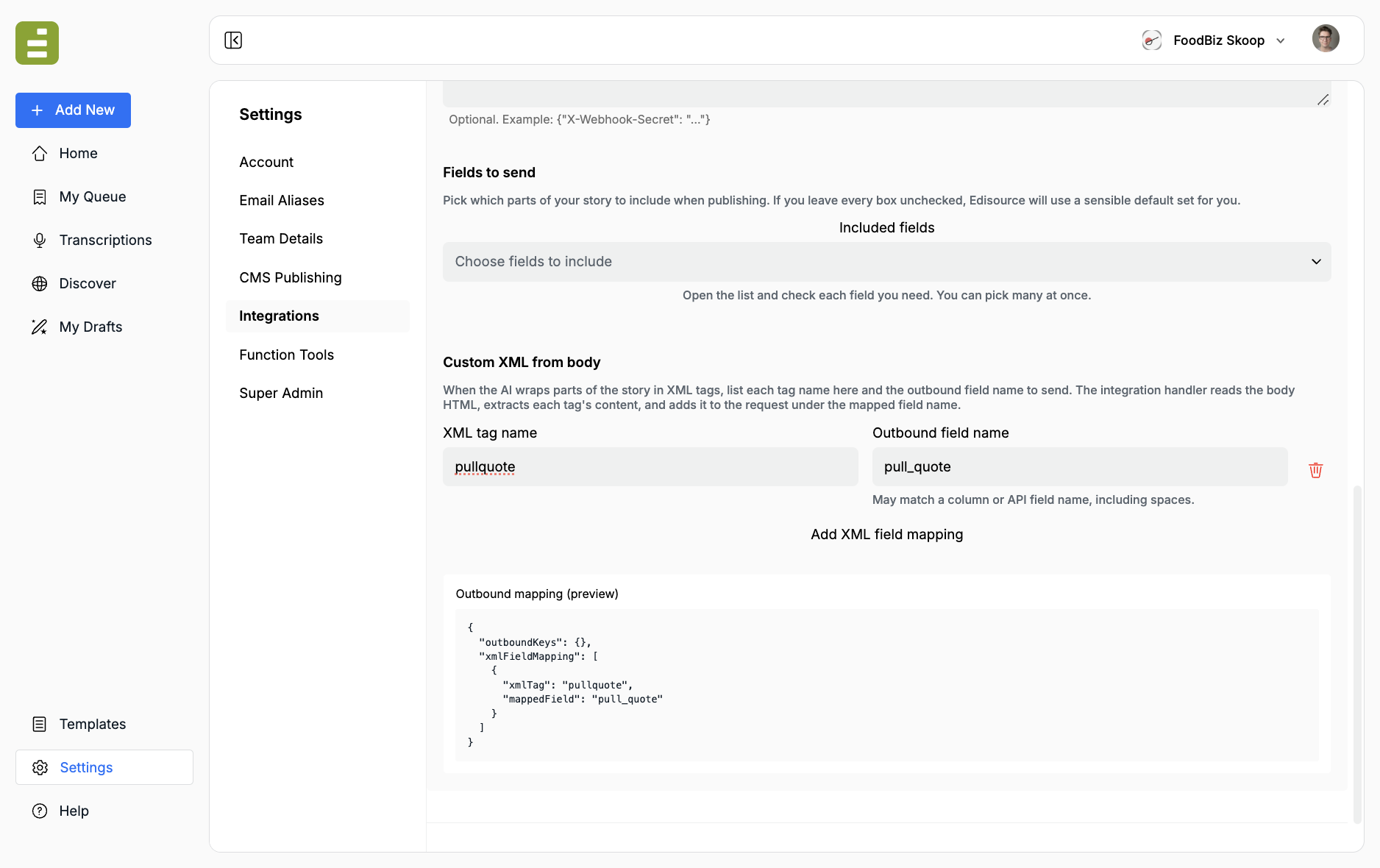
Fields to send
Section titled “Fields to send”Under Included fields, check the parts of the story to include. If you leave every box unchecked, Edisource sends a default set: title, html, excerpt, feature_image, published_at, and tags (only keys that exist on that draft).
| Source key | Label in the form | What it is |
|---|---|---|
title |
Title | Headline |
html |
HTML body | Article body. XML-mapped regions are removed from this string before send |
excerpt |
Excerpt | Dek / summary |
feature_image |
Feature image | Featured image URL |
slug |
Slug | URL slug |
tags |
Tags | Topic labels |
authors |
Authors | Bylines |
published_at |
Published date | Publish or schedule time |
meta_title |
SEO title | Search title |
meta_description |
SEO description | Search description |
Destination keys
Section titled “Destination keys”If your API does not use those names, fill destination keys under the checklist. Example: Title → headline, HTML body → body_html.
Leave a destination key blank to keep the Edisource name.
Airtable destination keys must match column names, including spaces if the column has them.
Custom XML from body
Section titled “Custom XML from body”Templates can wrap discrete snippets so one draft still produces several API fields.
- In the template assignment, tell the model to wrap each snippet:
Put the card/email dek in <newsletter_dek>…</newsletter_dek>.Wrap each pull quote in <pullquote>…</pullquote>.Leave the article body untagged.- On the integration, click Add XML field mapping.
| Form field | What to enter |
|---|---|
| XML tag name | Local name only: pullquote, not <pullquote>. Letters, numbers, _, -, .. No spaces |
| Outbound field name | JSON key (or Airtable column) the destination expects. Spaces are allowed here |
- The Outbound mapping (preview) at the bottom of the form shows the mapping you are about to save.
At publish time Edisource:
- Scans the draft HTML for each mapped tag. Opening tags may have attributes (
<newsletter_dek class="dek">). - Extracts the inner content. If the same tag appears more than once, the segments are joined with a blank line.
- Removes those blocks from
htmlso the body field is clean. - Adds the extracted strings to the JSON under the outbound field names, in addition to the mapped story fields.
Tag names in the template must match XML tag name exactly.
Example payload
Section titled “Example payload”Integration mapping:
- Title →
headline - HTML body →
body - Excerpt →
summary - Feature image →
image_url - XML
newsletter_dek→card_summary - XML
pullquote→pull_quote
Draft fragment:
<newsletter_dek>A short hook for cards and inbox previews.</newsletter_dek><pullquote>We will not ship a story we cannot source.</pullquote><p>This is the main article body. The regions above are extracted and stripped.</p>What your API receives:
{ "headline": "Example headline", "body": "<p>This is the main article body. The regions above are extracted and stripped.</p>", "summary": "Short excerpt", "image_url": "https://cdn.example.com/featured.jpg", "card_summary": "A short hook for cards and inbox previews.", "pull_quote": "We will not ship a story we cannot source."}Your server should accept application/json and respond with a standard HTTP status.
Split the work
Section titled “Split the work”| Role | Job |
|---|---|
| Editorial / template owner | Pick stable tag names and write them into the assignment. See Structure output with XML tags |
| IT / ops | Map those names onto destination keys and confirm the endpoint, auth, and preview JSON |
Do not invent a new tag in Settings without updating the template, or the field will always be empty.
CMS publishing is different
Section titled “CMS publishing is different”CMS connections do not use this XML mapping table. Ghost, WordPress, Drupal, and Brightspot read metadata_ and taxonomy_ tags automatically. Parameter1 reads <title>, <teaser>, <caption>, and <image_credit>. See Connect a CMS.
Check the output
Section titled “Check the output”- Run the template against a real source.
- Confirm Content Studio or My Queue shows each tagged region as its own field.
- Publish to the integration (or inspect the outbound preview).
- On your API or Zap, confirm the extra keys arrived and the body no longer contains the wrappers.
If a key is missing, the assignment did not emit the tag, the XML tag name does not match, or the integration is disabled.