

Projects overview
A project is a shared workspace inside My Drafts. Every draft in the project can use the same sources, Discover feeds, instructions, memories, and todos. Jo sees that shared context in chat.
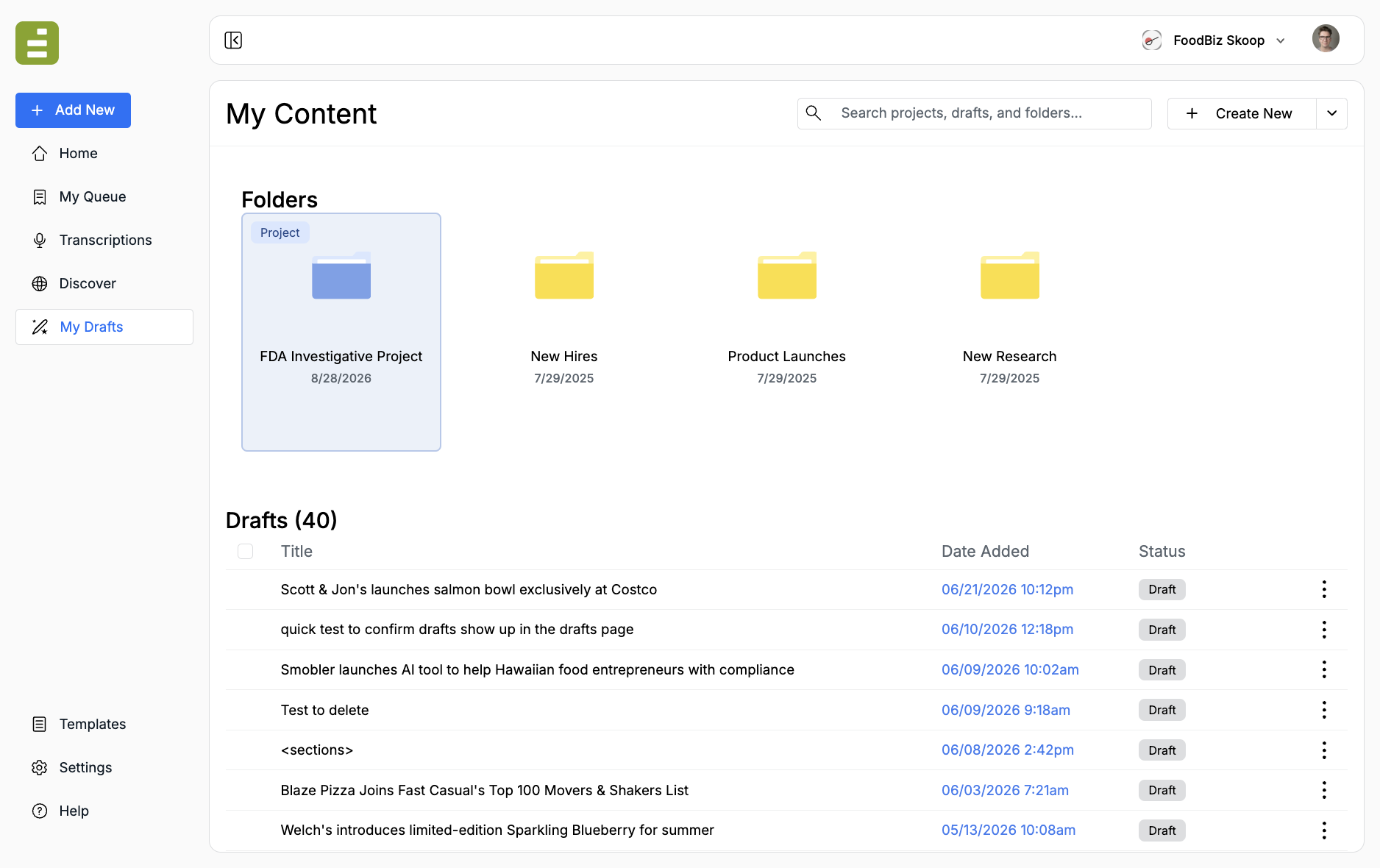
Open My Drafts in the left navigation. Projects sit with folders at the top of My Content. A project card has a Project chip. A regular folder is only a place to file drafts.
Use a project when several drafts belong to the same assignment. Examples:
- An investigative package with interviews, memos, and follow-up stories
- A launch desk that reuses the same brief, deck, and monitor feeds
- A beat package where Jo should keep the same voice and constraints
Use a folder when you only need organization. Folders do not share sources or instructions.
Projects cannot be nested inside another project.
Create a project
Section titled “Create a project”On My Content, use the Create New split button in the header. The main button creates a document. The chevron opens the rest of the menu.
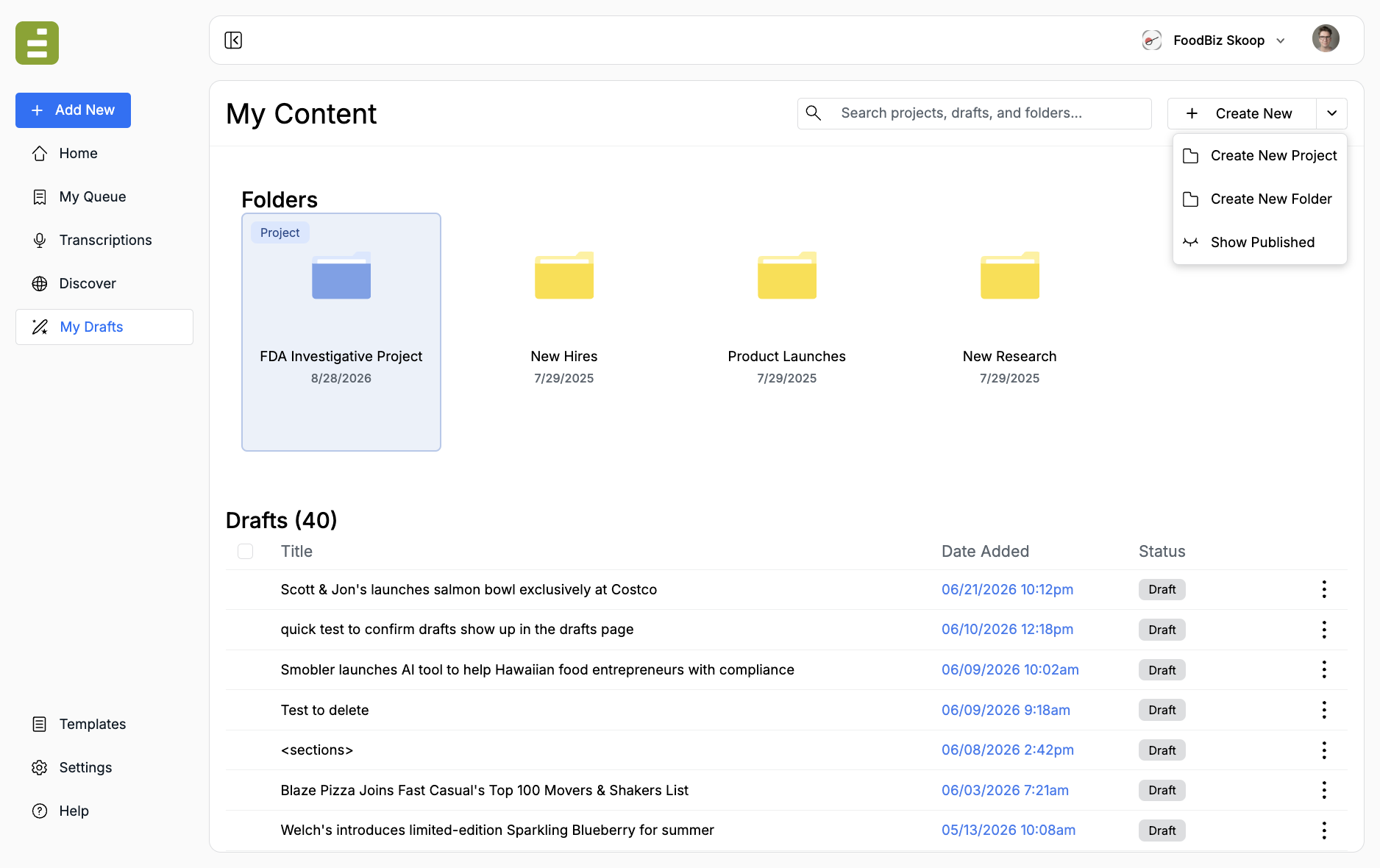
- Open My Drafts
- Click the chevron on Create New
- Choose Create New Project
- Enter a Project Name
- Optionally add a short Description
- Click Create Project
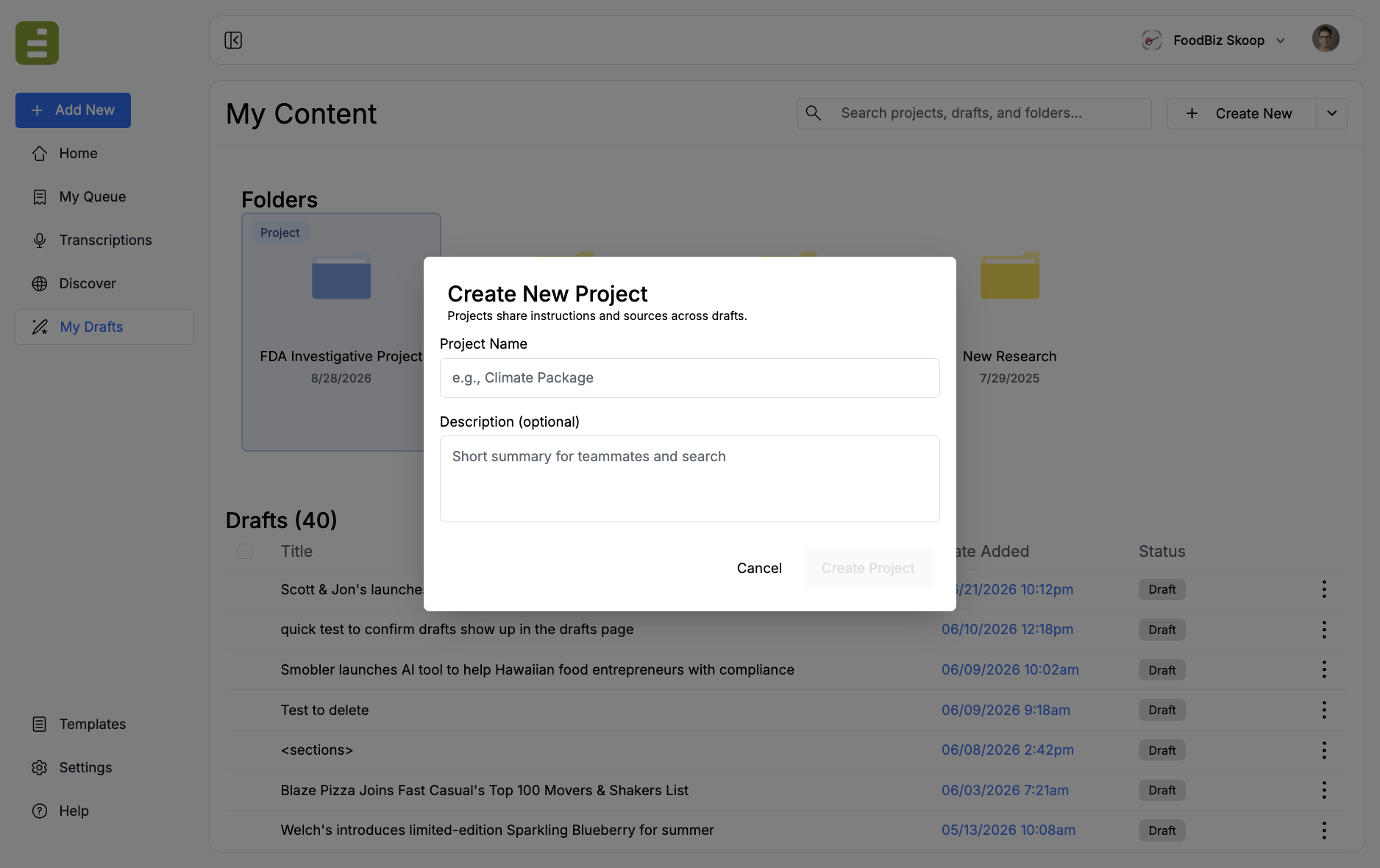
Edisource opens the new project. The description is for teammates and search. You can refine it later on the Instructions tab.
If you are already inside a project, Create New Project is hidden. Create the next project from My Content or from a regular folder.
What is inside a project
Section titled “What is inside a project”A project has six tabs:
- Drafts: Documents that live in this project
- Todos: Open work, due dates, and reminders
- Sources: Shared files and notes Jo can use on every draft
- Feeds: Discover feeds Jo can query for this project
- Instructions: Voice, goals, and constraints for Jo
- Memory: Short notes Jo should keep, team-wide or personal
Start with Sources and feeds if you already have material. Start with Todos and memory if you need assignments and standing rules first.