

Custom integrations
Custom integrations send a draft to a destination that is not your CMS. That includes vendor tools and APIs your newsroom built — a custom database, an index, a paywall product, a social scheduler.
Org admins configure them at Settings → Integrations.
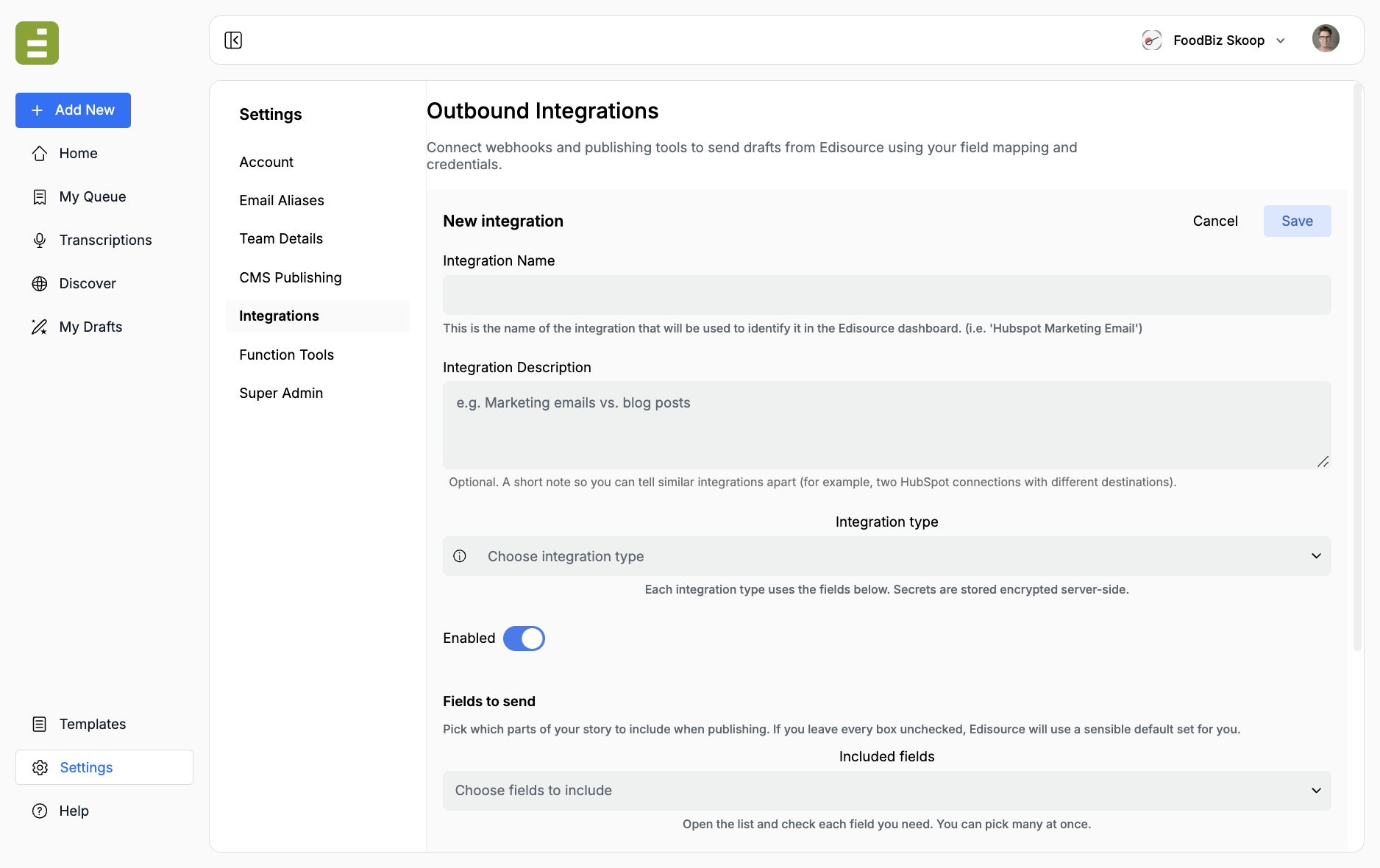
Add an integration
Section titled “Add an integration”- Go to Settings → Integrations.
- Click Add integration.
- Fill in Integration Name. Use a name editors will recognize, such as “HubSpot marketing email” or “Internal regs index.”
- Optionally add an Integration Description so two connections of the same type stay distinct.
- Choose Integration type. Each type reveals its own fields. Secrets are stored encrypted.
- Leave Enabled on when you are ready for editors to use it.
- Configure auth, destination IDs, field mapping, and XML mapping.
- Save. Do not click Save while you are only testing field names in the preview.
Integration types
Section titled “Integration types”| Type | What it does | What you provide |
|---|---|---|
| Custom webhook | POST JSON to your HTTPS endpoint |
Endpoint URL, auth, optional headers |
| Zapier | POST JSON to a Catch Hook |
Catch hook URL (treat it as a secret) |
| Airtable | Creates one row | Personal access token, base ID, table name or ID |
| HubSpot | Blog post, landing page, website page, marketing email, or transactional send | Private app or OAuth token, plus destination-specific IDs |
| beehiiv | Creates a newsletter post | API token, publication ID |
| Mailchimp | Email campaign | Marketing API key, audience / list ID, data center |
| Omeda | Omail email deployment draft | App ID (x-omeda-appid), brand abbreviation, owner user ID, deployment type ID |
Some specialized connectors (for example event platforms) may be provisioned by Edisource rather than listed here.
Custom webhook (proprietary APIs)
Section titled “Custom webhook (proprietary APIs)”Use Custom webhook when the destination is yours: an internal index, a custom CMS adapter, a database write API, a workflow you already operate.
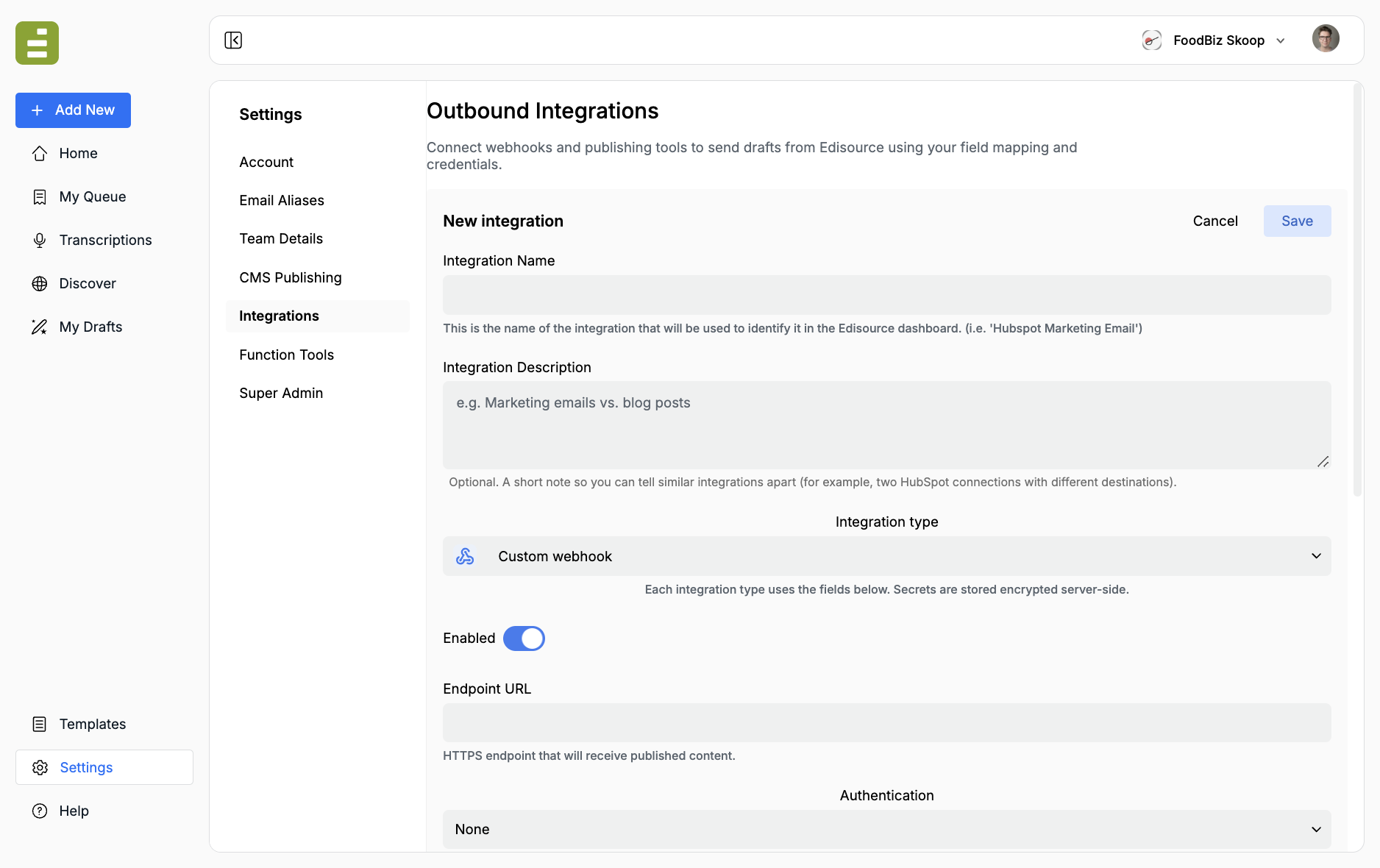
- Endpoint URL: full HTTPS URL. The server must accept
Content-Type: application/json. - Authentication:
- None — only for hook URLs that are themselves secret, or a locked-down internal endpoint
- Bearer token —
Authorization: Bearer <token> - API key (header) — secret in a header. Set Custom header name if it is not
X-API-Key - Basic — username and password
- Custom HTTP headers (JSON object) — optional extra headers, for example
{"X-Webhook-Secret":"…"}. Do not put the primary credential here if you can use the Authentication fields instead.
Your endpoint should:
- Return 2xx on success. Edisource treats that as a successful publish.
- Return 4xx / 5xx when it rejects the payload. The editor sees a publish failure.
See Payloads and XML tags for the JSON body.
Zapier
Section titled “Zapier”Paste the Catch Hook URL from Webhooks by Zapier (https://hooks.zapier.com/hooks/catch/…/). Auth is usually None; the URL is the secret.
Optional:
- Trigger variant: Catch Hook (parsed JSON) or Catch Raw Hook
- Response mode: Default, or Silent if the Zap needs an empty response
- Child key: nest the payload under one key if the Zap is built that way
Airtable, HubSpot, beehiiv, Mailchimp, Omeda
Section titled “Airtable, HubSpot, beehiiv, Mailchimp, Omeda”These connectors talk to the vendor API. Destination keys in field mapping must match that vendor’s field names (Airtable column names, HubSpot properties, and so on).
Fill the type-specific IDs the form asks for (base/table, publication ID, content group, brand abbreviation). Token labels change with the type: Airtable wants a personal access token, Omeda wants an App ID.
Omeda creates an email deployment draft. API-created drafts are edited in the API workflow, not in the Omail web editor.
Enable, edit, delete
Section titled “Enable, edit, delete”- The On switch on the list disables a connection without deleting it. Disabled integrations return an error if someone tries to publish to them.
- Edit reopens the form. Leave secret fields blank to keep the stored value.
- Delete is permanent.
After you save
Section titled “After you save”Publish one test draft from My Queue or Content Studio to the new integration. Confirm the destination received the JSON you expected. If a mapped XML field is missing, the template did not emit that tag, or the tag name in Settings does not match the assignment.