

Bulk add
Bulk add runs a template across many sources at once. Each source can become its own draft, or several sources can feed one draft. Start the batch, leave while it runs, and come back to review each piece.
Start a batch
Section titled “Start a batch”- Click Add New in the left navigation
- Under Content Actions, choose Bulk Add
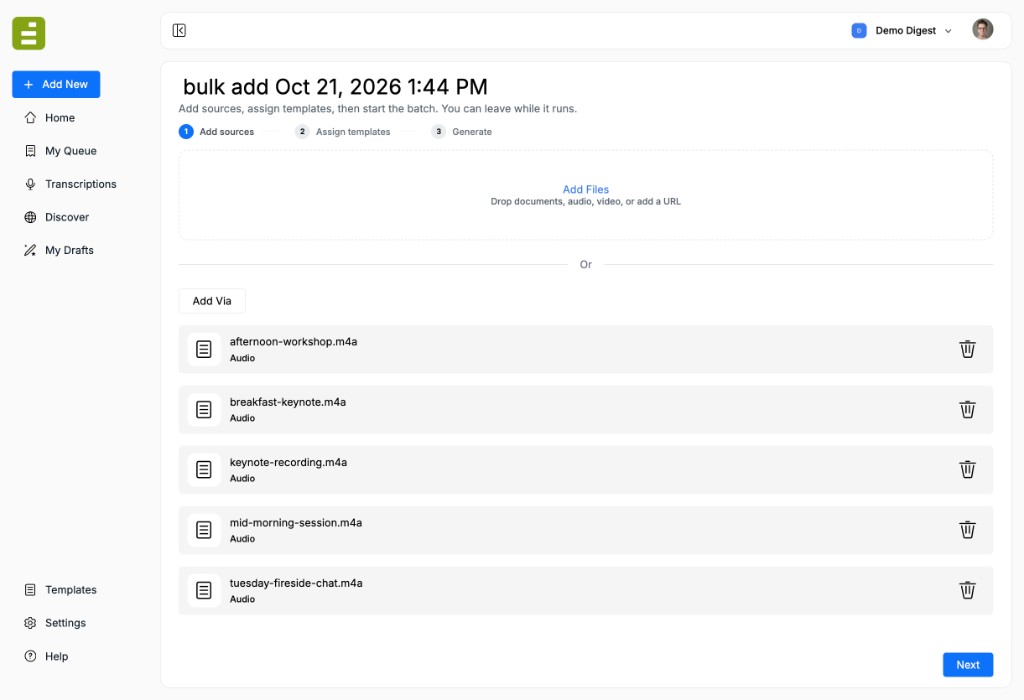
- The page opens with a name such as bulk add Oct 21, 2026 1:44 PM. Click the name to rename the batch
The steps across the top are Add sources, Assign templates, and Generate.
Add sources
Section titled “Add sources”Drop documents, audio, video, or a URL onto the page, or click Add Files.
Each file appears in the list with its type. Audio and video are transcribed so the template can use the recording. Remove a file with the trash icon.
Next stays off until at least one source has finished uploading.
Assign templates
Section titled “Assign templates”Assign templates has two modes.
One to one
Section titled “One to one”Each source becomes its own draft.
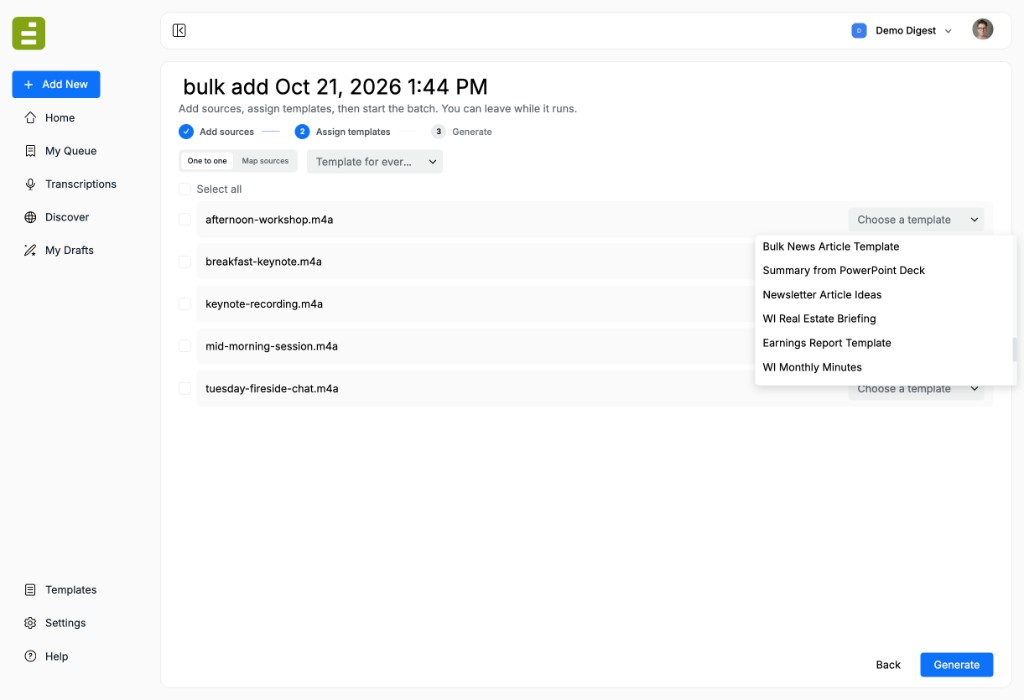
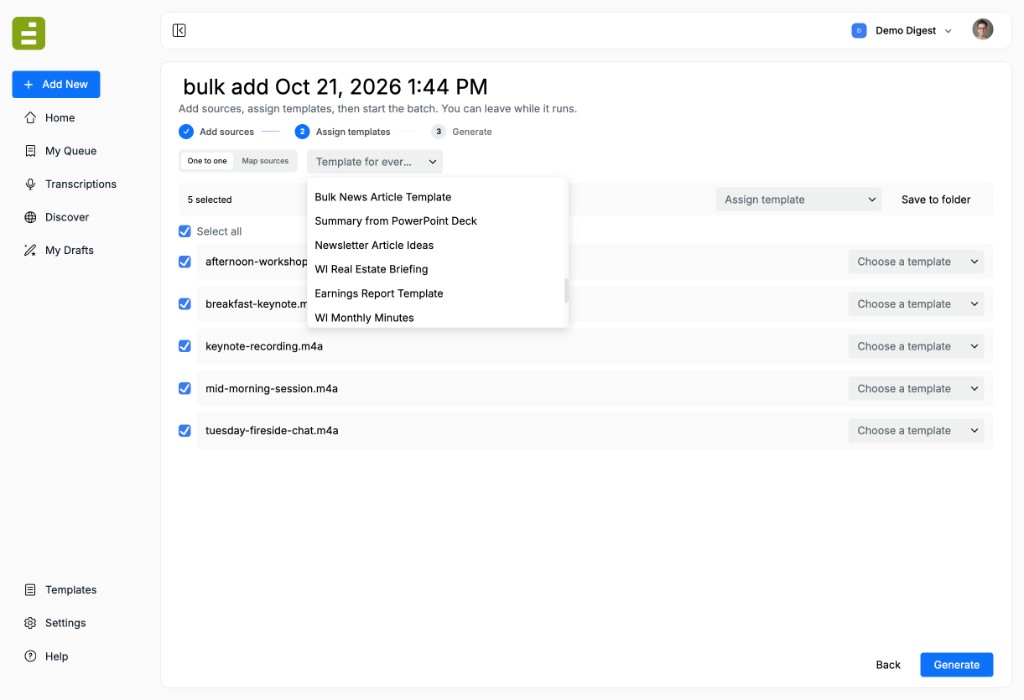
Template for every source applies one template to the whole list. Choose a template on a row sets that source on its own.
Select rows when only some of them should share a template or a folder. The bar shows how many are selected, then Assign template and Save to folder.
Map sources
Section titled “Map sources”Use Map sources when one draft should read several files.
Click Add draft, then drag files from Source material onto the card. A card can hold more than one file. Remove a file with the × on its row.
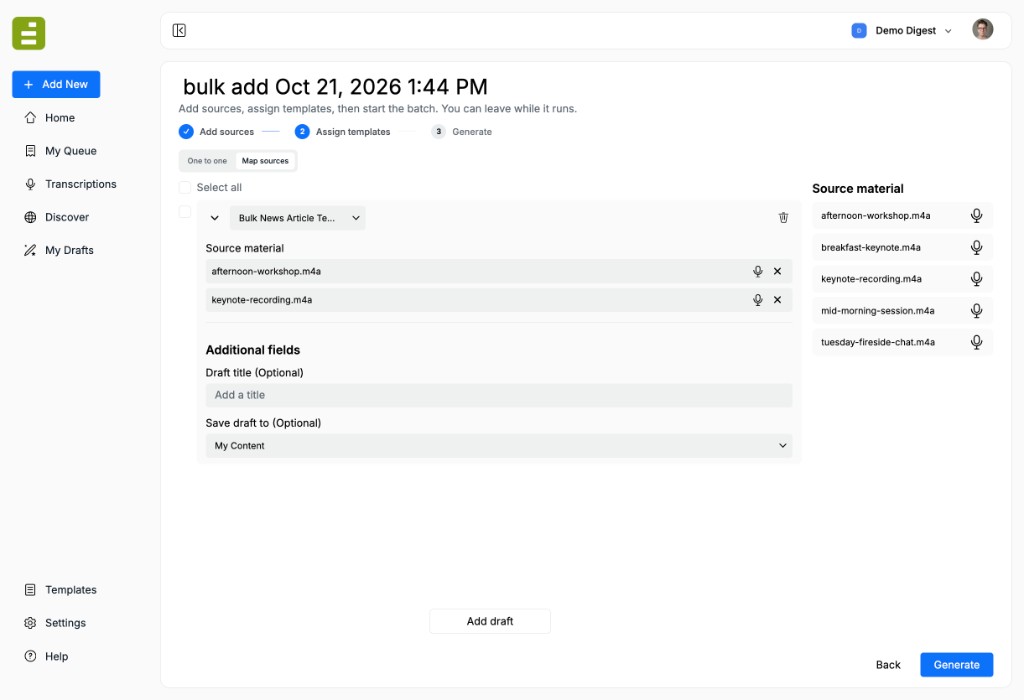
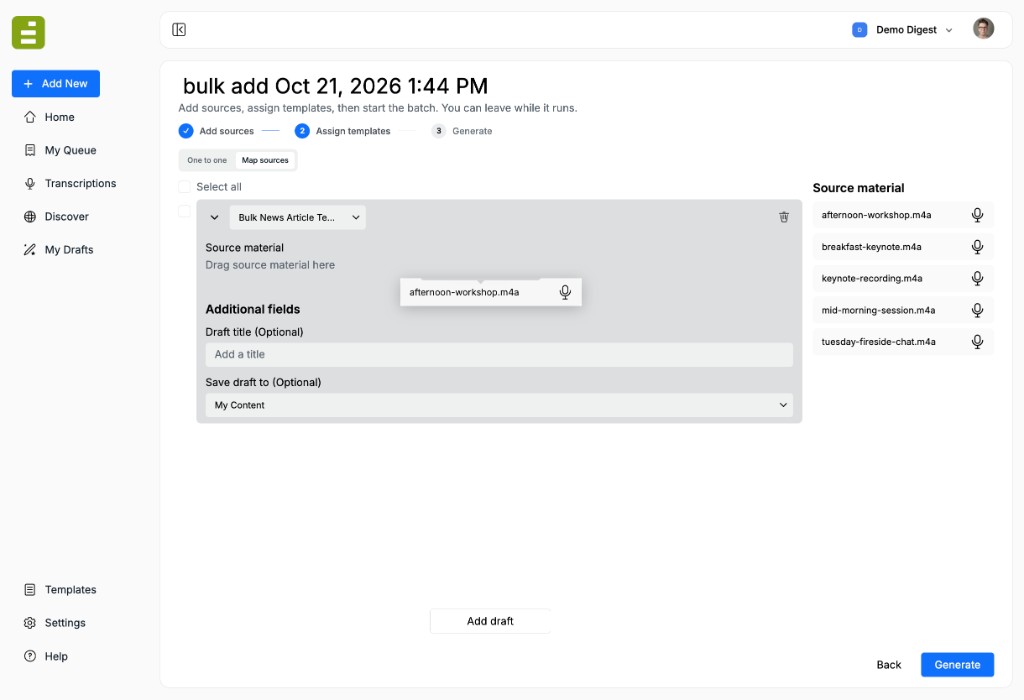
Open a card for Additional fields:
- Draft title (Optional) — a headline to use until the template writes one
- Save draft to (Optional) — defaults to My Content
If the template has required fields, fill those on the card too. Generate checks every card. A card needs a template and at least one source. The toast Fill in the required fields on the highlighted cards means one of those is still empty.
Generate
Section titled “Generate”Generate starts the batch. You can leave this page. The drafts keep running, and you can come back to them from the dashboard.
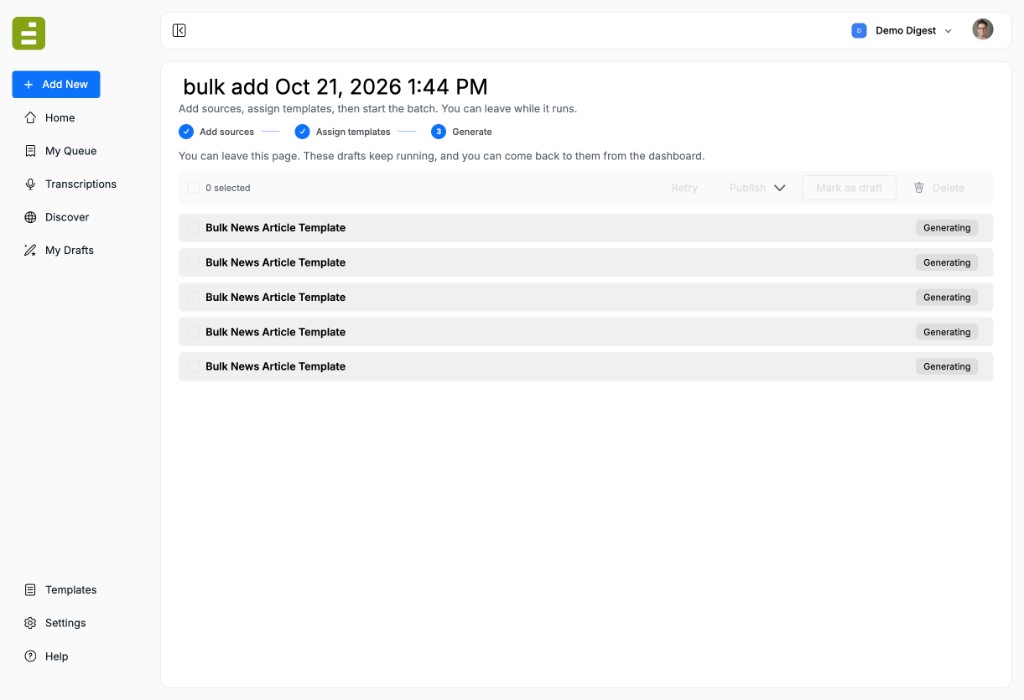
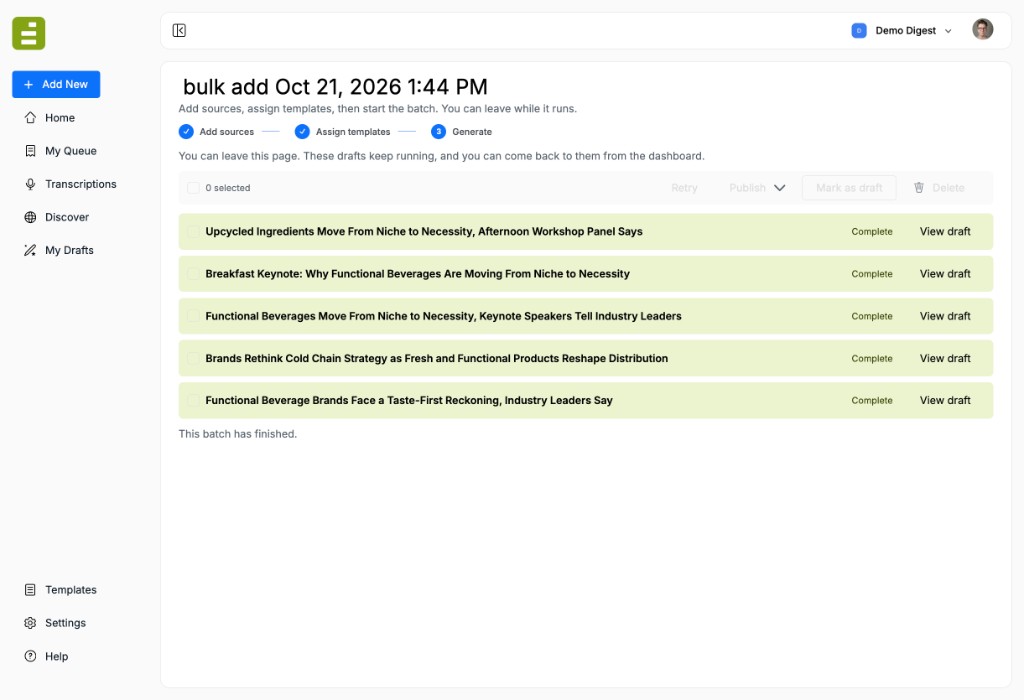
Each row moves through Generating, Auditing, and Complete. A row that cannot finish shows Failed and its own Retry.
When every row is done, the page says This batch has finished.
Open Home and find Bulk jobs. That list is the batches you started from Bulk add. Click a batch to open it again. A batch still being set up stays marked as a draft. A running batch shows how many drafts are complete.
Review a draft
Section titled “Review a draft”View draft opens that piece beside its audit. The report shows PASS or FAIL, Grounding Accuracy, and the claim cards. The arrows in the corner move through the batch.
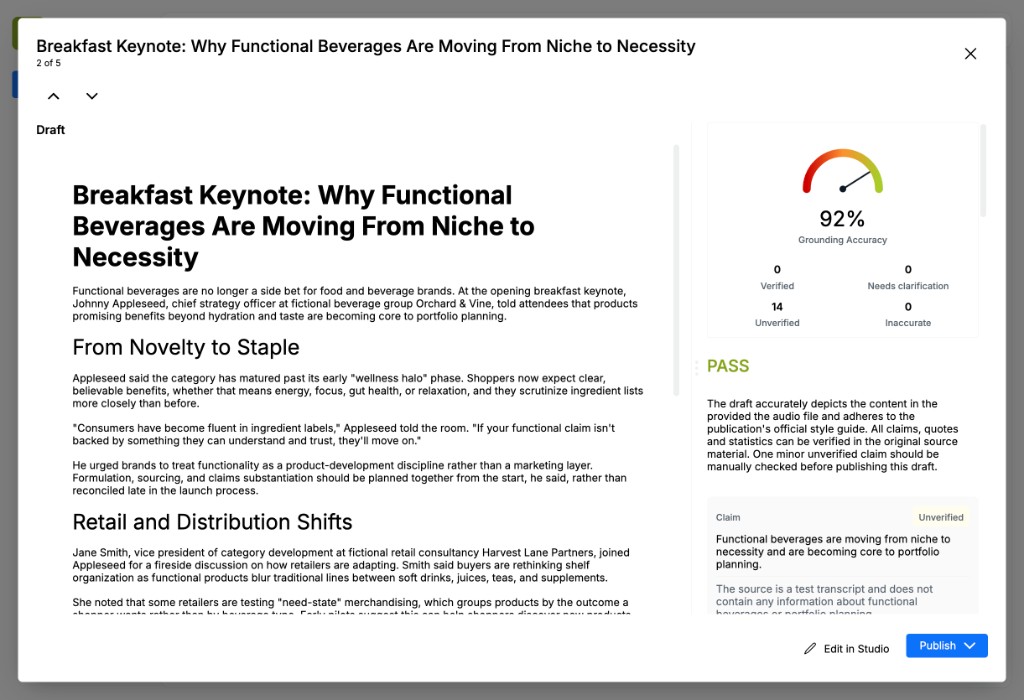
From the modal:
- Edit in Studio opens the draft in Content Studio
- Publish uses the same send, schedule, and export options as My Queue
On the batch list, select finished rows to act on several at once:
- Retry runs the selected drafts again
- Publish sends them to the CMS
- Mark as draft moves them into My Drafts
- Delete removes them
Write the assignment in Add a template before you run a large batch. Audit a draft explains the grades on the review screen.