

Knowledge blocks
A knowledge block is reusable reference content for the organization. You write it once, then drop it into any template with a block_ key such as {{block_house_voice}}. When the template runs, Edisource inserts the current block content into the assignment.
That is different from a custom parameter. A parameter is something the user fills at run time. A knowledge block is standing material the newsroom already agrees on: house voice, taxonomy lists, example stories, forbidden phrases.
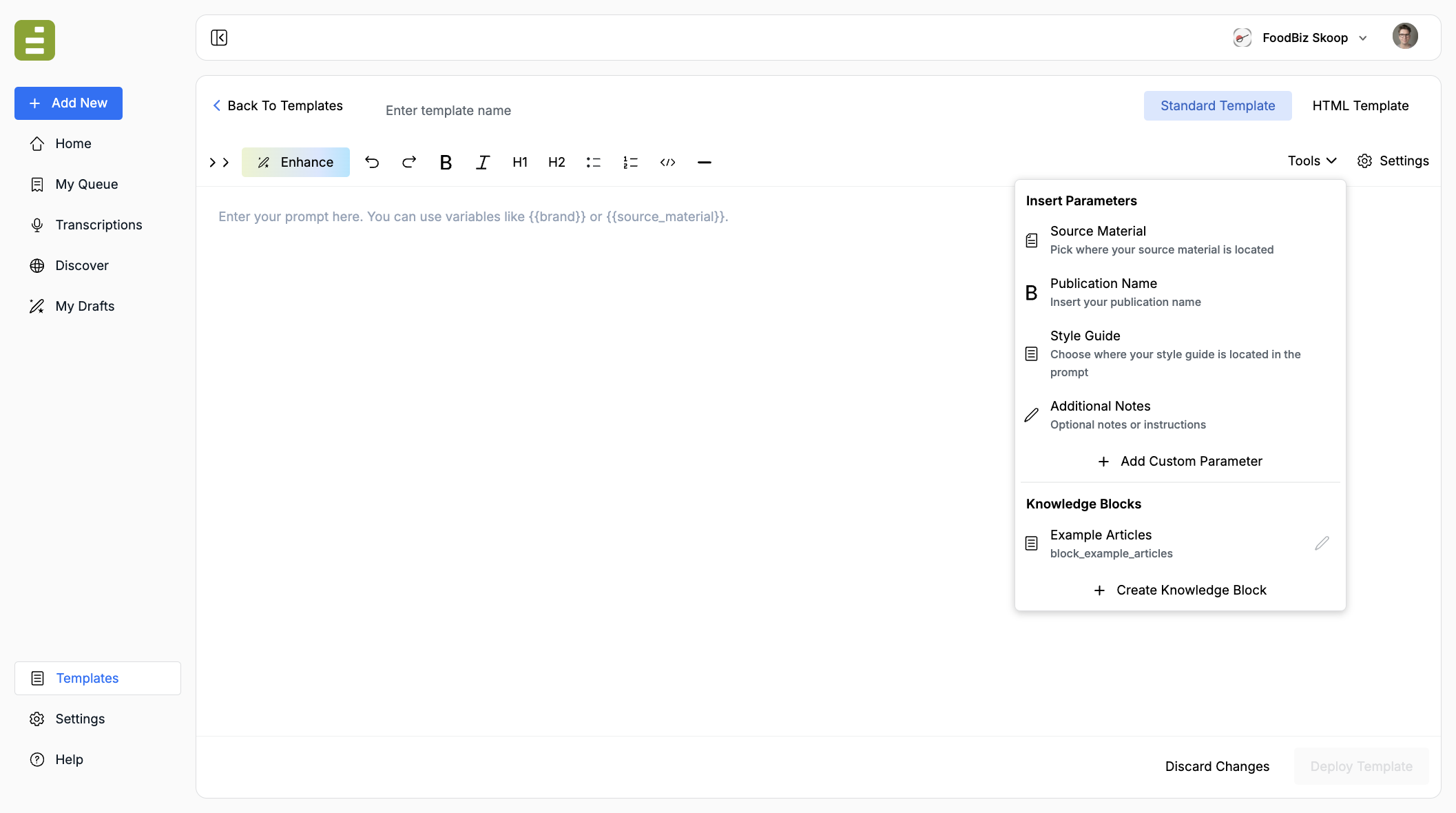
Open Tools in the template editor. Parameters are at the top. Knowledge blocks are their own section underneath.
When to use one
Section titled “When to use one”Create a knowledge block when the same material should appear in more than one template, or when you want to update it once and have every template pick up the change.
Typical blocks:
- House voice and style notes
- Approved taxonomy tags or section names
- Example articles the model should match
- Product names, legal disclaimers, or beat definitions
- Spreadsheet lists you already keep in Excel or CSV
If the value changes every run — a one-off note, a file the user attaches — use a custom parameter instead. If you need the output split into headline and SEO fields, use XML tags.
Create a knowledge block
Section titled “Create a knowledge block”- Open a template in the studio.
- Click Tools.
- Under Knowledge Blocks, click Create Knowledge Block.
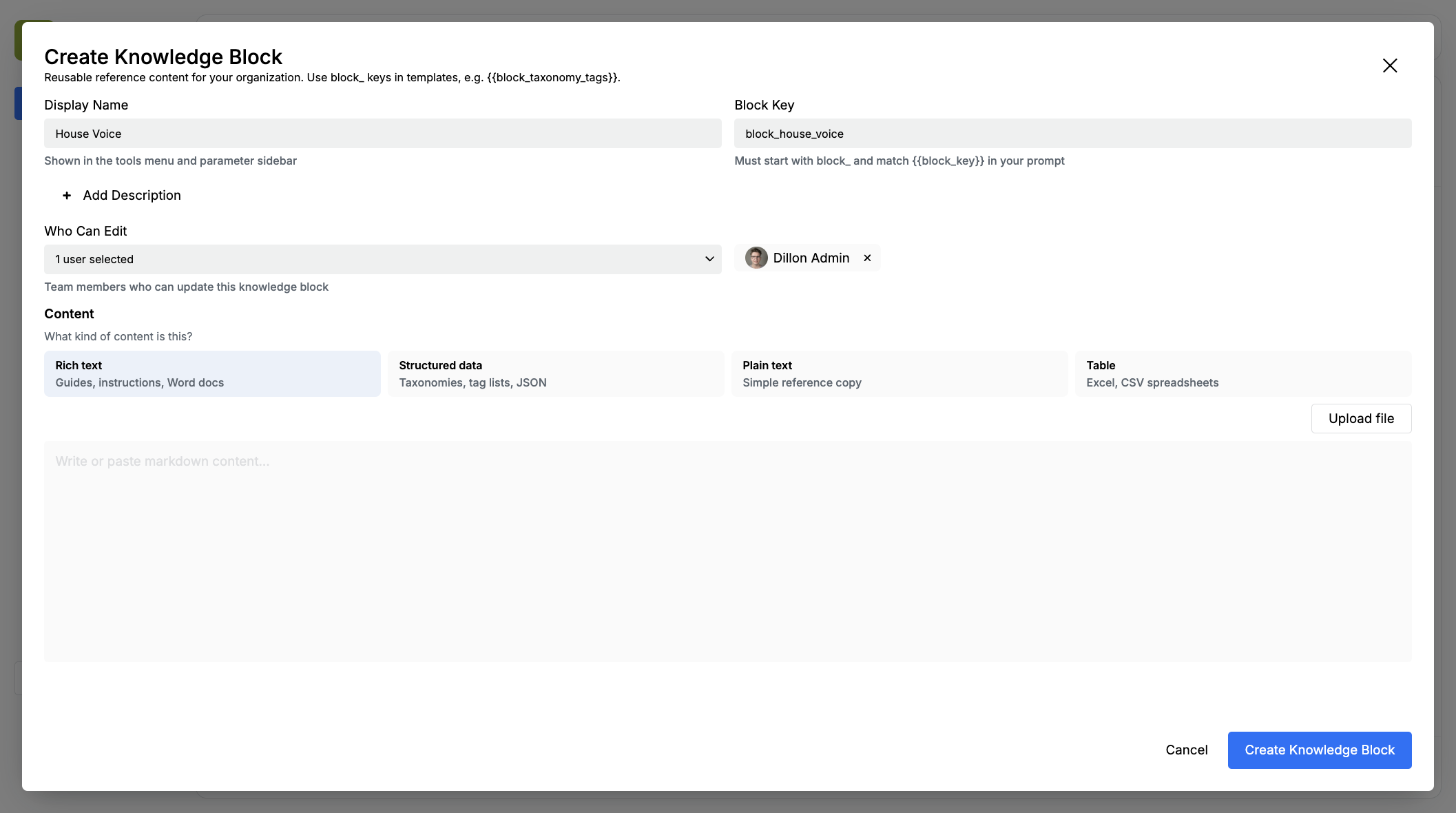
Fill in:
| Field | What it is |
|---|---|
| Display Name | The label in Tools and the parameter sidebar. Defaults from the key |
| Block Key | The handlebar name. Must start with block_ and match {{block_key}} in the prompt |
| Description | Optional note about when to use the block |
| Who Can Edit | Team members who can change the content |
| Content | The reference material itself |
The key is locked after you create the block. Pick a stable name: block_house_voice, block_taxonomy_tags, block_example_articles.
Use lowercase letters, numbers, and underscores only.
Content types
Section titled “Content types”Choose the type that matches the material:
| Type | Best for |
|---|---|
| Rich text | Guides, instructions, Word docs |
| Structured data | Taxonomies, tag lists, JSON |
| Plain text | Short reference copy |
| Table | Excel or CSV spreadsheets |
You can type or paste into the editor, or click Upload file. Rich text accepts Word and Markdown. Tables accept .csv, .xls, and .xlsx. Structured data must be valid JSON before you save.
Click Create Knowledge Block. The block is saved for the organization, not just this template.
Put the block in the assignment
Section titled “Put the block in the assignment”Back in Tools, click the block name. Edisource inserts {{block_example_articles}} as a chip in the prompt.
You can also type the key yourself. Any block_ handlebar is treated as a knowledge block. If the key already exists, the chip links to that block. If it does not, the editor can open Create so you can finish the definition.
Tell the model what to do with the material. The chip only injects the content. The sentence around it is the instruction.
Match the voice and story shape in {{block_example_articles}}.Do not copy those examples. Use them as the house form.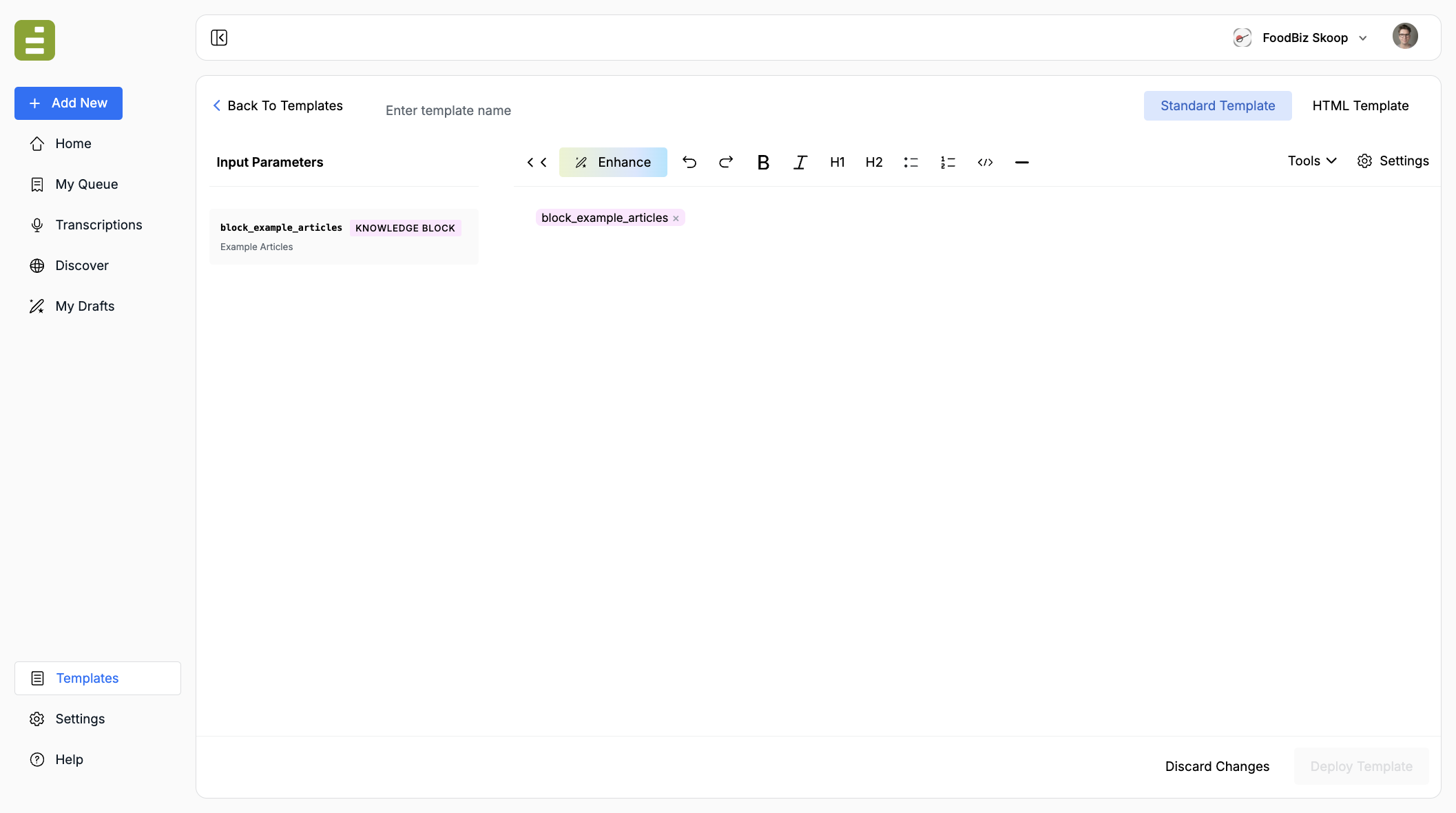
Input Parameters on the left lists every key in the assignment. Knowledge blocks get a Knowledge Block badge. Click the row to edit the block.
At run time the chip is replaced with the stored content. Editors do not see the raw block in the finished draft unless you also asked the model to quote it.
Edit or delete
Section titled “Edit or delete”In Tools, click the pencil next to a block, or click the row in Input Parameters.
You can change the display name, description, who can edit, and the content. The key stays the same so existing templates keep working.
Delete Knowledge Block removes it for the organization. Any template still using that key will run without the reference until you update the assignment.
Knowledge blocks and blurbs
Section titled “Knowledge blocks and blurbs”Blurbs can insert the same block_ keys. One block can feed both a chat blurb and a template. Create and edit the block from the template studio; the blurb editor only inserts ones that already exist.
Check a run
Section titled “Check a run”- Put the block in a template and deploy it.
- Run the template with source material.
- Confirm the draft follows the block — voice, tags, or examples — without pasting the whole block into the body unless you asked for that.
- If the draft ignores the block, the assignment did not say how to use it, or the key does not match.
Add a template covers the rest of the studio. Blurbs can insert the same block in chat. Structure output with XML tags is how you split the output into headline and metadata fields after the model has used the block.