

View menu and export
View controls how much of the studio is on screen. File → Export as downloads a copy without sending it to your CMS.
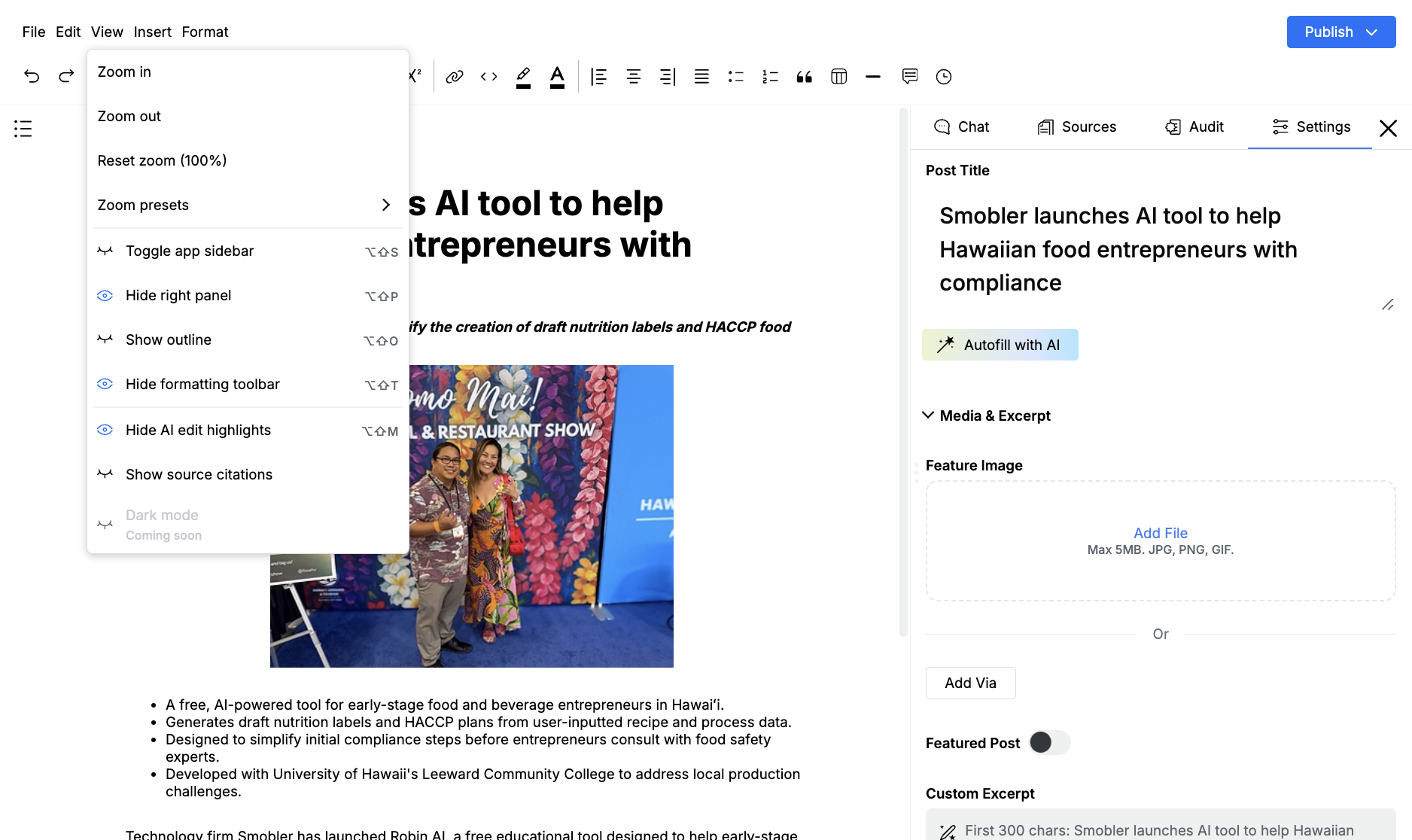
View menu
Section titled “View menu”Open View on the menu bar.
Zoom has zoom in, zoom out, reset to 100%, and presets from 50% to 200%.
You can show or hide:
- The app sidebar
- The right panel (Chat, Sources, Audit, Settings)
- The content outline
- The formatting toolbar
- Project tools, when the draft is in a project
- AI edit highlights
- Source citations
Dark mode is listed as Coming soon.
The toggles persist. Hide the right panel when you want a wider editing column. Show it again when you need Jo or Settings.
Export
Section titled “Export”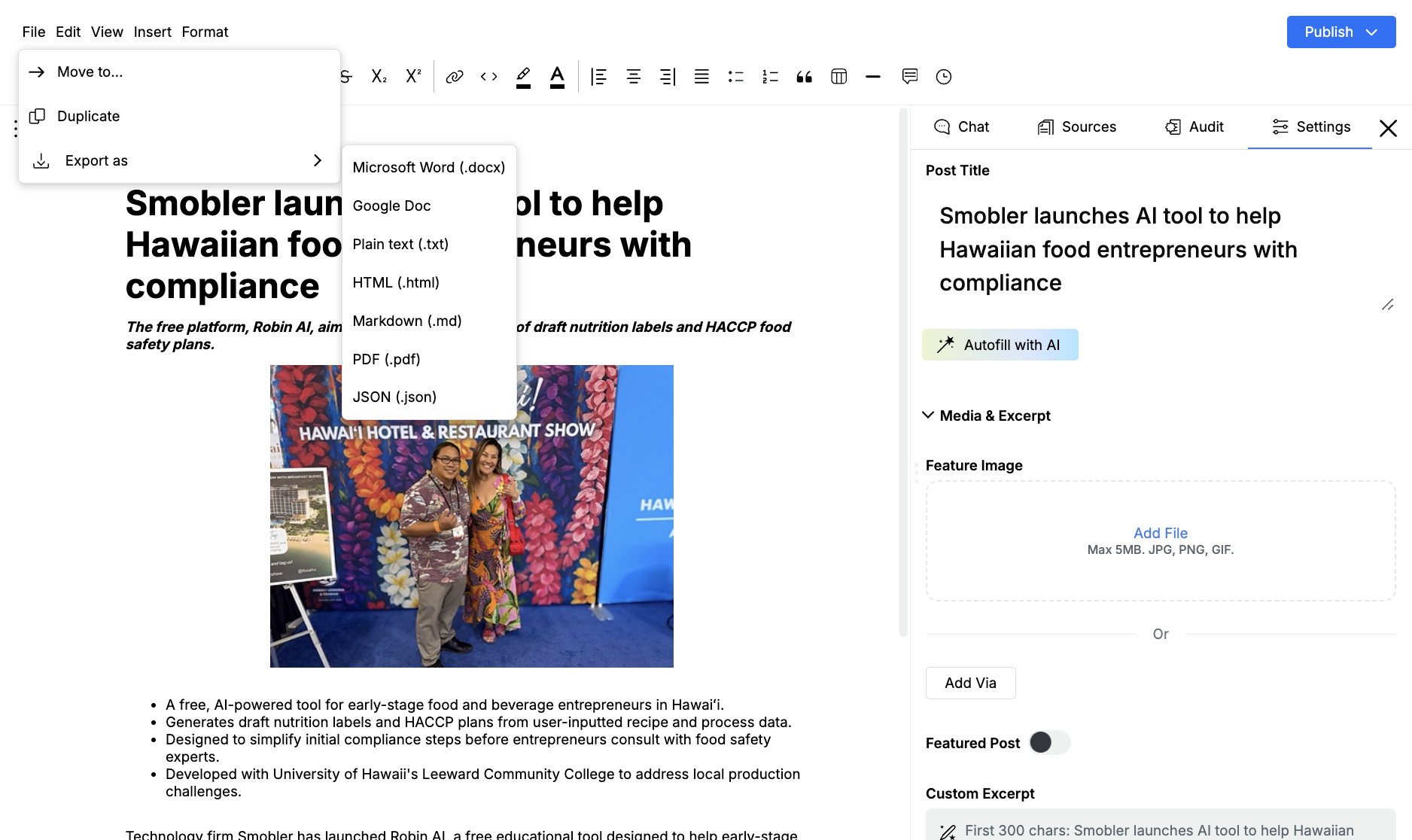
- Open File
- Choose Export as
- Pick a format
Available formats:
- Microsoft Word (
.docx) - Google Doc
- Plain text (
.txt) - HTML (
.html) - Markdown (
.md) - PDF (
.pdf) - JSON (
.json)
File also has Move to… and Duplicate.
The Publish menu repeats Word, Markdown, and Google Doc under Additional Options. Use either path. Resolve pending Jo edits before you export. If those marks are still open, Edisource asks you to accept or reject them first.
Export is a file on your machine, or a Google Doc you own. It does not publish to the site. Use Publish for the CMS or a custom integration.