

Blurbs
A blurb is a reusable chat snippet. You write it once, then drop it into any Content Studio conversation with one click.
That is different from a template. A template is a full assignment that produces a draft. A blurb is a go-to instruction you send in chat — check this against the style guide, tighten the dek, rewrite for a newsletter.
It is also different from a knowledge block. A knowledge block is standing reference. A blurb can include the same block_ keys so the current house voice or examples are injected when you send it.
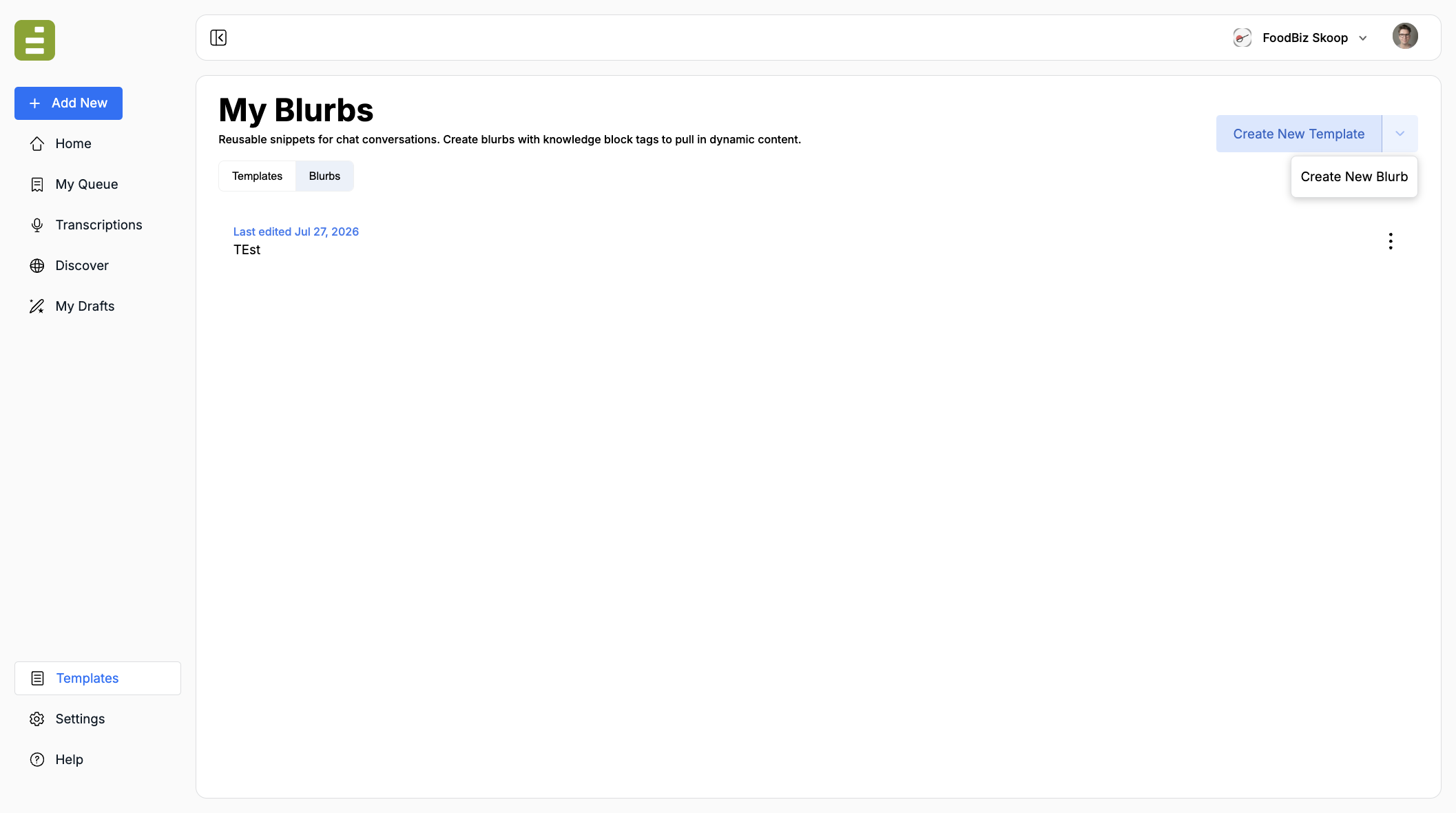
Open Templates in the left navigation, then click Blurbs. The library lists every blurb you can use. The main button still says Create New Template. Open the dropdown next to it and choose Create New Blurb.
When to use one
Section titled “When to use one”Create a blurb when you keep typing the same chat instruction.
Typical blurbs:
- Check this draft against house style
- Tighten the dek and headline
- Rewrite for a newsletter or social post
- Flag legal or product-name issues
- Summarize the draft for an editor
If you need the same finished piece next week, with new source material, make a template. If the material should stay the same across both templates and blurbs, put it in a knowledge block.
Create a blurb
Section titled “Create a blurb”- Go to Templates.
- Open the Create New Template dropdown.
- Click Create New Blurb.
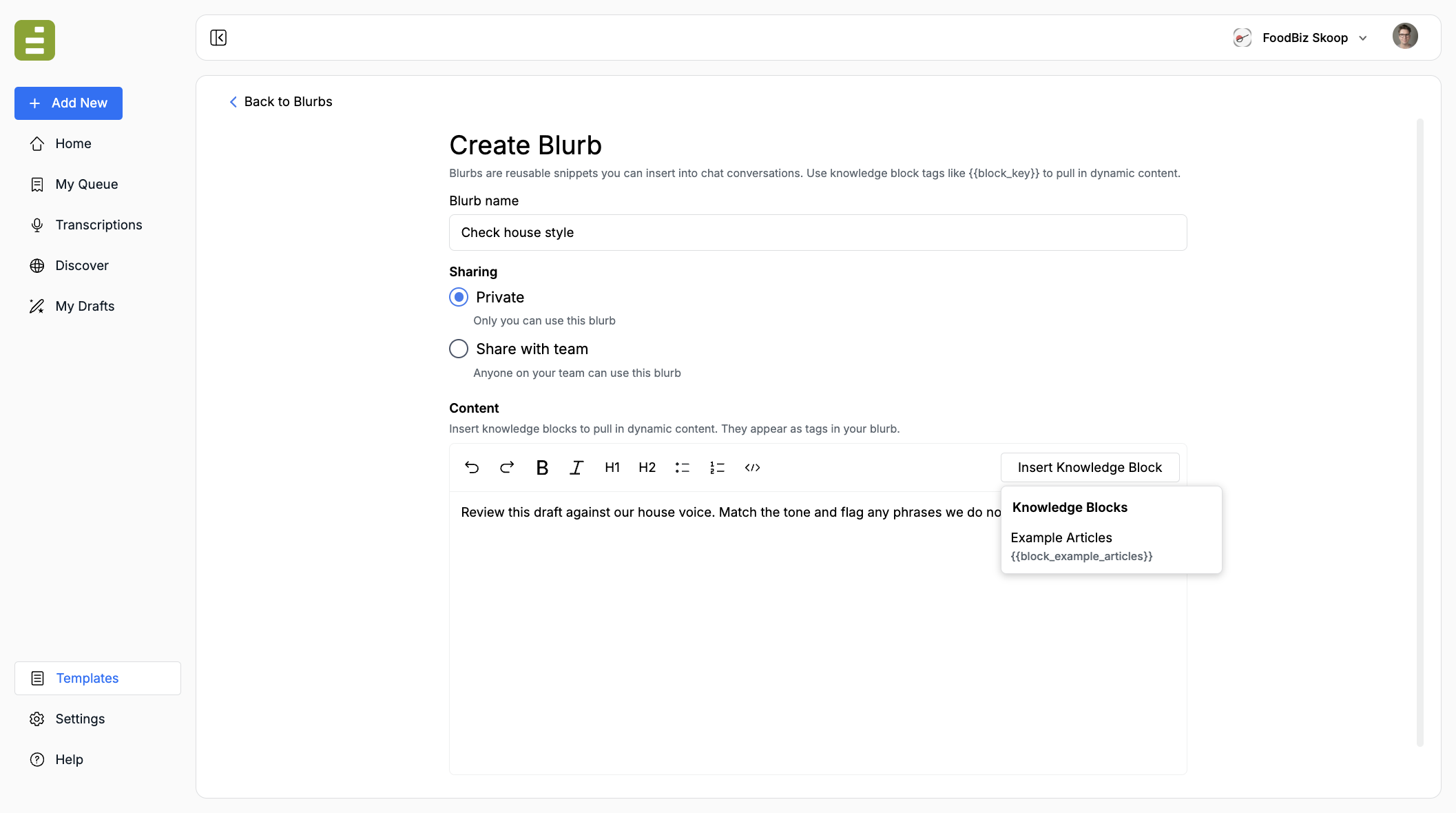
Fill in:
| Field | What it is |
|---|---|
| Blurb name | The label in the library and in the chat picker. Use the language you would say out loud |
| Sharing | Private keeps it to you. Share with team lets anyone in the organization send it |
| Content | The instruction itself. Write it like a standing chat message |
Good names: Check house style, Tighten the dek, Newsletter rewrite. The picker only shows the name, so make it obvious.
The editor supports headings, lists, bold, italic, and code. Click Save Blurb when you are done. Cancel or Back to Blurbs asks you to discard unsaved changes.
Add a knowledge block
Section titled “Add a knowledge block”Click Insert Knowledge Block in the editor toolbar. The menu lists blocks that already exist for the organization. The blurb editor does not create new blocks — create those from a template.
Selecting a block inserts a chip such as block_example_articles. You can also type the key yourself.
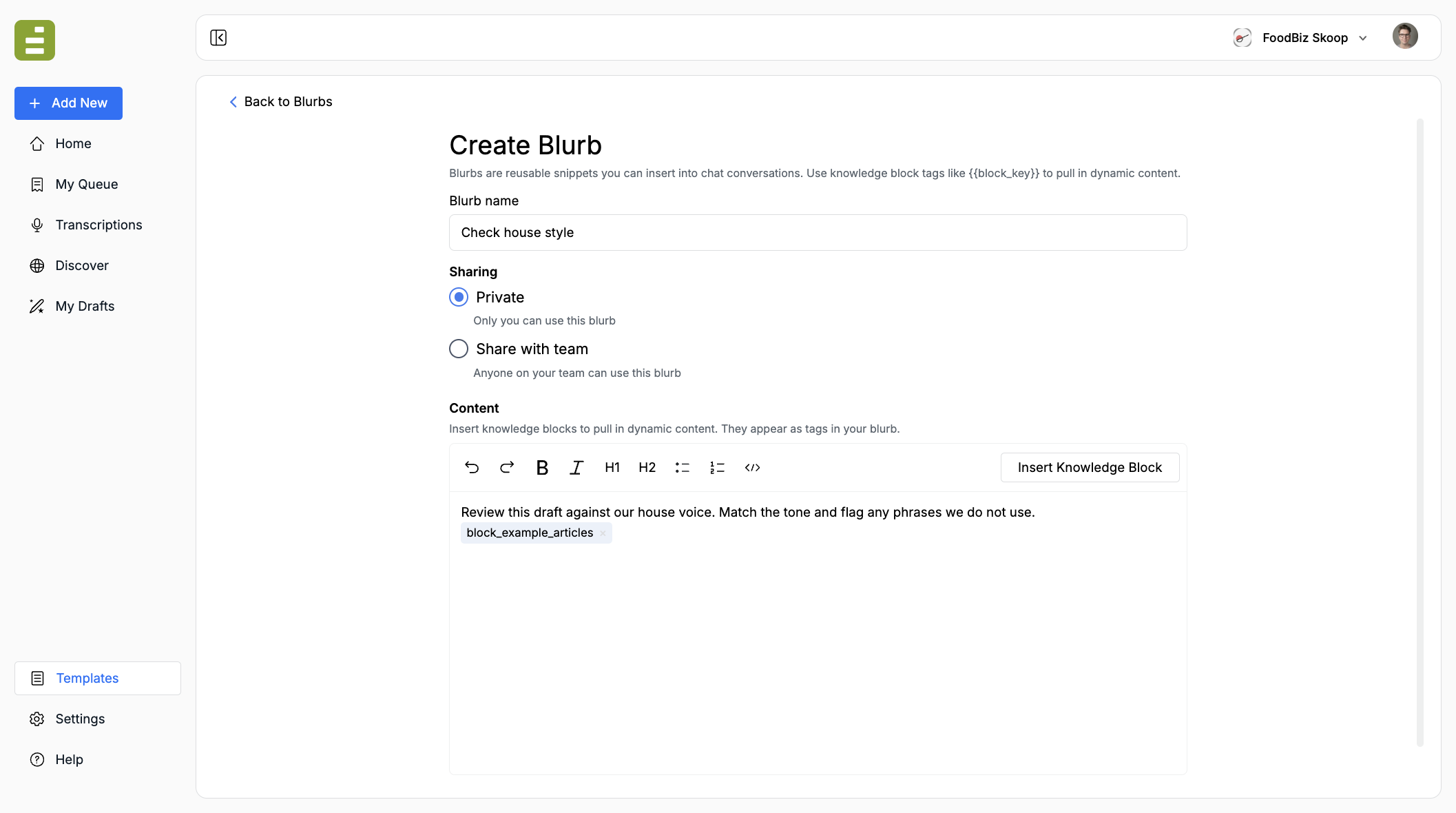
Tell the model what to do with the material. The chip only injects the content when you send the blurb. The sentence around it is the instruction.
Review this draft against our house voice.Match the tone in {{block_example_articles}}.Do not copy those examples. Flag any phrases we do not use.When you send the blurb, Edisource replaces each block_ key with the current stored content. The chat bubble can still show the chip. The model sees the resolved text.
If a key does not match a block, that placeholder is sent empty. Confirm the key in Templates before you rely on it.
Use a blurb in chat
Section titled “Use a blurb in chat”Blurbs live in the Content Studio Chat panel, next to the composer.
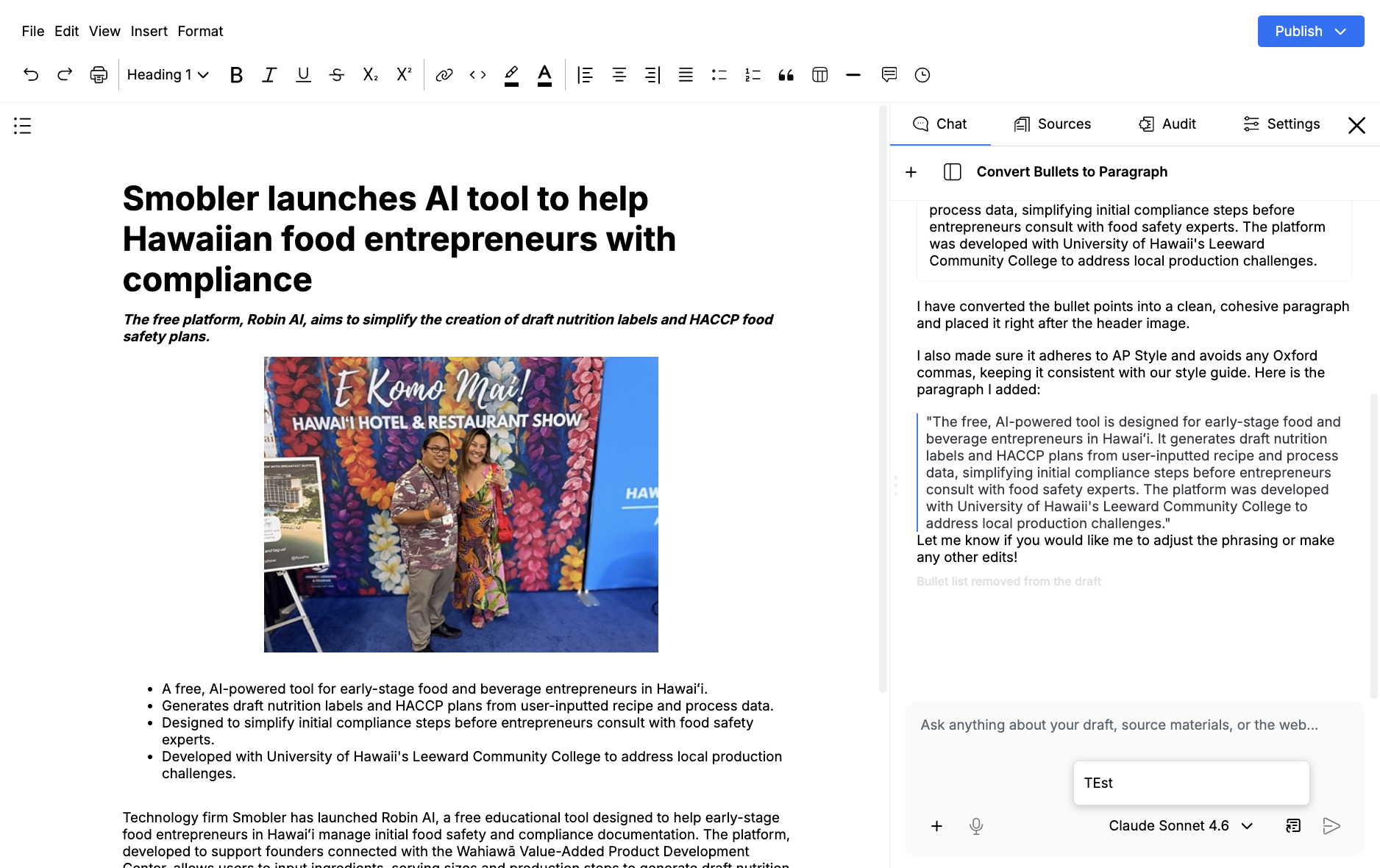
- Open a draft in Content Studio.
- Open the Chat panel.
- Click the Send saved prompt icon next to the composer — the document-with-arrow control to the left of Send.
- Choose the blurb.
The blurb is sent as a named message. You do not have to paste it. Attachments already in the composer go with it.
The first time you open chat after blurbs land, a short note explains the feature. Click Got it to dismiss it.
Save a chat message as a blurb
Section titled “Save a chat message as a blurb”If you already typed a useful instruction in chat, you do not have to recreate it.
- On your sent message, open the three-dot menu.
- Click Save As Blurb.
- Name it, set sharing, and edit the content if needed.
- Click Save Blurb.
The modal uses the same editor as Create Blurb, including knowledge blocks.
Edit, rename, or delete
Section titled “Edit, rename, or delete”Click a row in My Blurbs to open the editor. You can change the name, sharing, and content.
From the three-dot menu on a row you can Rename without opening the editor, or Delete. Delete removes it from the library and the chat picker. Existing chat threads keep the message that was already sent.
Blurbs, templates, and knowledge blocks
Section titled “Blurbs, templates, and knowledge blocks”| Use this | When |
|---|---|
| Blurb | The same chat instruction, on any draft |
| Template | The same finished piece, from new source material |
| Knowledge block | Standing reference both templates and blurbs should reuse |
One knowledge block can feed both a template and a blurb. Update the block once. The next template run and the next sent blurb both pick up the change.
Knowledge blocks covers creating the reference a blurb can insert. Add a template is for assignments that produce a full draft instead of a chat instruction.