

Connect WordPress
WordPress publishing uses the REST API. Use a dedicated user with Author (or higher) and an Application Password. Do not use a personal login password.
Org admins connect it at Settings → CMS Publishing. Click Connect CMS, then choose WordPress.
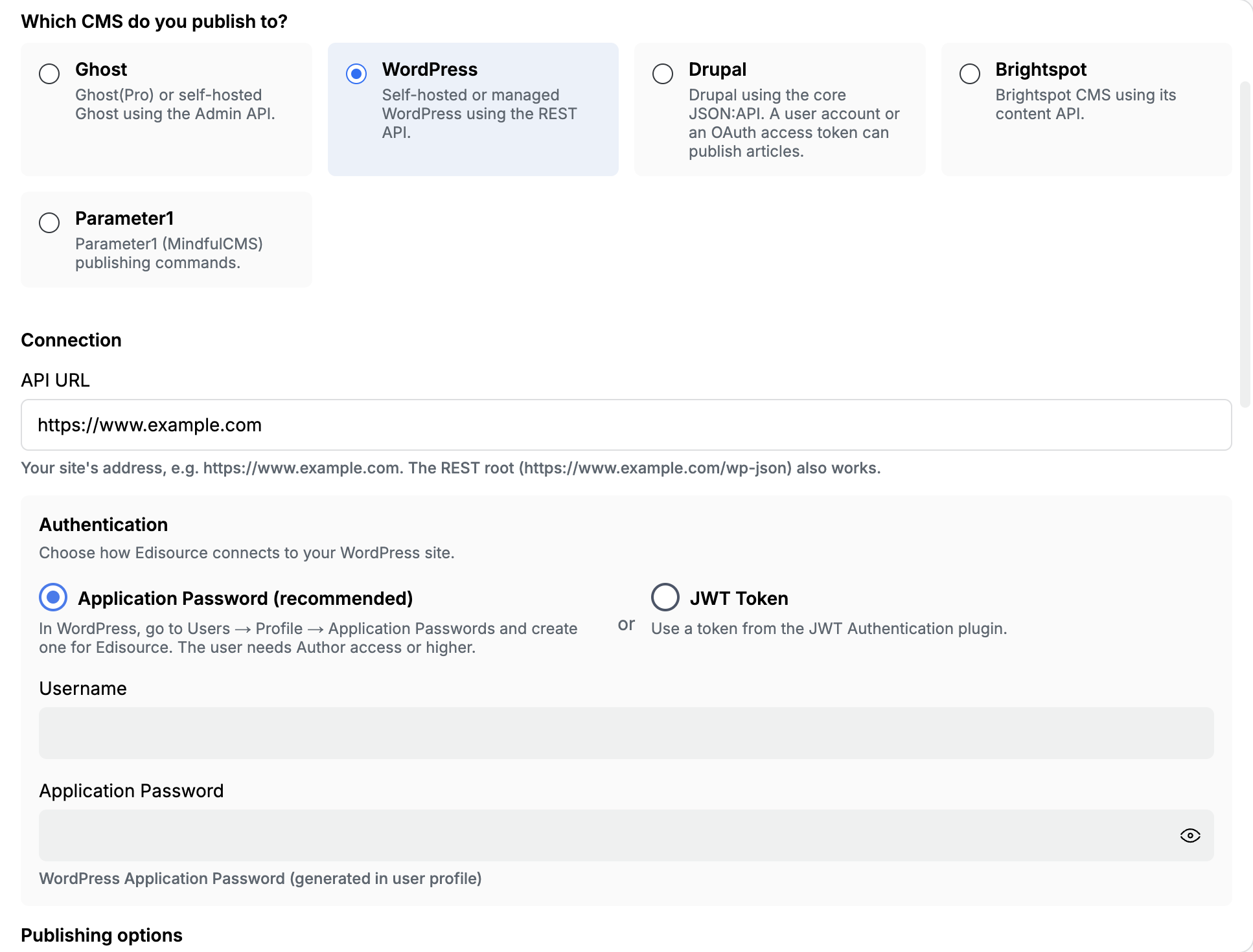
Connection
Section titled “Connection”| Field | What to paste |
|---|---|
| API URL | The site address, such as https://www.example.com. The REST root (https://www.example.com/wp-json) also works. Edisource resolves the REST path if you give the site URL. |
The REST API must be reachable from the internet.
Authentication
Section titled “Authentication”Choose how Edisource signs in.
Application Password (recommended)
- In WordPress go to Users → Profile → Application Passwords.
- Create one named Edisource.
- Paste the Username of that WordPress user.
- Paste the generated Application Password (the app password, not the account password).
JWT Token
Use this only if the JWT Authentication plugin is already on the site. Paste the token from that plugin.
Publishing options
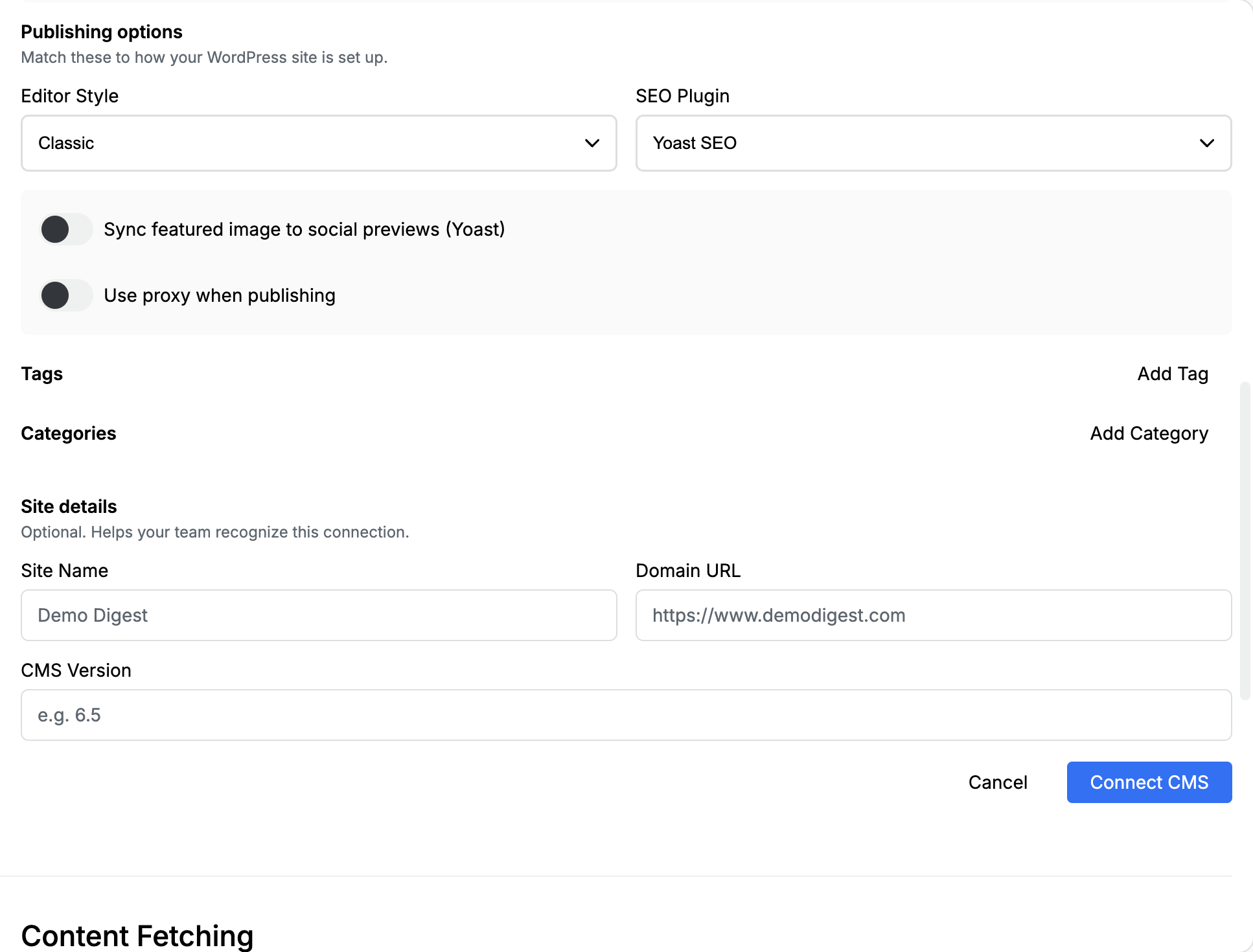
Section titled “Publishing options”Match these to the site.
| Field | What it does |
|---|---|
| Editor Style | Classic or Block (Gutenberg). Pick the editor your site uses so the body lands in the right format. |
| SEO Plugin | None or Yoast SEO. Choose Yoast when that plugin is installed. |
| Sync featured image to social previews (Yoast) | Appears only when SEO Plugin is Yoast SEO. On means the featured image is also written to Yoast’s social preview fields. |
| Use proxy when publishing | Turn this on if Edisource has told you to. Some sites sit behind a firewall or bot filter and need the proxy. |
Default tags and categories
Section titled “Default tags and categories”These are applied on every publish unless the draft already has its own.
Click Add Tag or Add Category. Each item needs both:
| Field | What to paste |
|---|---|
| Tag Name / Category Name | The label, such as Technology or Latest News |
| Tag ID / Category ID | The numeric WordPress term ID |
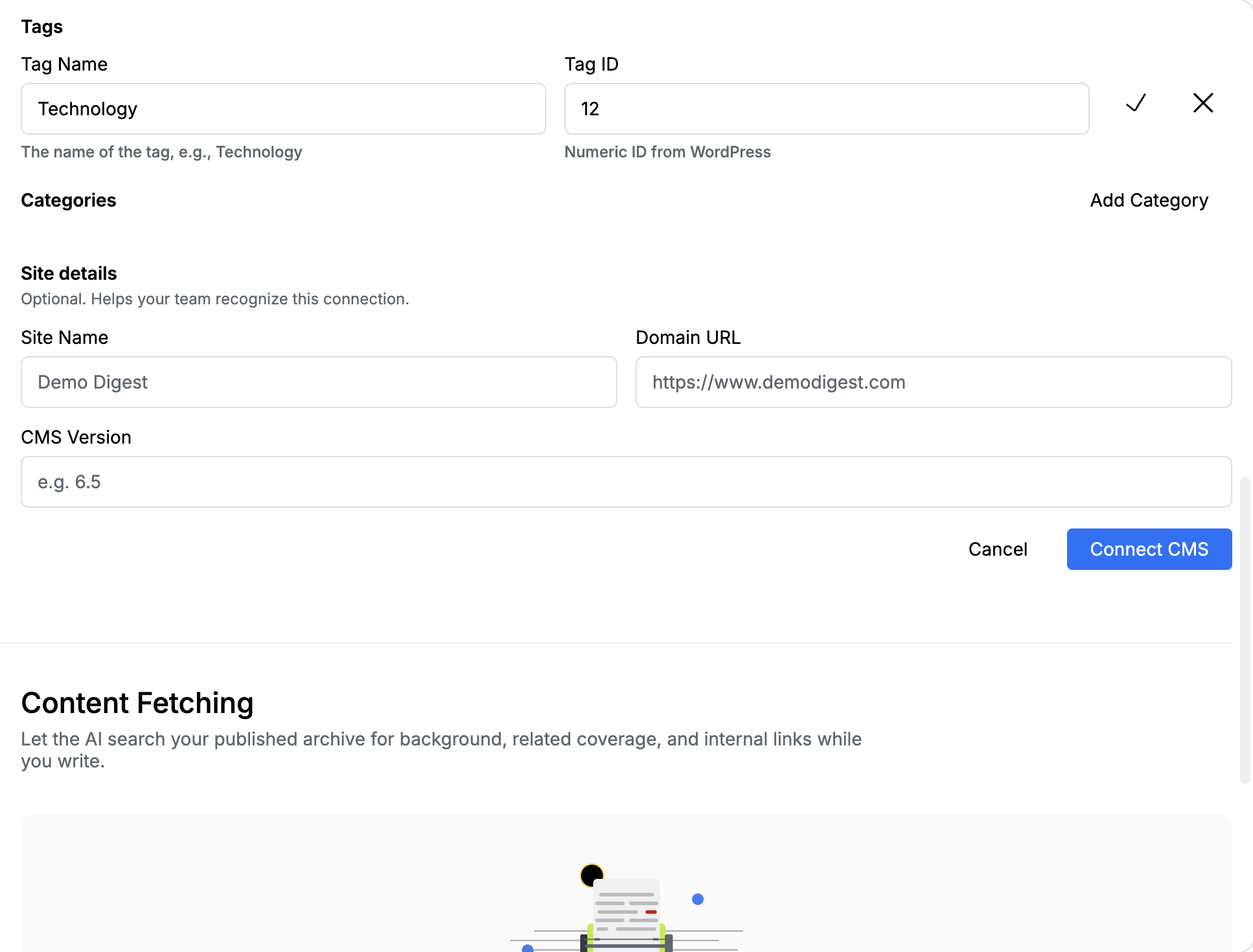
WordPress taxonomies in a template use those same numeric IDs:
<taxonomy_category>12, 18</taxonomy_category>The part after taxonomy_ is the taxonomy slug on the site. See Structure output with XML tags.
Site details (optional)
Section titled “Site details (optional)”These labels help your team recognize the connection. They are not used to call WordPress.
| Field | What to paste |
|---|---|
| Site Name | A name your newsroom will recognize, such as Demo Digest |
| Domain URL | The public site, such as https://www.example.com |
| CMS Version | Optional, such as 6.5 |
AI-generated metadata
Section titled “AI-generated metadata”This card appears after the WordPress connection is saved. Anyone on the team can change it. It auto-saves.
Turn an item on when you want Edisource to fill that field at publish time. Each enabled item can take:
- Examples — one real example per line from your publication
- Additional instructions — tone, length, or house style for that field
| Control | What it fills |
|---|---|
| AI-Assign Categories | The best-fitting WordPress categories for the article |
| Assign Tags | Tags suggested from the article |
| Meta Title | The headline search engines show |
| Meta Description | The short summary under that title |
| Focus Keyword | The main search phrase |
| OG Title | Title on Facebook or LinkedIn shares |
| OG Description | Summary on Facebook or LinkedIn shares |
| Twitter Title | Title on X (Twitter) cards |
| Twitter Description | Summary on X (Twitter) cards |
| Slug | The URL-friendly headline |
| Excerpt | The teaser on archive and listing pages |
Featured images upload to the Media Library.
After you save
Section titled “After you save”- Publish once to draft, not live.
- Confirm title, body, image, categories, tags, and SEO in WordPress.
- If a custom field is empty, the template did not emit the tag, or that meta key is not registered with
show_in_rest.