

Content Studio overview
Content Studio is where editors write and refine a draft. Open a piece from My Drafts, the queue, a template run, or a transcription. Then edit the story, attach source material, ask Jo in chat, and export or publish when it is ready.
The sidebar label is My Drafts. That list is My Content. Click a row to open the editor.
Open a draft
Section titled “Open a draft”- My Drafts: Click a title on My Content, or open a folder or project first
- My Queue: Use Edit in Studio, then confirm Open in Studio
- Transcriptions: Send a recap or excerpt from Ask and draft
- Templates: A finished run lands as a draft you can open the same way
Theme Studio designs the layouts Document templates fill. Document Studio is the later workspace for opening a generated file. This section is only the article editor.
The layout
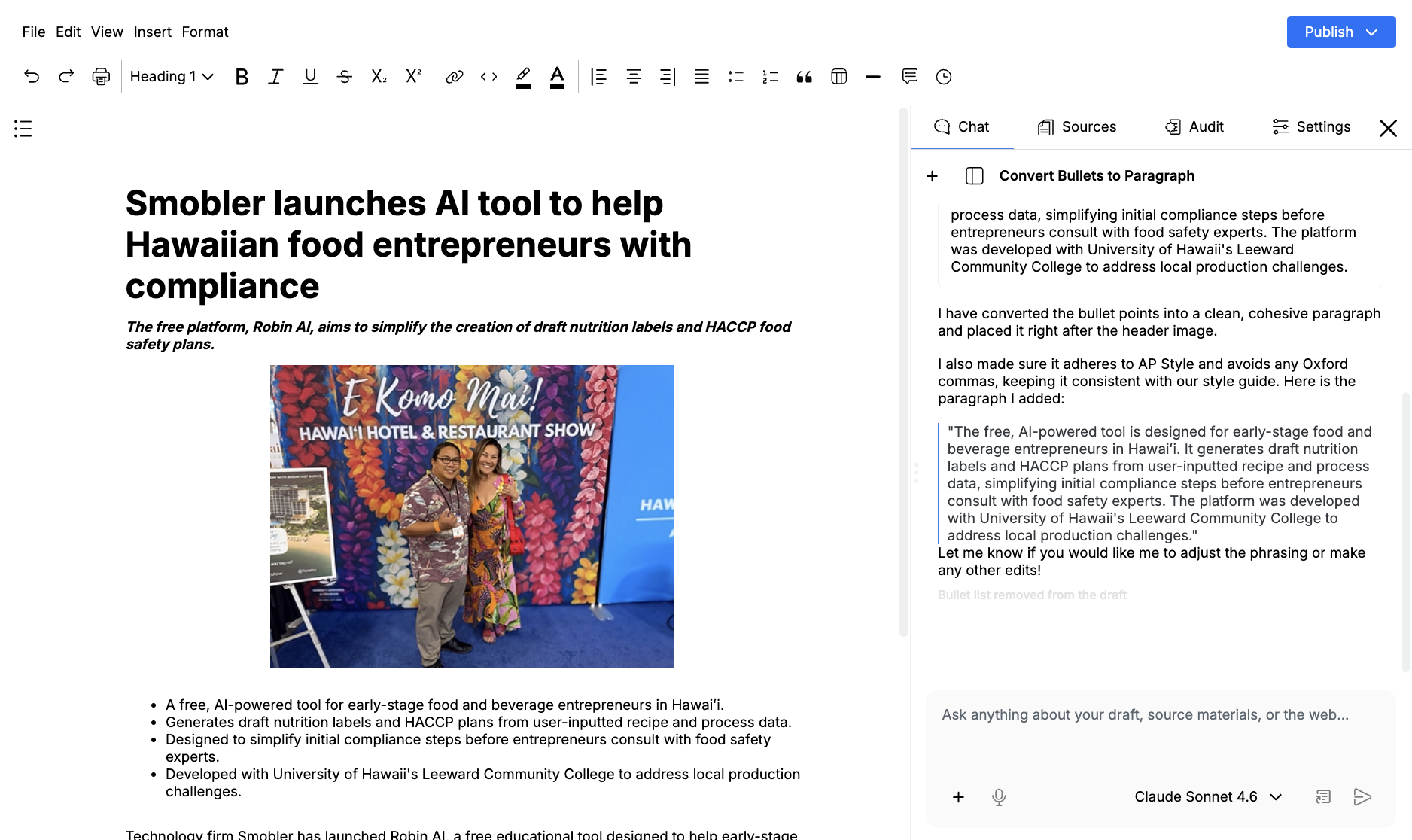
Section titled “The layout”The center is the collaborative editor. The menu bar has File, Edit, View, Insert, Format, and a blue Publish button.
The right panel has four tabs:
- Chat: Ask Jo about the draft, sources, or the web
- Sources: Files and articles this draft can use
- Audit: Ground the copy against its sources
- Settings: Post title, featured image, slug, SEO, and social fields
View can hide the right panel, the formatting toolbar, or the outline if you want more room to write.
Edit a draft covers formatting, comments, version history, and XML section wrappers. Chat with Jo covers inline edits and research tools.