

Source material
The Sources tab lists the material this draft can use. Jo reads it in chat. The audit checks claims against it.
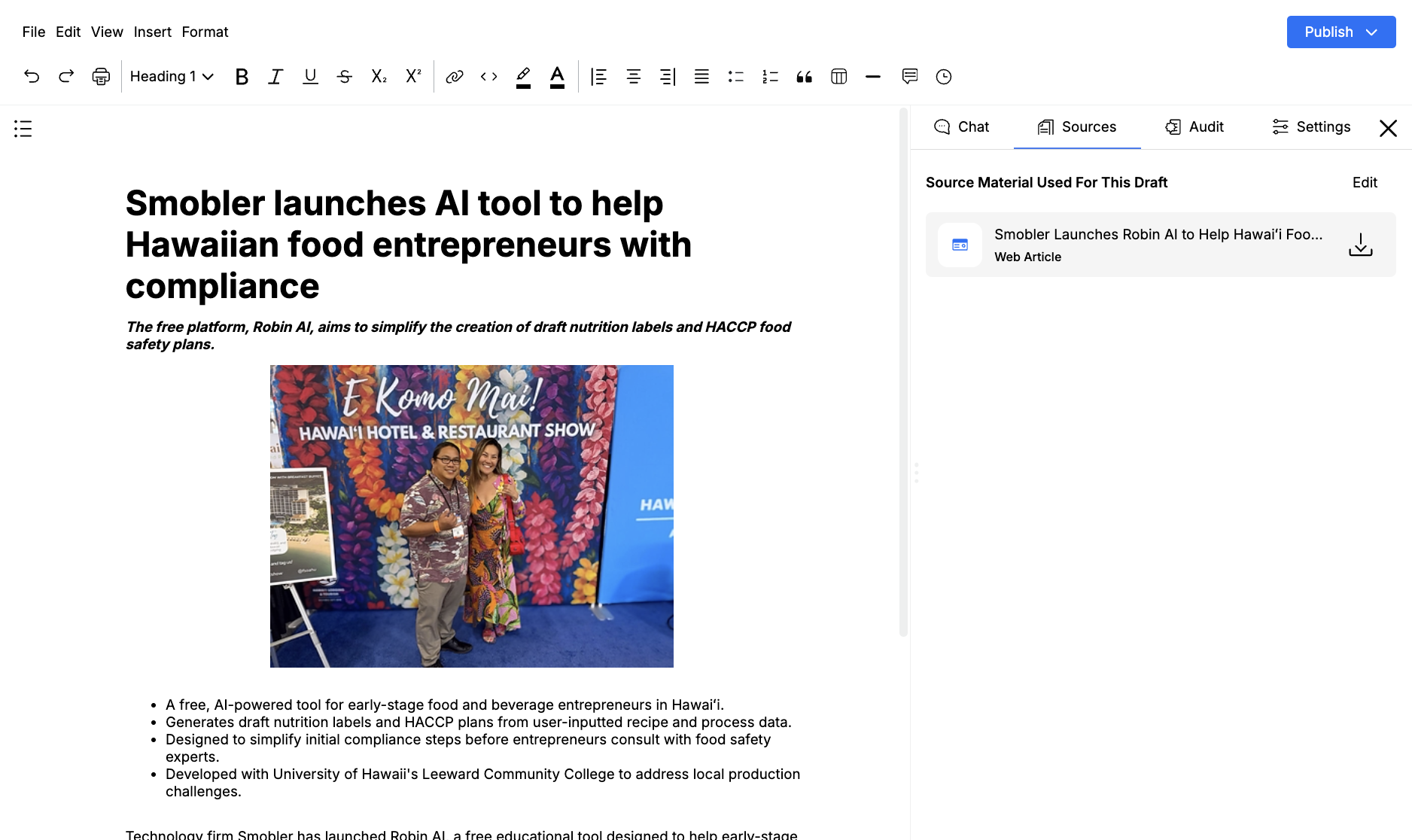
Open the draft, then click Sources. The header reads Source Material Used For This Draft.
Add sources
Section titled “Add sources”- Click Edit
- Upload files under Upload Files As Source Material, or search under Search For Previous Articles or Transcriptions
- Click Update
Accepted uploads include PDF, DOCX, spreadsheets, images, audio, and video. You can also pull from Google Drive or Dropbox, paste a webpage, or add plain text.
Search finds earlier drafts, transcriptions, and archive items. Adding a previous story gives Jo context. Tell Jo how to use it in chat or in the next template run.
Click a source card to read the processed text. View Original Article opens a web source. Download Original File downloads an uploaded file.
Project sources
Section titled “Project sources”If the draft lives in a project, a Shared Project Sources list appears under the draft sources. Those files are available to Jo on every draft in the project. Edit them from Edit Project Settings, not from this tab.
Draft-level sources stay on this piece only.
From chat
Section titled “From chat”When Jo searches the web or your CMS, you can save a result to source material. A toast confirms when the article is scraped and attached.
Empty drafts show No source material yet. Add at least one source before you run an audit. Jo can still chat without sources, but the answers will not be grounded in your files.