

Feed settings
The Instructions field is the most important setting on a Discover feed. It tells the Agent what you want, where the information lives, and what to ignore.
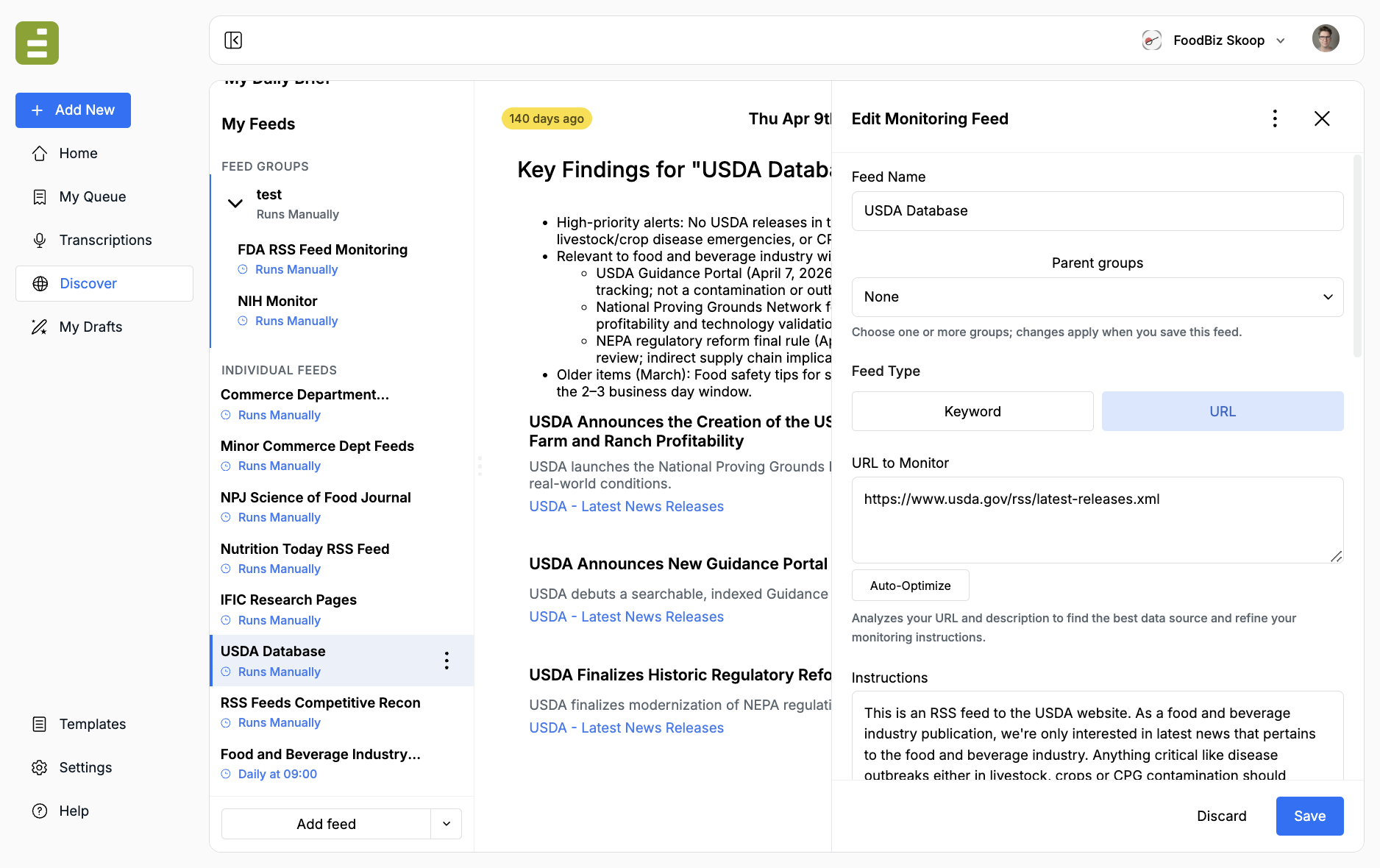
The supporting text on the field is the rule: tell the AI what to monitor and what to include in the report. That is especially important for URL feeds, so the model knows what to watch for on the page.
Details is a short note for you and your team. Use it as an internal label. Do not put the assignment there.
Write systematic instructions
Section titled “Write systematic instructions”Treat instructions as a briefing for a reporter who has never opened the site. Name the page. Say what “new” means. Say where to click. Say what to download or read. Say the criteria for acting.
A URL alone is not enough. If the work takes more than one step, write the steps.
Government database example
Section titled “Government database example”A user watching a government database of new regulations should not point the feed at the agency homepage and write “monitor new regs.”
- Set URL to Monitor to the table or listing where new regulations are published.
- Write instructions that walk the Agent through the page.
Example:
This URL is the table where new regulations are posted.
1. Check the table for any regulations published in the past 24 hours.2. Click each new regulation to open its landing page.3. Find the downloadable PDF for that regulation and download it.4. Review the PDF.5. Include it in the report only if it meets these criteria: [your beat,   product category, jurisdiction, or enforcement type].6. Skip older items, corrections that do not change the rule, and   notices that are administrative only.
In the report, include the regulation title, publication date, a one-paragraphsummary of what changed, and a link to the landing page and PDF.
That is the level of detail multi-step monitoring needs. The first run may still miss a click or a PDF link. Tighten the instructions and run it again. A little trial and error is normal.
Keyword feeds
Section titled “Keyword feeds”Explain the beat and the standard for relevance.
Example:
Monitor for breaking news about AI regulation and policy changes.Focus on government announcements, regulatory updates, and policyproposals from official sources. Prioritize content from the last24 hours that includes specific policy details or legislative actions.Exclude earnings recaps and product launch coverage.URL feeds
Section titled “URL feeds”Say what on the page matters, and what the Agent should do with each new item.
Example:
Monitor this research publication site for new peer-reviewed studieson food additives published in the last 24 hours. Open each new studypage, capture the title, abstract, and PDF link, and include it onlyif it examines health effects, safety assessments, or regulatorycompliance. Exclude opinion pieces, editorials, and studies focusedonly on manufacturing processes.Weak instructions such as “Monitor AI news” or “Check for updates” produce noisy results.
Advanced filters (keyword feeds)
Section titled “Advanced filters (keyword feeds)”Include keywords
Section titled “Include keywords”Results must contain at least one of these terms. Use this to stay on a subtopic.
Example: monitoring AI and including regulation keeps the feed on policy, not every AI mention.
Exclude keywords
Section titled “Exclude keywords”Results that contain these terms are dropped. Use this to remove a common off-beat meaning.
Example: monitoring AI and excluding gaming drops video game coverage.
Date filter
Section titled “Date filter”Choose how recent results should be:
- Last 24 hours (default)
- Last 3 days
- Last week
- Last month
Use a shorter window for breaking news. Use a longer window for slower research sources.
Edit, pause, or delete a feed
Section titled “Edit, pause, or delete a feed”- Click a feed in the list, then Edit Feed Settings. Save or Discard.
- Open the three-dot menu to Pause Feed or Resume Feed. Paused feeds keep their settings and do not run.
- Delete Feed permanently removes the feed and its associated data.
To attach a feed to a parent group, use Parent groups on the feed, or add it from group settings.