

Content fetching
Content fetching is not publishing. It lets Edisource query your existing archive and pull a full article when the Agent needs context.
You configure it on Settings → CMS Publishing, under Content Fetching. The publishing credentials above that section are a separate record.
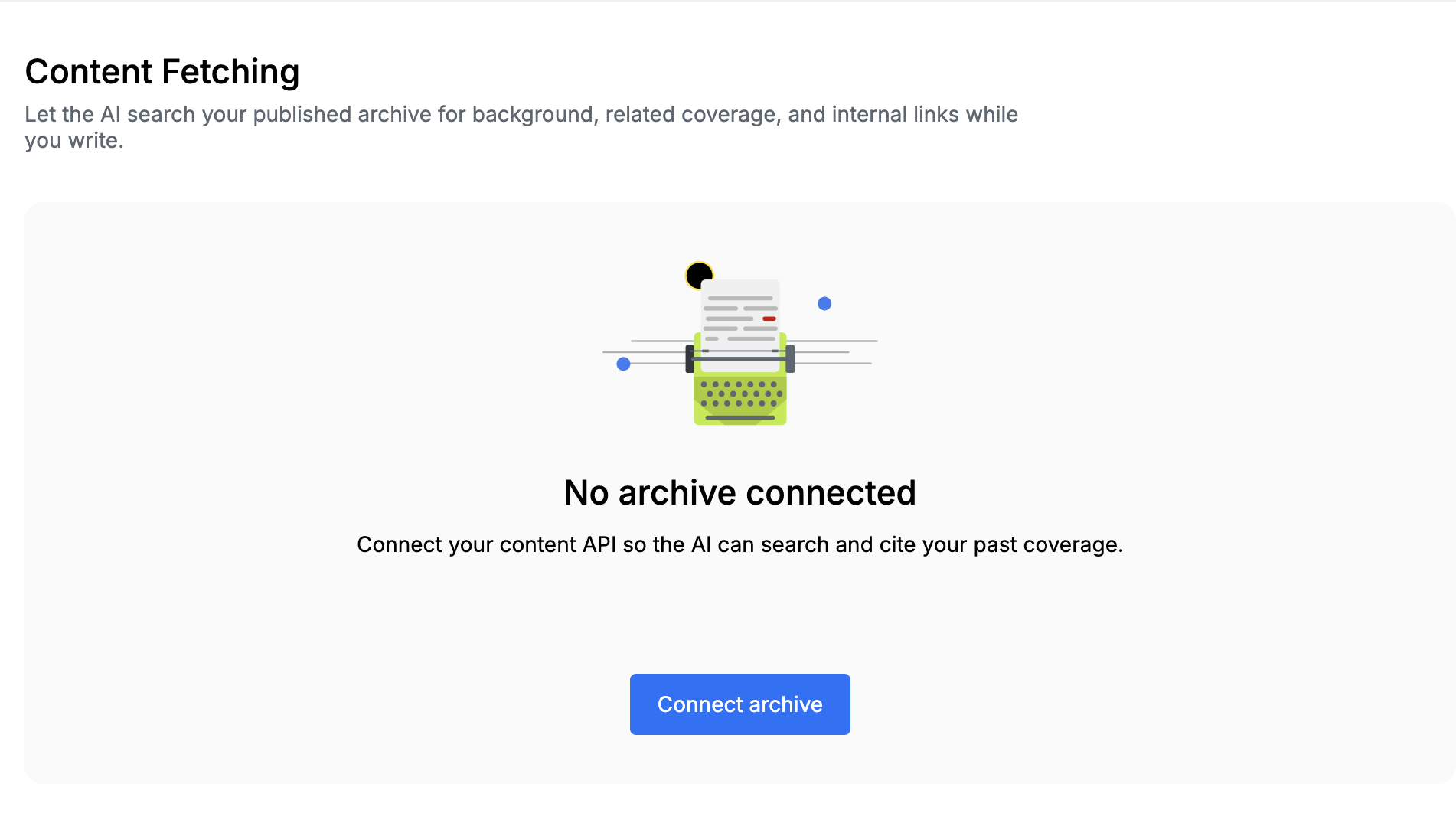
If no archive is saved, the page shows No archive connected. Click Connect archive.
Edisource only reads from this API. It never creates, edits, or deletes content.
Choose where the archive is hosted
Section titled “Choose where the archive is hosted”The editor asks Where is your archive hosted?
| Type | What you enter |
|---|---|
| WordPress | Public site address. Edisource calls the site’s REST API |
| Ghost | Site address plus a read-only Content API key |
| Custom API | A request and response mapping for any JSON API |
WordPress
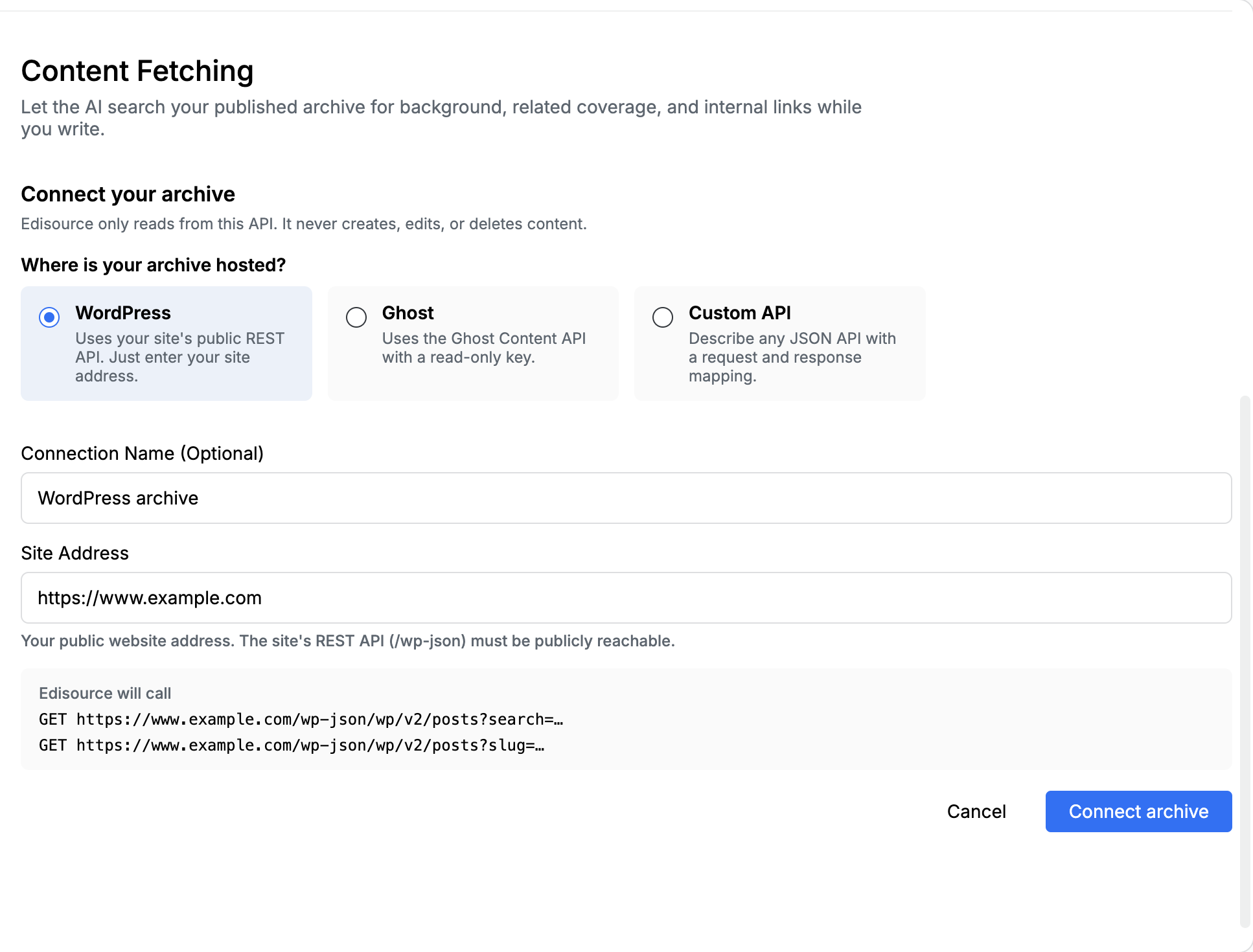
Section titled “WordPress”Uses the public REST API. You only need the site address. /wp-json must be reachable from the internet.
| Field | What to paste |
|---|---|
| Connection Name (Optional) | A label such as WordPress archive |
| Site Address | The public website, such as https://www.example.com |
After you enter a valid address, the form shows the two requests Edisource will call: a search (?search=…) and a single-post fetch (?slug=…).
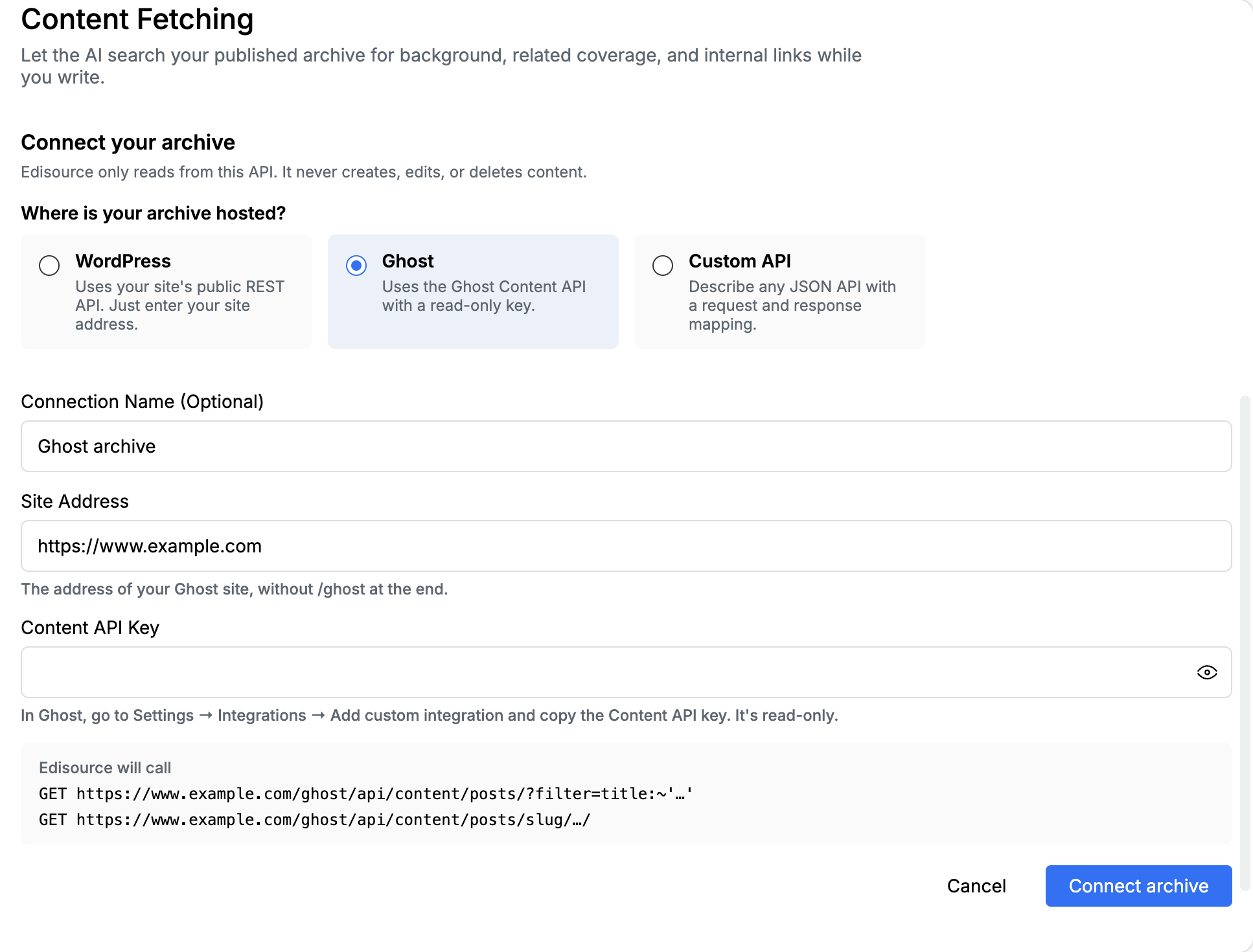
Uses the Ghost Content API (read-only). Do not paste the Admin API key from Connect Ghost.
| Field | What to paste |
|---|---|
| Connection Name (Optional) | A label such as Ghost archive |
| Site Address | The Ghost site, without /ghost at the end. Example: https://www.example.com or https://example.ghost.io |
| Content API Key | In Ghost go to Settings → Integrations → Add custom integration and copy the Content API key |
The preview shows a title search and a slug fetch under /ghost/api/content/posts/.
Custom API
Section titled “Custom API”Use this when the archive is not public WordPress or Ghost. Describe two requests: one that searches, and one that returns the full text of a single article.
The editor opens in the Visual editor. Switch to JSON if you prefer to paste the object.
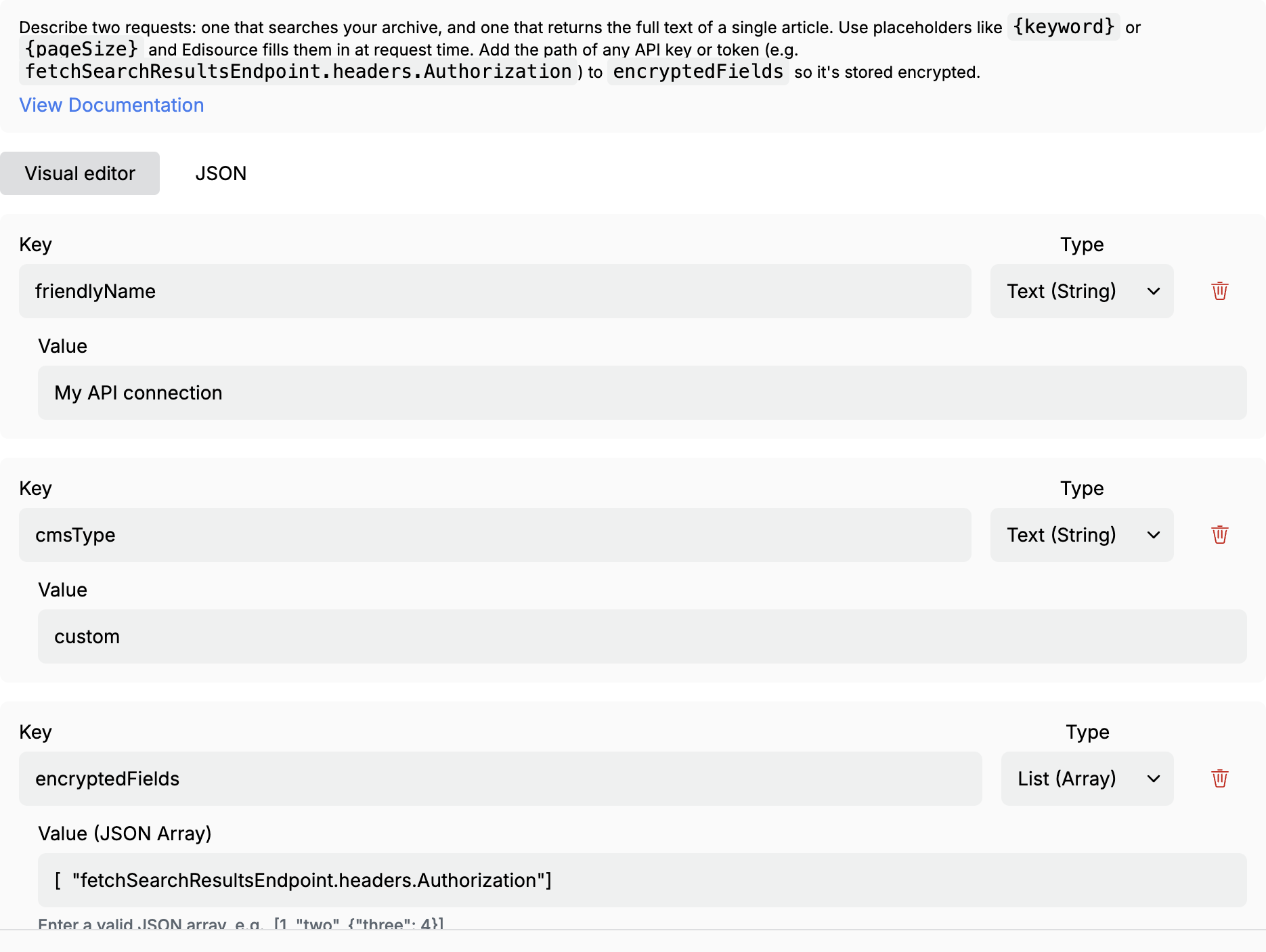
Put placeholders in query params or the body. Edisource replaces them at request time ({keyword}, {searchQuery}, {pageSize}, {postUrlValue}, and similar). Add the path of any API key or token to encryptedFields so it is stored encrypted — for example fetchSearchResultsEndpoint.headers.Authorization.
View Documentation on the form opens the field reference.
What the schema does
Section titled “What the schema does”The configuration is one JSON object. It has a few top-level fields and two endpoints:
| Field | Required | Purpose |
|---|---|---|
friendlyName |
Yes | A label your team will recognize |
cmsType |
Yes | Short type name: wordpress, ghost, custom, or similar |
encryptedFields |
No | Dot-paths of secrets to encrypt |
fetchSearchResultsEndpoint |
One of the two endpoints | Search the archive |
fetchPostContentEndpoint |
One of the two endpoints | Fetch the full body of one article |
Configure at least one endpoint. Most newsrooms need both.
Placeholders
Section titled “Placeholders”Put these tokens in queryParams or bodyTemplate. Edisource replaces them at request time.
| Placeholder | Meaning |
|---|---|
{searchQuery} or {keyword} |
The search term |
{pageSize} |
Results per page |
{pageNumber} |
Current page |
{pageOffset} |
(pageNumber - 1) * pageSize |
{dateFrom} / {dateTo} |
Date range (ISO 8601) |
{postUrlValue} |
Canonical URL of one article, used on fetchPostContentEndpoint |
{postId} |
ID of one article, when the fetch URL uses /{postId} |
Map each token in placeholderMappings so Edisource knows which query or body key it belongs to.
Response mapping
Section titled “Response mapping”Tell Edisource where the data lives in your JSON, using dot paths.
Search (fetchSearchResultsEndpoint.responseMapping)
| Key | Required | Example path |
|---|---|---|
resultsArrayPath |
Yes (empty means the response itself is the array) | data.articles or results |
itemUrlPath |
Yes | link or attributes.url |
itemTitlePath |
Yes | title or headline.main |
itemSummaryPath |
No | summary |
itemDatePath |
No | pubDate |
itemAuthorPath |
No | author.name |
itemImageUrlPath |
No | image.url |
Single post (fetchPostContentEndpoint.responseMapping)
| Key | Required | Example path |
|---|---|---|
contentBodyPath |
Yes | data.post.html or content.body |
Example schema
Section titled “Example schema”A REST search plus a single-post fetch. Replace the URLs and mark the Authorization header for encryption.
{ "friendlyName": "Archive search — production", "cmsType": "custom", "encryptedFields": [ "fetchSearchResultsEndpoint.headers.Authorization" ], "fetchSearchResultsEndpoint": { "url": "https://api.example.com/search", "method": "GET", "headers": { "Authorization": "Bearer YOUR_API_KEY", "Accept": "application/json" }, "queryParams": { "q": "{searchQuery}", "limit": "{pageSize}" }, "placeholderMappings": { "query": "{searchQuery}", "page_size": "{pageSize}" }, "responseMapping": { "resultsArrayPath": "results", "itemUrlPath": "link", "itemTitlePath": "title", "itemSummaryPath": "summary" } }, "fetchPostContentEndpoint": { "url": "https://api.example.com/posts/{postId}", "method": "GET", "queryParams": {}, "placeholderMappings": { "url": "{postUrlValue}" }, "responseMapping": { "contentBodyPath": "content.body" } }}GraphQL works the same way: put the query in bodyTemplate, use {searchQuery} inside it, and map the response paths to the GraphQL envelope.
Encryption
Section titled “Encryption”Any secret in a custom schema must appear in encryptedFields as the full path to that value. Ghost Content API keys are encrypted automatically. After save, Edisource encrypts those fields. Do not put a live token in a ticket or a shared doc.
When it is used
Section titled “When it is used”Discover feeds and studio tools can search the connected archive when Access to search your CMS is enabled for that feed or tool. If search returns nothing, check the site address (WordPress / Ghost), the placeholder mapping, the results array path, and that the endpoint is reachable from the internet.