

Set up an email alias
An email alias lets you send work to Jo from your inbox. Forward a press release, a speaker application, or a source packet to the address. Jo runs it through the templates you allowed and creates a draft.
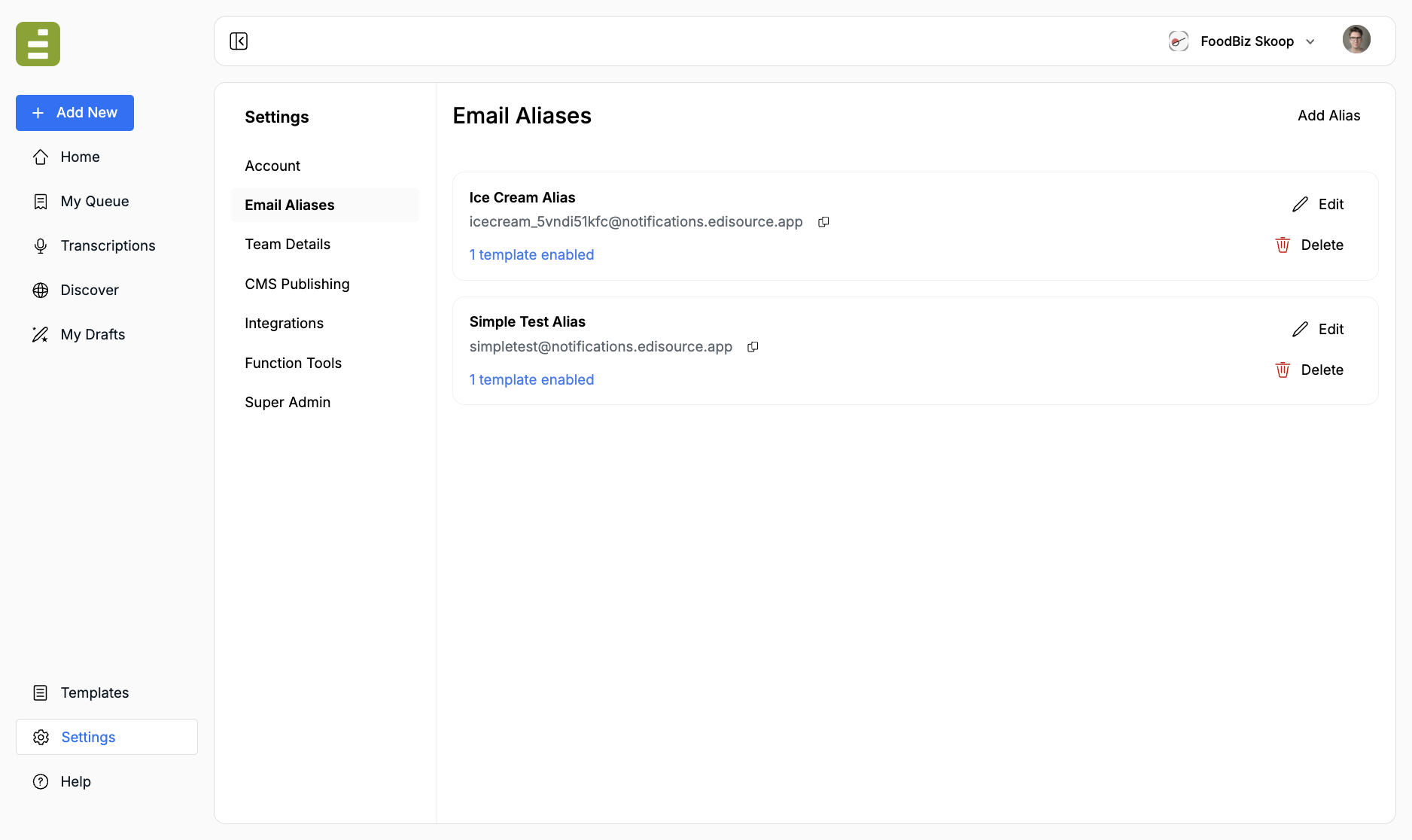
Open Settings, then Email Aliases. Anyone on the team can create an alias. You need at least one template first.
Create an alias
Section titled “Create an alias”- Click Add Alias
- Enter a Label, such as Breaking news
- Enter an Email Alias Prefix, such as
breaking-news - Choose at least one Allowed Template
- Click Save
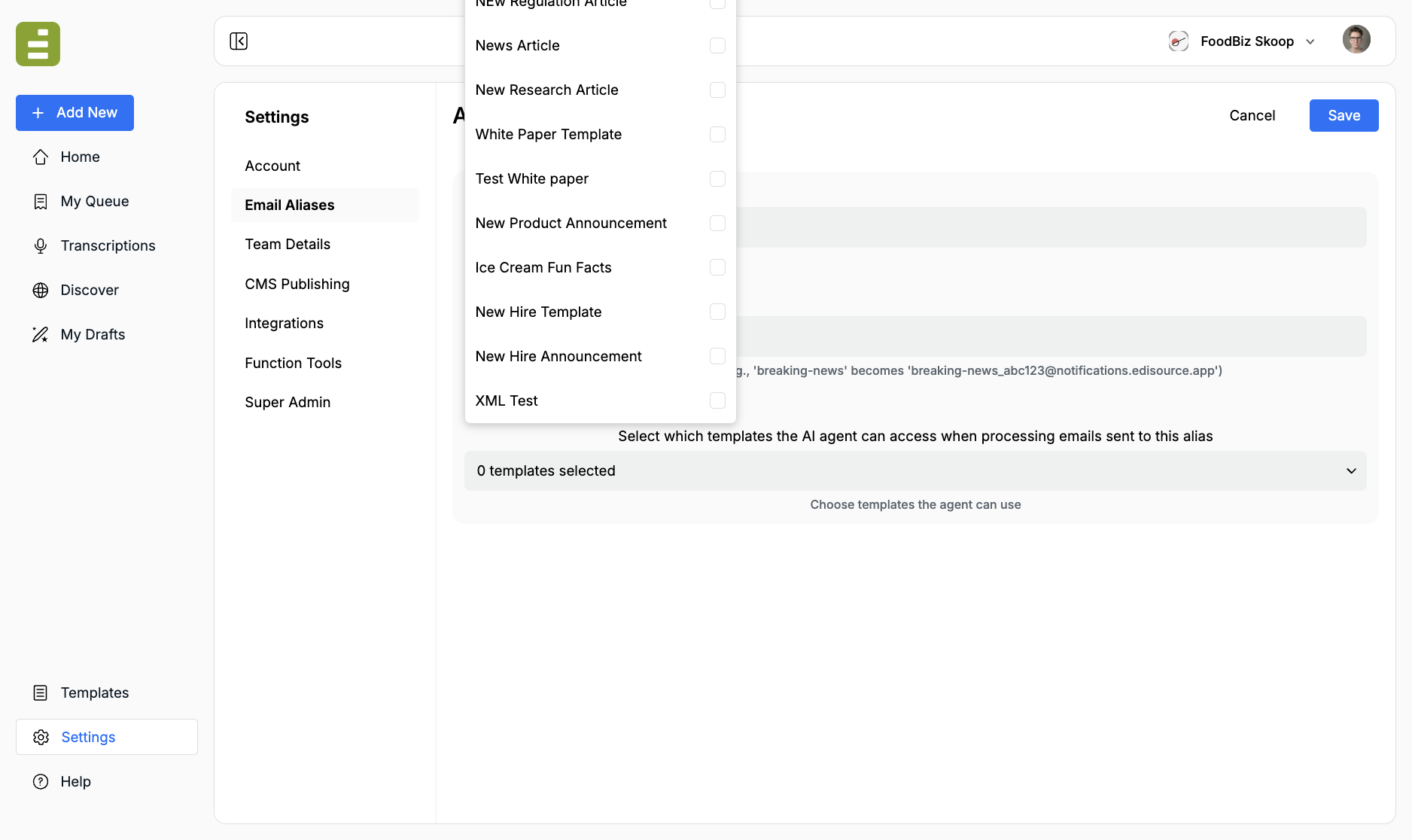
The prefix can use letters, numbers, hyphens, and underscores. Edisource adds a random suffix and the domain @notifications.edisource.app. A prefix of breaking-news becomes something like breaking-news_abc123@notifications.edisource.app.
The prefix cannot be changed after you save. You can still edit the label and the allowed templates.
Pick only the templates that belong to that inbox. A breaking-news alias should not also run a new-hire announcement.
Use the alias
Section titled “Use the alias”The message has to come from an email address that belongs to a registered Edisource user. Mail from an unknown sender is ignored. Forward the source yourself, or have a teammate on the workspace do it. Do not give the alias to a press contact and ask them to write in.
- Copy the address with the icon next to it
- Forward the source email from your Edisource account email
- In the body, tell Jo what to do, for example: “Run this through the News Article template”
Jo can only use the templates you enabled on that alias. Attachments on the email become source material for the run.
The finished piece lands in My Queue for review. Open it as a draft when you want to edit it in Studio, or publish it from the queue.
Edit or delete
Section titled “Edit or delete”Use Edit to change the label or allowed templates. Use Delete to retire an address. Mail sent to a deleted alias will not create a draft.