

Review and publish
Click a card in My Queue to review it. The center pane is a read-only preview. The item stays in the queue until you open it as a draft, publish it, or delete it.
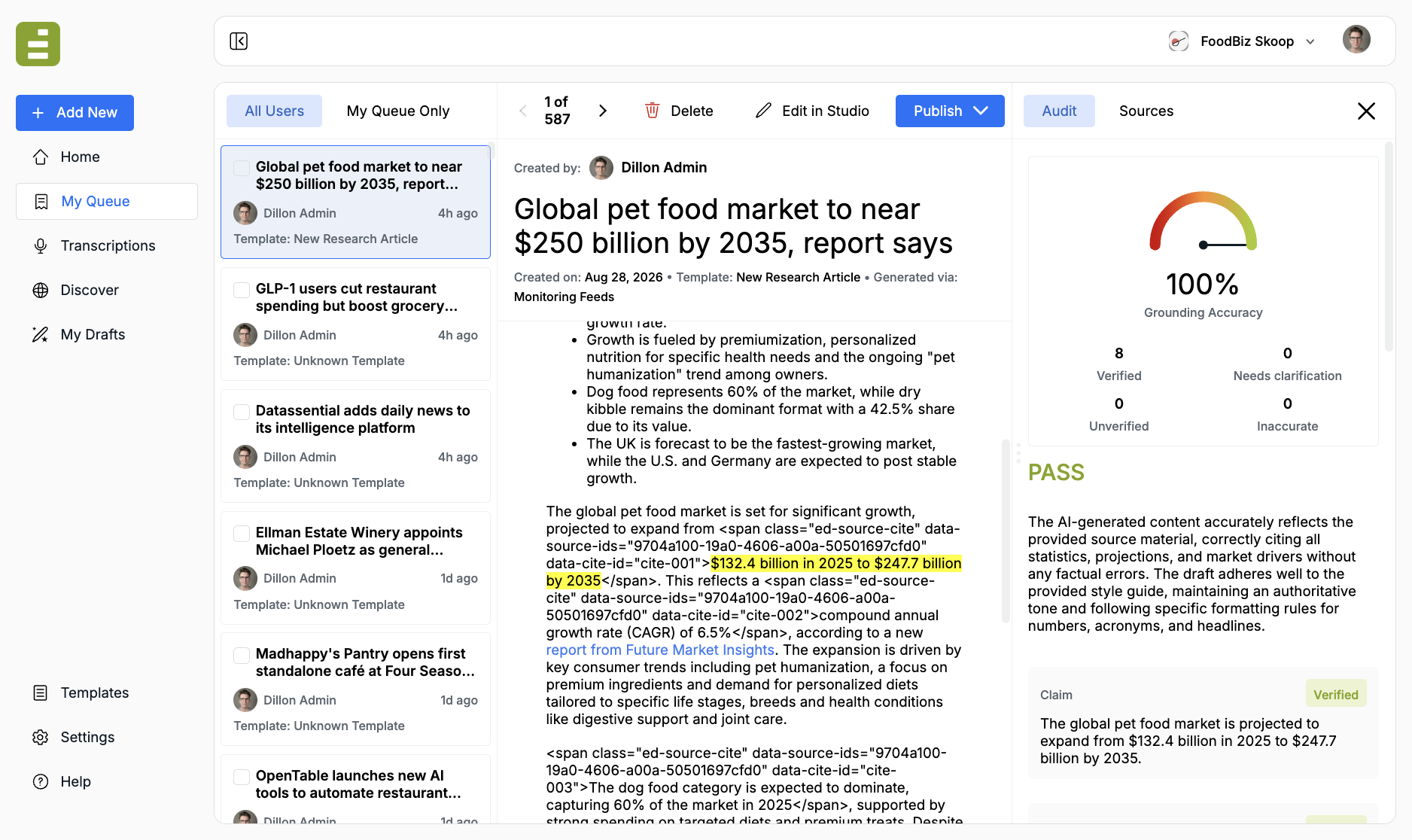
Read the piece
Section titled “Read the piece”The header shows Created by, the title, Created on, the Template, and Generated via. Tagged regions from a template appear as labeled sections, the same way they do in Content Studio.
This is not the live editor. You cannot type in the preview. Use it to decide whether the piece is ready, needs a rewrite, or should be dropped.
Sources on the right lists the files and articles Jo used. Click a card to open the webpage or download the file.
Use the audit
Section titled “Use the audit”The Audit tab is the same grounding report as Content Studio. You get a PASS or FAIL, a Grounding Accuracy percent, and counts for Verified, Needs clarification, Unverified, and Inaccurate.
Click a claim or quote card. The matching sentence flashes in the preview. If the copy no longer matches the report, you may see Could not find that claim in the draft.
The audit does not rewrite anything. Use it to decide the next step. Treat Inaccurate claims as a reason to open the piece in Studio, or to delete it.
Open as a draft
Section titled “Open as a draft”Edit in Studio claims the piece for editing.
- Click Edit in Studio
- Confirm Open in Studio
The item leaves the queue and appears in My Drafts as a Draft. Content Studio opens in a new tab. From there you can rewrite, attach sources, ask Jo, and publish as usual.
If a teammate already opened it, the overlay says they opened it as a draft. View Draft in Studio takes you to their copy. Skip to Next Item leaves it alone.
Publish from the queue
Section titled “Publish from the queue”If the audit is clean and the copy is ready, you do not have to open Studio first.
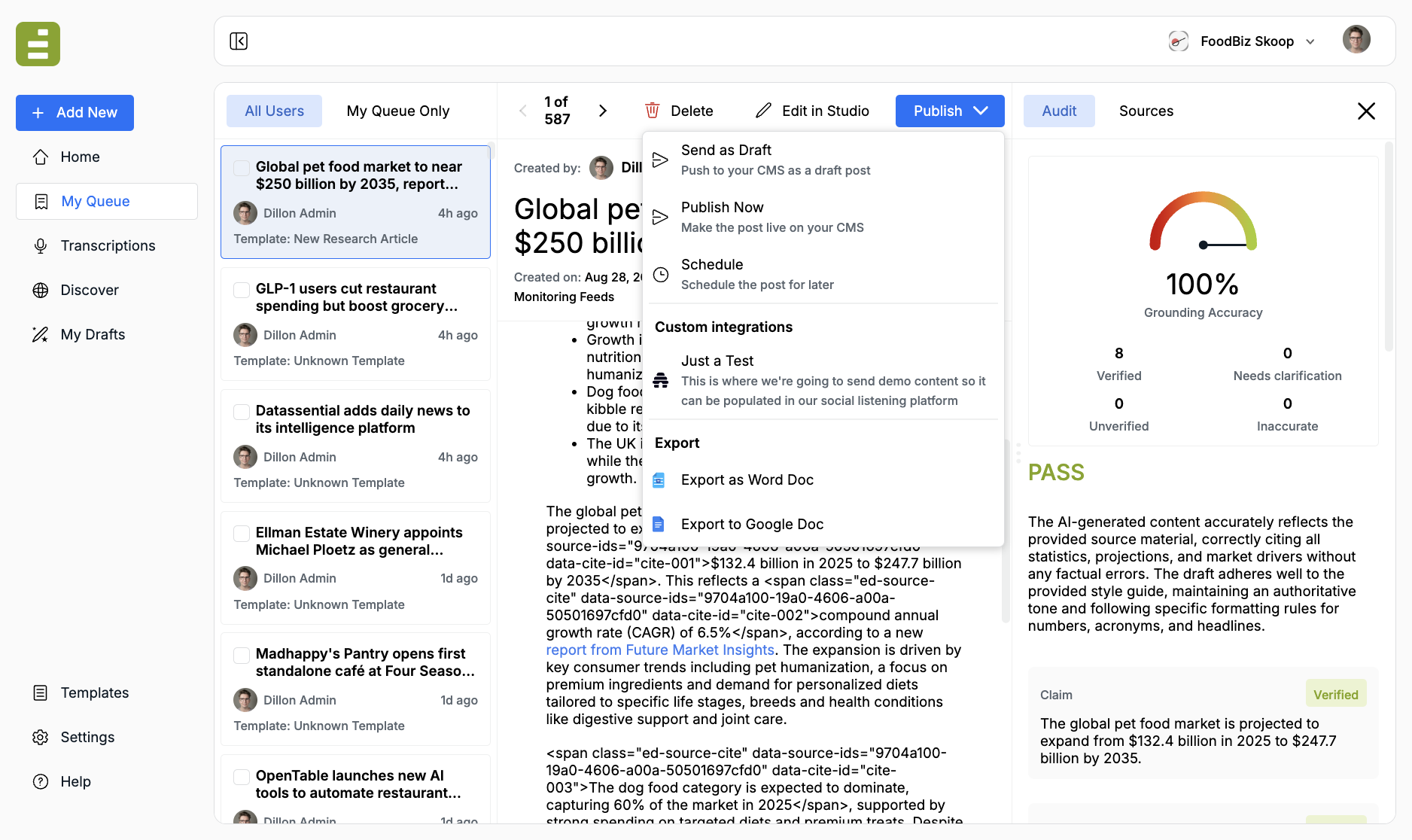
Publish offers:
- Send as Draft — push to the CMS without going live
- Publish Now — make the post live
- Schedule — pick a later time
- Any custom integrations your admin connected
- Export as Word Doc or Export to Google Doc
An admin has to connect the CMS first. After a successful publish, the item leaves the queue and the next card is selected.
Delete removes the piece from the queue. You get a few seconds to Undo.
Use ← and →, or S, to move through the list without claiming a draft.