

HTML templates
Use HTML Template when the finished piece has to come back as HTML in a layout you already own: a newsletter frame, a card, a landing block, or another design that a standard article cannot hold.
A standard template writes the story. An HTML template writes values that drop into your markup.
When to use it
Section titled “When to use it”Choose HTML Template when:
- The output must match an existing HTML design
- Design and copy need to stay separate
- You already have a newsletter or page template to upload
Stay on Standard Template for reported articles and most editorial forms. Use XML tags on a standard template when you need a headline and metadata fields, not a full HTML shell.
Create an HTML template
Section titled “Create an HTML template”- Go to Templates and click Create New Template.
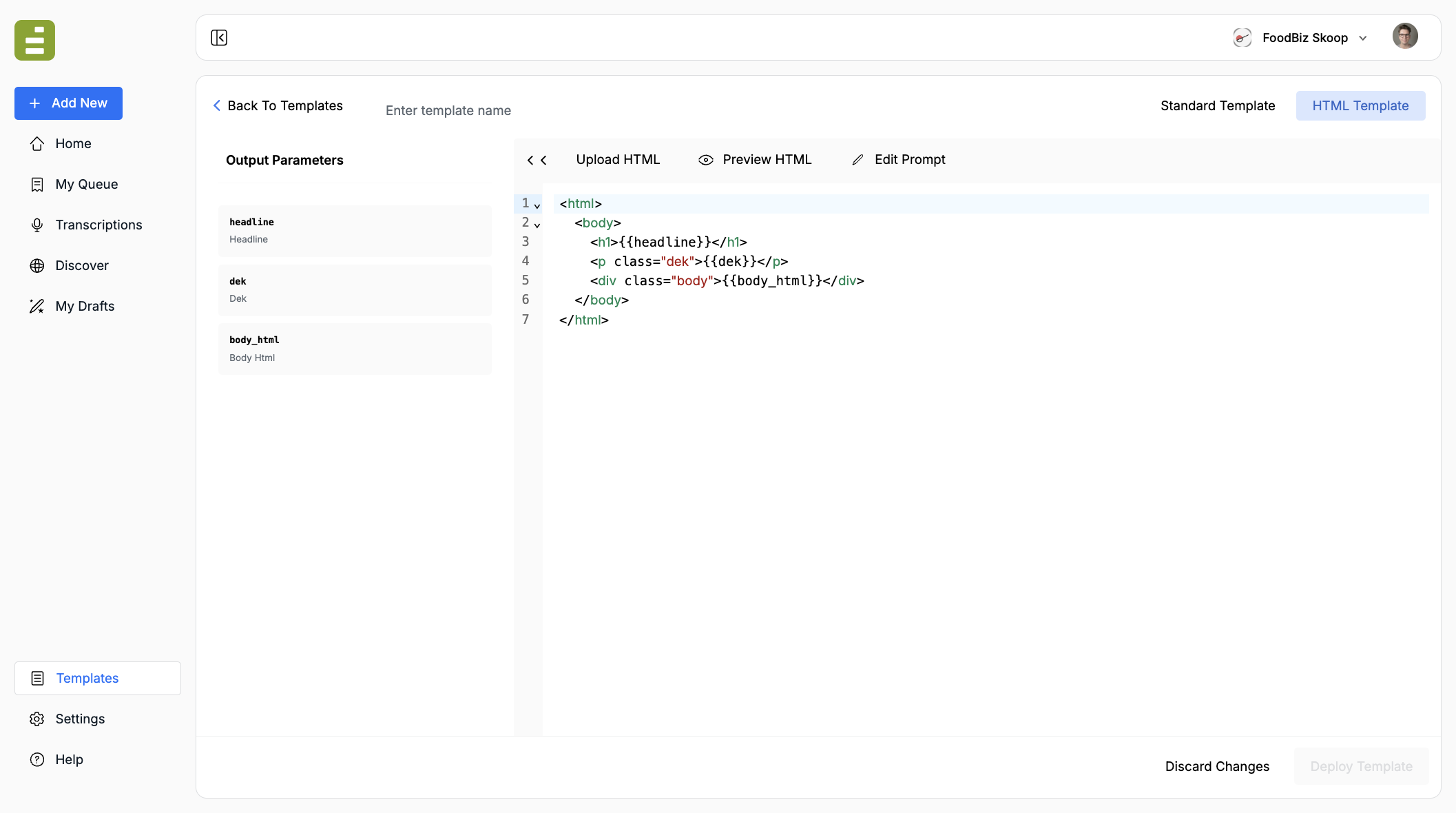
- Click HTML Template in the type toggle.
- Name the template.
- Add the HTML, either by writing it or clicking Upload HTML.
- Write the assignment under Edit Prompt so the model knows what to put in each placeholder.
- Click Deploy Template.
You can switch back to the prompt with Edit Prompt, and back to the markup with the HTML editor.
Placeholders
Section titled “Placeholders”The HTML editor uses Handlebars-style placeholders. When you add one, it appears in Output Parameters on the left.
| In the HTML | What the model fills |
|---|---|
{{headline}} |
A single text value |
{{dek}} |
A single text value |
{{body_html}} |
A longer HTML or text block |
{{#each items}}…{{/each}} |
A repeating list |
{{#if condition}}…{{/if}} |
A block that is included only when the condition is true |
A small layout:
<html> <body> <h1>{{headline}}</h1> <p class="dek">{{dek}}</p> <div class="body">{{body_html}}</div> </body></html>The parameter list is detected from the markup. You do not register fields by hand. Remove a placeholder from the HTML and it leaves the list.
Use names the assignment can repeat: headline, dek, body_html. Avoid spaces.
Preview the layout
Section titled “Preview the layout”Click Preview HTML. The right pane renders the markup with placeholder labels so you can check hierarchy and spacing before a live run.
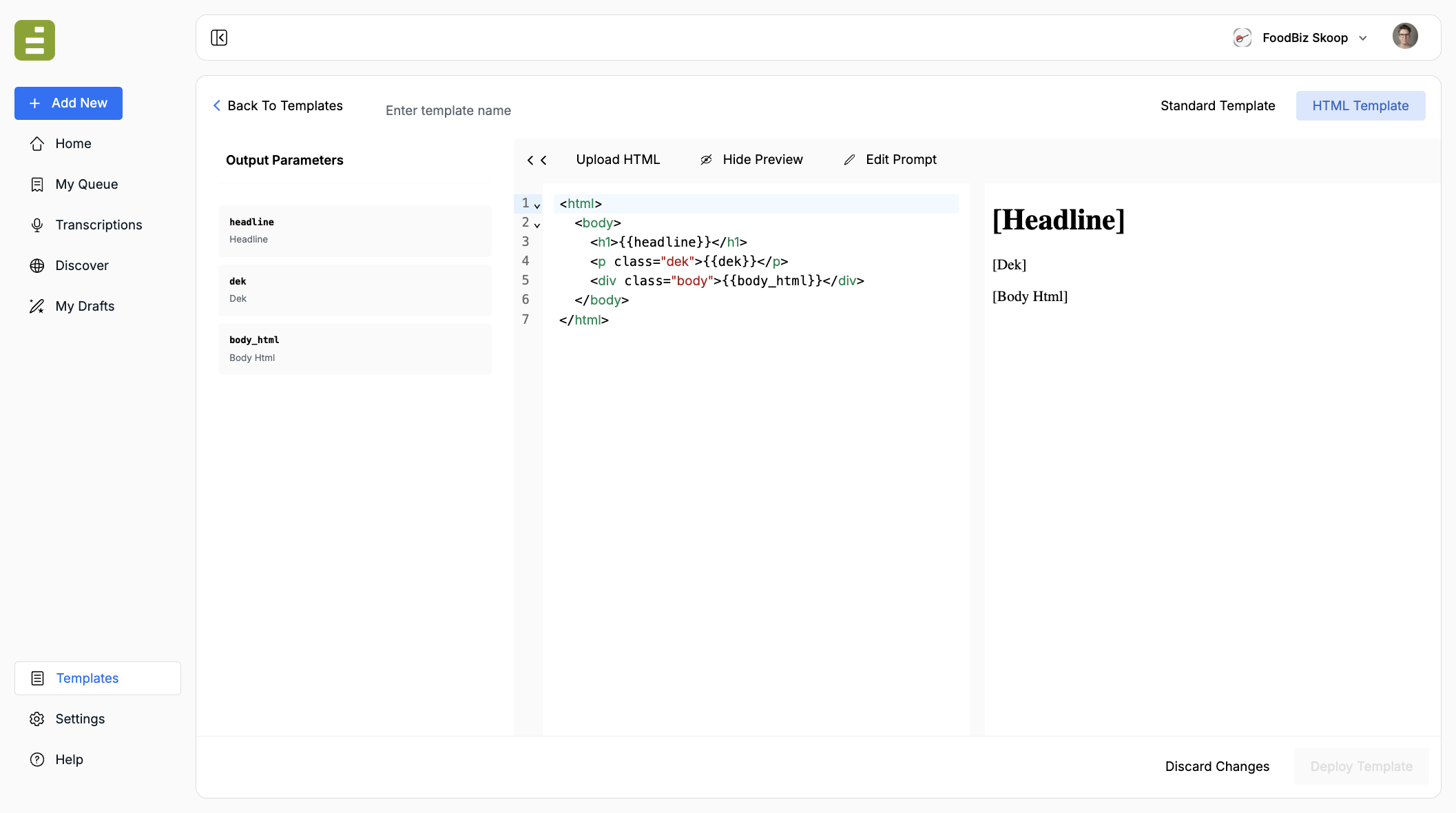
Preview is the design check. It does not run the model.
Write the assignment
Section titled “Write the assignment”The HTML is the layout. The prompt is still the desk assignment. Open Edit Prompt and tell the model:
- What source material will be attached
- What each placeholder should contain
- Voice, length, and what to leave out
Name the placeholders the same way they appear in the HTML. If the layout has {{headline}} and {{dek}}, the prompt should say those words.
A template that only has markup and no prompt will not know what to write.
Tools and settings
Section titled “Tools and settings”Settings is the same rail as a standard template: description, model, temperature, tools, and access.
If the HTML should stay inside attached source material, leave web search off.
Check a run
Section titled “Check a run”- Deploy the template.
- Run it with a real source.
- Confirm the returned HTML still matches the layout and that each placeholder was filled.
- If a region is empty, the prompt did not mention that parameter, or the placeholder name does not match.
For article-shaped work that still needs a title, dek, and SEO fields, use a standard template with XML tags instead of HTML.