

Structure output with XML tags
A template can ask the model to wrap parts of the draft in XML-style tags. Edisource then treats those regions as separate fields instead of one blob of copy.
That is how a newsroom keeps one assignment and still gets a headline, dek, slug, SEO fields, and a clean body every time.
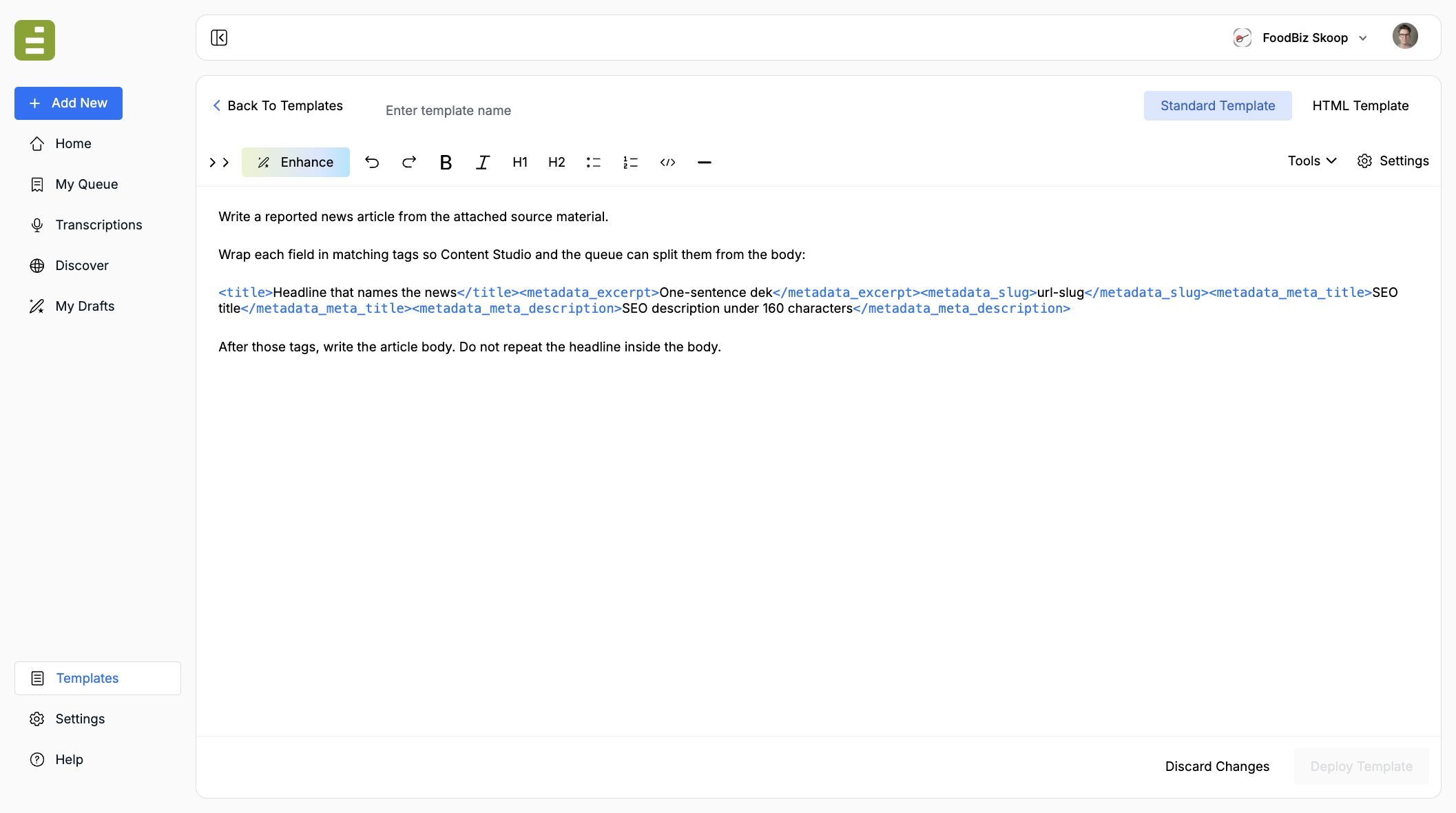
Type the tags in the assignment the same way you type the rest of the brief. The editor turns <title> and </title> into chips so they stay visible and do not get treated as HTML.
Why this lives in Templates
Section titled “Why this lives in Templates”Write the tags here, in the template. That is the instruction the model follows on every run.
Connecting a CMS or a custom integration is a Settings job. See Connect a CMS and Payloads and XML tags. This page is only about what to put in the assignment.
What happens after a run
Section titled “What happens after a run”When the model follows the tags:
- Content Studio and My Queue show each tagged region as a labeled section.
<metadata_excerpt>appears as “metadata excerpt,” not as raw markup in the story. - The unlabeled text is the body.
- Editors can change the tagged fields without hunting through the article.
If the tags are missing, the whole draft stays one block of body copy. Reviewers then have to split the headline and metadata by hand.
How to add tags in the editor
Section titled “How to add tags in the editor”- Open Templates and create or edit a template.
- Keep Standard Template selected.
- In the assignment, tell the model exactly which tags to use and what belongs inside each one.
- Type the tags as
<field_name>…</field_name>. Opening and closing names must match.
A useful pattern is: name the story form, list the required tags, then say the body comes after those tags.
Example instruction:
Write a reported news article from the attached source material.
Wrap each field in matching tags:
<title>Headline that names the news</title><metadata_excerpt>One-sentence dek</metadata_excerpt><metadata_slug>url-slug</metadata_slug><metadata_meta_title>SEO title</metadata_meta_title><metadata_meta_description>SEO description under 160 characters</metadata_meta_description>
After those tags, write the article body. Do not repeat the headline inside the body.
Keep the tag names stable. Jo and later runs should produce the same fields every time.
Tag naming
Section titled “Tag naming”- Start with a letter or underscore
- Use letters, numbers, underscores, or hyphens
- Avoid spaces and punctuation inside the name
- Always close the same tag you opened
metadata_meta_title is valid. SEO Title is not.
Fields editors need in Content Studio and the queue
Section titled “Fields editors need in Content Studio and the queue”Use these when the draft should arrive already segmented for review:
| Tag | Use it for |
|---|---|
<title> |
The headline. Content Studio and the queue treat this as the piece title |
<metadata_excerpt> |
The dek or standfirst |
<metadata_slug> |
The URL slug |
<metadata_meta_title> |
The SEO / browser title |
<metadata_meta_description> |
The SEO description |
<metadata_focus_keyword> |
The focus keyphrase |
<title> is the usual headline wrapper for editorial review. The metadata_ fields are the same names publishing uses later.
CMS publishing
Section titled “CMS publishing”When someone publishes to WordPress, Ghost, Drupal, or Brightspot, Edisource reads metadata_ and taxonomy_ tags out of the HTML, fills the matching CMS fields, and strips the tags from the body so readers do not see them.
Known metadata_ names map to standard post fields. Unknown names go through as custom fields (for WordPress, the meta key must be registered with show_in_rest).
| Tag | Lands on |
|---|---|
<metadata_title> |
Title |
<metadata_slug> |
Slug |
<metadata_excerpt> or <metadata_dek> |
Excerpt |
<metadata_status> |
Status, such as draft |
<metadata_published_at> |
Publish time |
<metadata_feature_image> |
Featured image URL |
<metadata_meta_title> or <metadata_seo_title> |
SEO title |
<metadata_meta_description> or <metadata_seo_description> |
SEO description |
<metadata_focus_keyword> |
Focus keyphrase |
<metadata_canonical_url> |
Canonical URL |
<metadata_og_title>, <metadata_og_description>, <metadata_og_image> |
Open Graph fields |
<metadata_twitter_title>, <metadata_twitter_description>, <metadata_twitter_image> |
Twitter / X fields |
<metadata_authors> |
Authors (comma-separated) |
<metadata_post_type> |
Post type |
WordPress taxonomies use term IDs:
<taxonomy_category>12, 18</taxonomy_category><taxonomy_editorial_type>110</taxonomy_editorial_type>The part after taxonomy_ is the taxonomy slug on the site.
Setup for the CMS connection itself is in Connect a CMS. The template only has to emit the tags.
Parameter1
Section titled “Parameter1”Parameter1 does not use metadata_ tags. It looks for these wrappers in the body:
| Tag | Use it for |
|---|---|
<title> or <heading> |
Headline |
<teaser> |
Excerpt / dek |
<caption> |
Featured-image caption |
<image_credit> |
Image credit line |
Custom integrations
Section titled “Custom integrations”Custom webhooks, Zapier, Airtable, and similar destinations can also take tagged regions. The template wraps the copy. The integration maps each tag name to a field in that destination’s JSON payload.
Example assignment:
Put a card/email dek in <newsletter_dek>…</newsletter_dek>.Wrap each pull quote in <pullquote>…</pullquote>.Leave the article body untagged.At publish time Edisource:
- Finds each mapped tag in the draft
- Copies the inner text onto the outbound field
- Removes those blocks from the HTML body
- Sends the remaining body plus the extracted fields
In Settings → Integrations, the destination lists XML tag name (what the template writes) and Outbound field name (what the webhook or SaaS row expects). Those two names must match the assignment. Step-by-step mapping is in Payloads and XML tags.
If the same tag appears more than once, the segments are combined.
This page is the template half: pick the tag names, write them into the assignment, and keep them consistent.
What to leave untagged
Section titled “What to leave untagged”The body of the piece. Headlines, deks, slugs, SEO strings, pull quotes, and other attributes that another system needs as their own field should be tagged. The story itself should not.
Check the output
Section titled “Check the output”- Run the template against a real source.
- Open the result in My Queue or Content Studio.
- Confirm each tagged field has its own labeled section and that the body no longer contains the wrappers.
- If a field is missing, the assignment was not specific enough, or the tag names do not match.
Use HTML templates when the output has to land in a fixed HTML layout instead of a standard article.