

Design best practices
A theme fails in generation for the same reasons a print layout fails at the desk: too many words for the box, no instruction for which page to use, and elements stacked on top of each other. Set the constraints in Theme Studio so Jo does not have to guess.
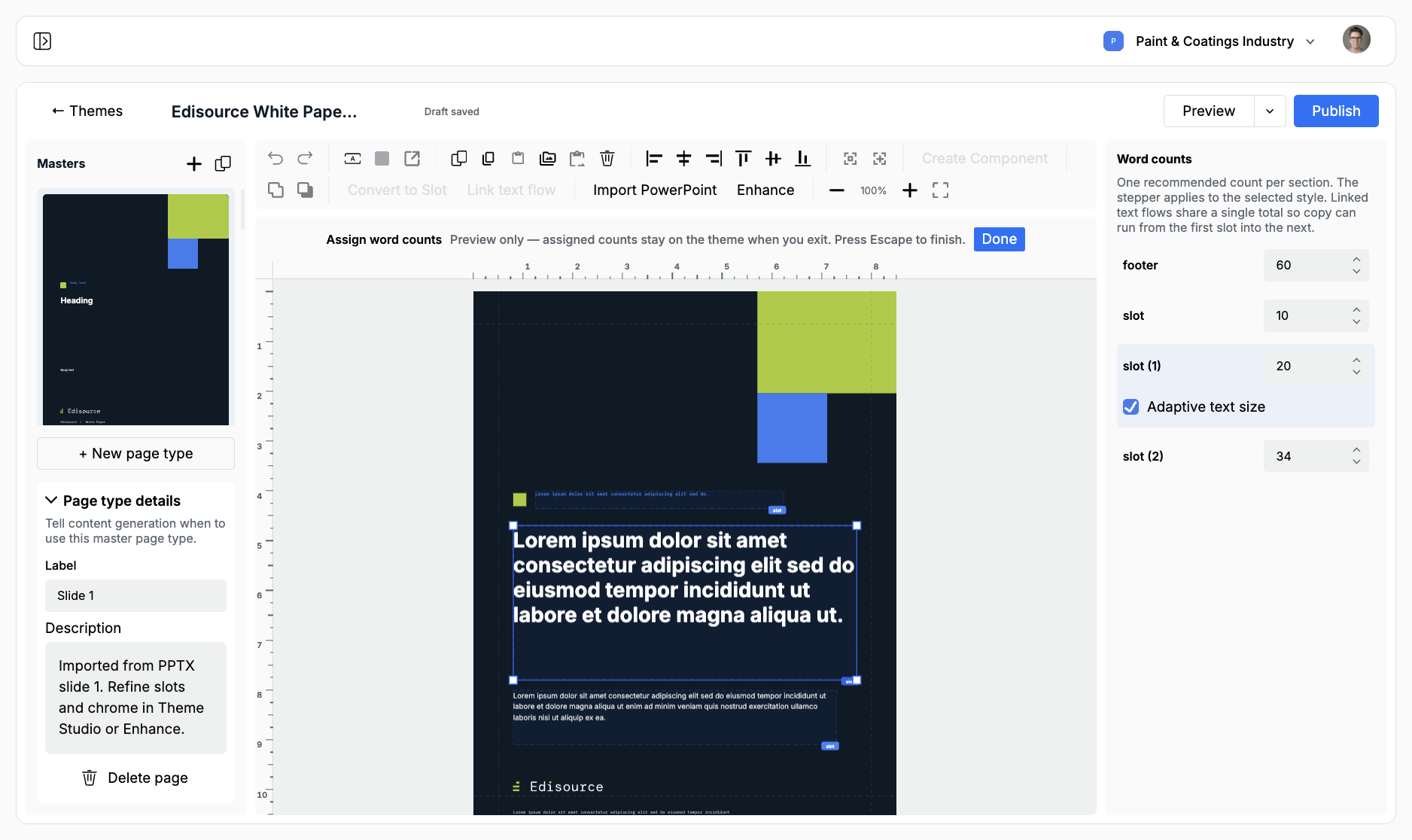
Click Assign word counts on the Design rail. The canvas shows preview copy at the count you set. Those counts stay on the theme when you click Done.
Give every slot a word count
Section titled “Give every slot a word count”Jo treats the count as the target for that section. A heading slot of 8 words and a body slot of 80 words produce a different page than one open box with no limit.
- Open Assign word counts.
- Select a slot in the list or on the canvas.
- Set Words. The stepper moves in fives.
- If the slot accepts more than one text role, pick the Preview style the count applies to.
Linked text flows share a single total so copy can run from the first slot into the next. Image, chart, and table slots can also take a max-block cap so a body page does not grow three charts.
A cover heading is often 6–12 words. A section kicker is shorter. Body copy should match the box you drew, not the word count you wish you had. If the preview overflows, lower the count or enlarge the slot.
Make text size adaptive on tight boxes
Section titled “Make text size adaptive on tight boxes”Adaptive text size shrinks generated copy to fit the slot. The bound text style is the maximum. The floor is 6pt.
Turn it on for titles, pull quotes, and stat callouts — boxes that must stay on one page. Leave it off for long body flows. On a linked text flow, adaptive size stays off so overflow can continue into the next slot instead of shrinking.
You can set the checkbox in the word-count panel or on the slot inspector. Preview the page after you turn it on. If the type looks too small, the slot is too small for the word count. Cut words or give the box more room.
Do not overcrowd a page
Section titled “Do not overcrowd a page”One job per page type. A cover holds a title, a dek, and maybe a hero image. A body page holds a heading and running copy. A closing page holds a CTA or contact block. Do not ask one master to be all three.
Leave margin. The default scratch theme keeps about 8–9% safe area. Imported PowerPoint slides often sit closer to the edge than a print PDF should. Pull slots inside the safe area.
Do not stack slots on top of each other. Soft checks flag overlapping slots and chrome that covers a content box. Two slots that share the same space will fight during generation.
If a page still feels dense in preview, split it. Add a + New page type for the overflow instead of shrinking every box.
Write descriptions Jo can follow
Section titled “Write descriptions Jo can follow”Content generation reads three descriptions: the theme, the page type, and each slot.
Page type (left rail): when to use this master.
Weak: “Imported from PPTX slide 1.”
Strong: “Cover page. Use once at the start. Title plus a one-sentence dek. No body copy.”
Slot (inspector): what belongs in that box.
Weak: “slot”
Strong: “Body. Running article copy. No subheads. 80–100 words.”
Rename imported Slide 1 labels. Jo picks among Cover, Section opener, Body, and Closing much more reliably than among Slide 1 through Slide 5.
Give images a description and a role (logo, cover, product) in the image library. Jo uses that text when the slot accepts an image.
Bind styles and accepted blocks
Section titled “Bind styles and accepted blocks”A text slot needs a style binding so generated copy inherits H1 or body, not a random size. Soft checks flag empty bindings.
Set Accepted blocks to what the box is for. A heading slot should accept heading, not chart and table. An image slot should accept image only. Extra block types invite Jo to drop a table into a title bar.
Check the theme before you publish
Section titled “Check the theme before you publish”- Every master has a label, a description, and at least one slot
- Every slot has a label, a description, a word count, and a style binding if it takes text
- Soft checks are empty, or you have reviewed and dismissed the ones you mean to keep
- Preview or AI preview shows copy that fits
Then publish. Attach the theme to a Document template and run it once against real source material. If the first file overflows, fix the theme — do not ask the template prompt to compensate.