

Create a function tool
Org admins add function tools at Settings → Function Tools. Each tool is one HTTPS request: a name Jo can call, an endpoint, and the arguments Jo is allowed to fill in.
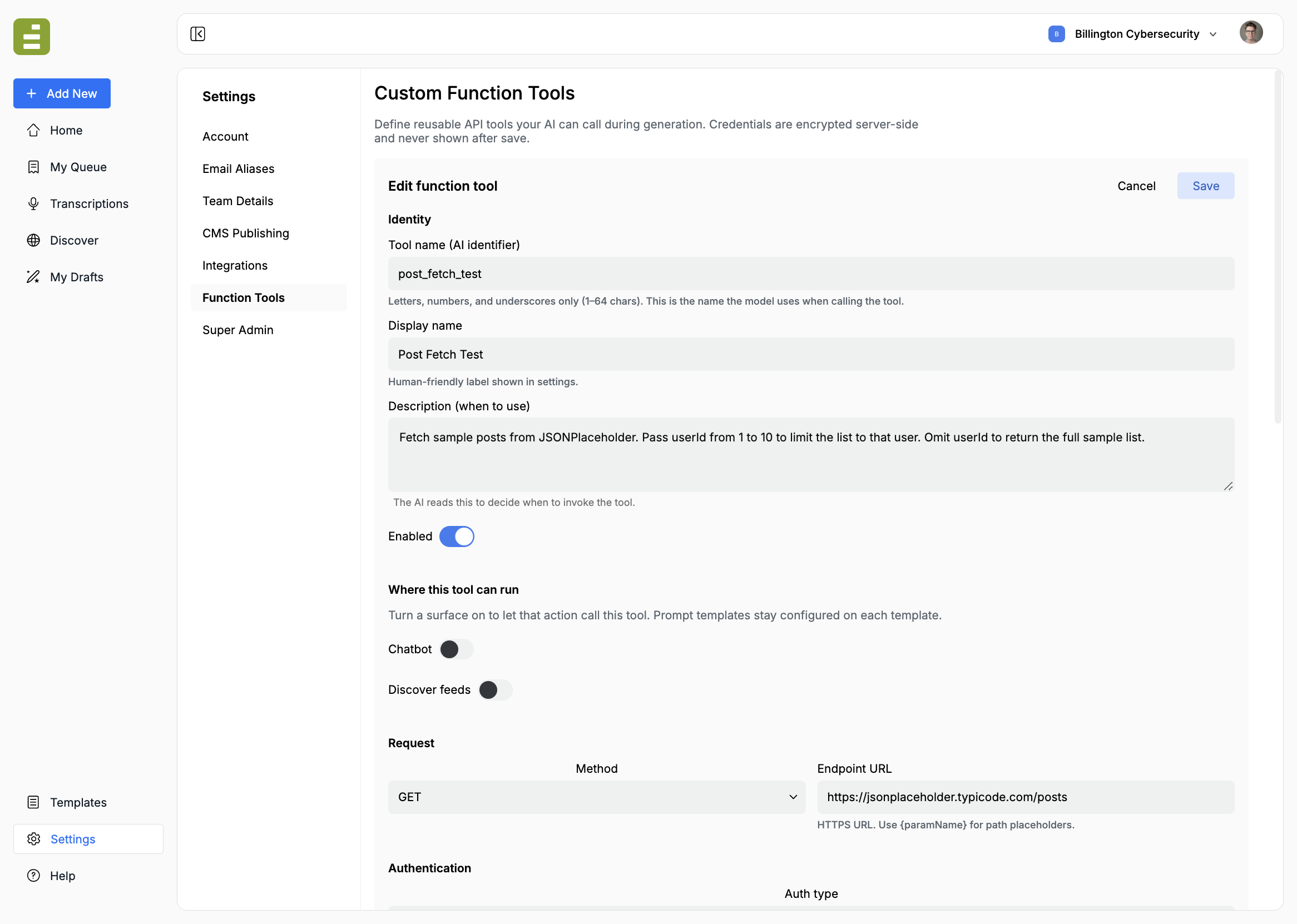
Add the tool
Section titled “Add the tool”- Go to Settings → Function Tools.
- Click Add function tool. On an empty list the button is Add first function tool.
- Fill in Identity, Where this tool can run, and Request.
- Add parameters if Jo needs to pass anything.
- Click Save.
The tool name cannot be changed after you save. Display name, description, endpoint, auth, and parameters can.
Identity
Section titled “Identity”| Field | What it is |
|---|---|
| Tool name (AI identifier) | The name the model uses when it calls the tool. Letters, numbers, and underscores only, up to 64 characters. Example: lookup_stock_quote |
| Display name | The label in Settings and in template settings. Example: Stock quote lookup |
| Description (when to use) | What Jo reads to decide whether to call the tool, and how to fill the parameters |
| Enabled | Master switch. Off means the tool is saved but Jo cannot call it |
Write the description as an instruction, not a slogan.
Look up the latest quote for a US stock ticker.Pass the ticker in uppercase, such as AAPL.Use this when the assignment asks for a current price. Do not invent a price if the tool fails.Pick a tool name that will not collide with Edisource’s own tools. A custom tool named like a built-in CMS search tool is skipped at run time.
Where this tool can run
Section titled “Where this tool can run”Two switches here. They do not replace the template setting.
| Switch | What it does |
|---|---|
| Chatbot | Jo can call this tool from chat in Content Studio |
| Discover feeds | Jo can call this tool while a Discover feed is generating |
Prompt templates stay off until you enable the tool on that template. See Use a function tool.
Leave both switches off if the tool should only run from templates you choose.
Request
Section titled “Request”| Field | What it is |
|---|---|
| Method | GET, POST, PUT, PATCH, or DELETE |
| Endpoint URL | Full HTTPS URL. Use {paramName} where a path parameter should be inserted |
The endpoint must start with https://. Private addresses and non-HTTPS URLs are rejected.
Path example:
https://api.example.com/quotes/{ticker}Add a parameter named ticker, set Send as to Path, and Jo’s value replaces {ticker}.
Authentication
Section titled “Authentication”Choose the auth your API expects. The secret is stored encrypted. After save, the field shows a mask. On edit, leave the secret blank to keep the saved value.
| Auth type | What you provide |
|---|---|
| None | No credential. Use this for public APIs, or when the URL itself is the secret |
| Bearer token | Sent as Authorization: Bearer <token> |
| API key (header) | The key, plus a Header name. Defaults to X-Api-Key |
| Basic | Username and password |
Put the credential in Authentication. Use Headers only for non-secret values, such as Accept or a public tenant id. Static headers are sent on every request.
After you save
Section titled “After you save”The list shows the display name, description, tool name, method, and endpoint. On disables the tool without deleting it. Edit reopens the form. Delete is permanent.
Check the Outbound request (preview) at the bottom of the form before you rely on the tool. It shows the method, URL, and headers Jo’s call will use, with secrets masked and parameter values shown as placeholders.
Then turn the tool on for a template, for chat, or for Discover, and run one assignment that should call it.