

Use a function tool
Saving a function tool does not make every assignment call it. You choose the surface. Templates are per template. Chat and Discover are switches on the tool itself.
The tool also has to be Enabled. An off tool is ignored everywhere.
On a prompt template
Section titled “On a prompt template”Open the template and click Settings. Under Custom API Tools, turn on the tool.
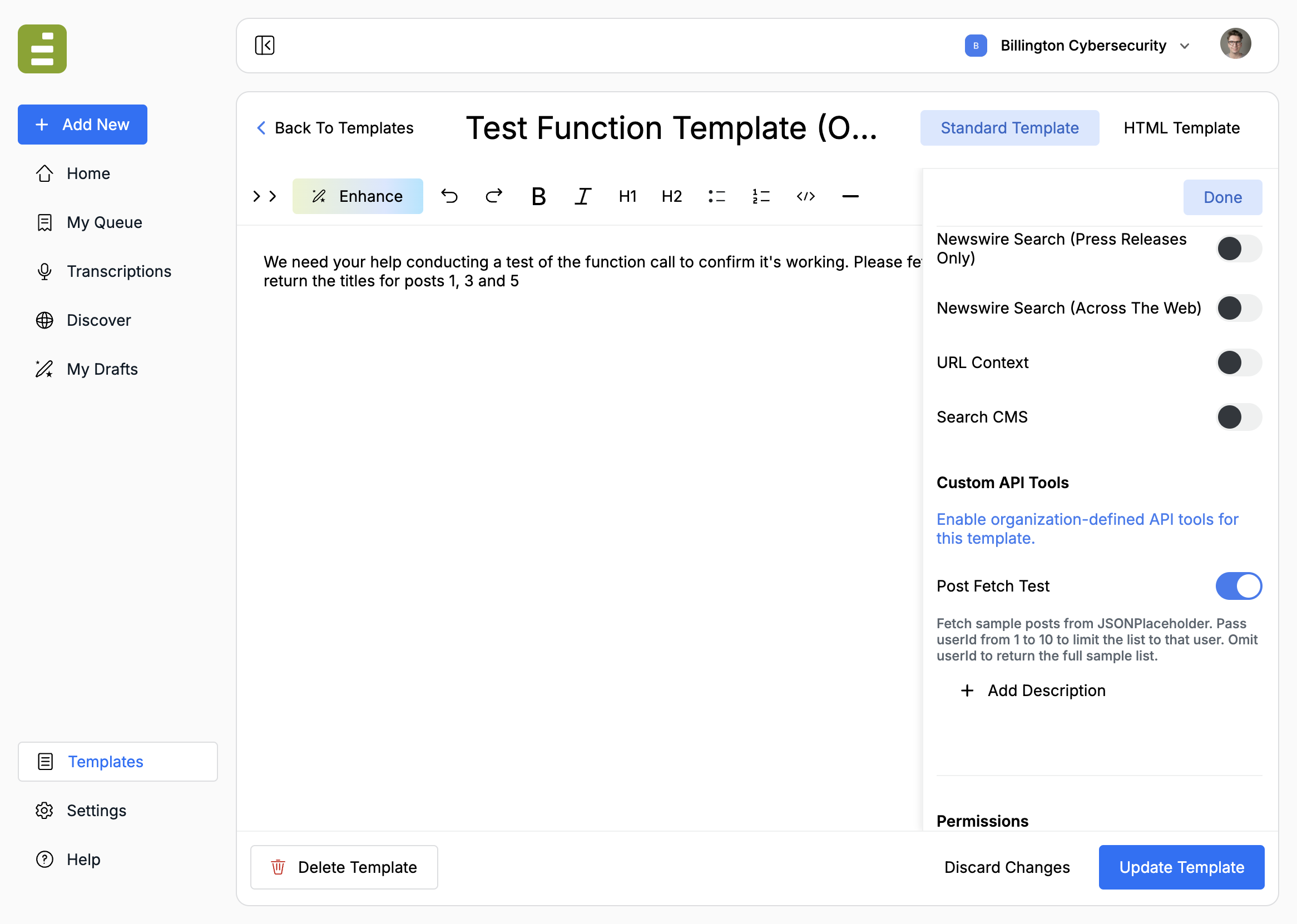
- Open the template from Templates.
- Click Settings.
- Under Custom API Tools, switch the tool on.
- Optionally click Add Description and write when this template should call it. That note overrides the description from Settings for this template only.
- Update Template.
The assignment still has to ask for the lookup. The switch only makes the tool available. A sentence in the prompt tells Jo to use it.
Fetch the posts with the custom function.Return the titles for posts 1, 3, and 5.If the tool returns nothing, say so. Do not invent titles.If the list says No custom API tools defined yet, create the tool first under Settings → Function Tools. Manage in Settings opens that page.
Built-in tools in the same sidebar — web search, newswire, URL context, CMS search — are separate. A function tool does not turn those on, and those switches do not call your API.
In chat
Section titled “In chat”On the function tool, turn on Chatbot, leave Enabled on, and save.
Jo can then call the tool from chat in Content Studio. The description on the tool is what Jo reads. There is no second switch inside the chat panel.
Use this for lookups an editor might ask for while revising: “What’s the latest quote for AAPL?” or “Pull the filing status for this CIK.”
On Discover feeds
Section titled “On Discover feeds”On the function tool, turn on Discover feeds, leave Enabled on, and save.
Jo can call the tool while a Discover feed is generating findings. Every Discover feed in the organization can see a tool with this switch on. Do not enable it for an API that only one feed should touch. Put that tool on a template instead, and attach the template to the feed. See Templates and AI drafts.
If the call does not happen
Section titled “If the call does not happen”- Enabled is off, or the template switch is off
- Chatbot or Discover feeds is off for that surface
- The description never matches the assignment, so Jo has no reason to call it
- The tool name matches a built-in Edisource tool, so the custom tool is skipped
- The endpoint is not HTTPS, or a
{placeholder}in the path was not filled - The API returned an error or the timeout hit. Default wait is 15 seconds
Run one short assignment that names the lookup, then read the draft. If Jo guessed instead of calling the tool, tighten the description and say what to do when the tool fails.