

Sources and feeds
Sources and feeds are the project’s research desk. Files on Sources are available to Jo on every draft in the project. Linked Feeds let Jo pull from Discover without leaving the assignment.
Shared source library
Section titled “Shared source library”Open the project, then click Sources.
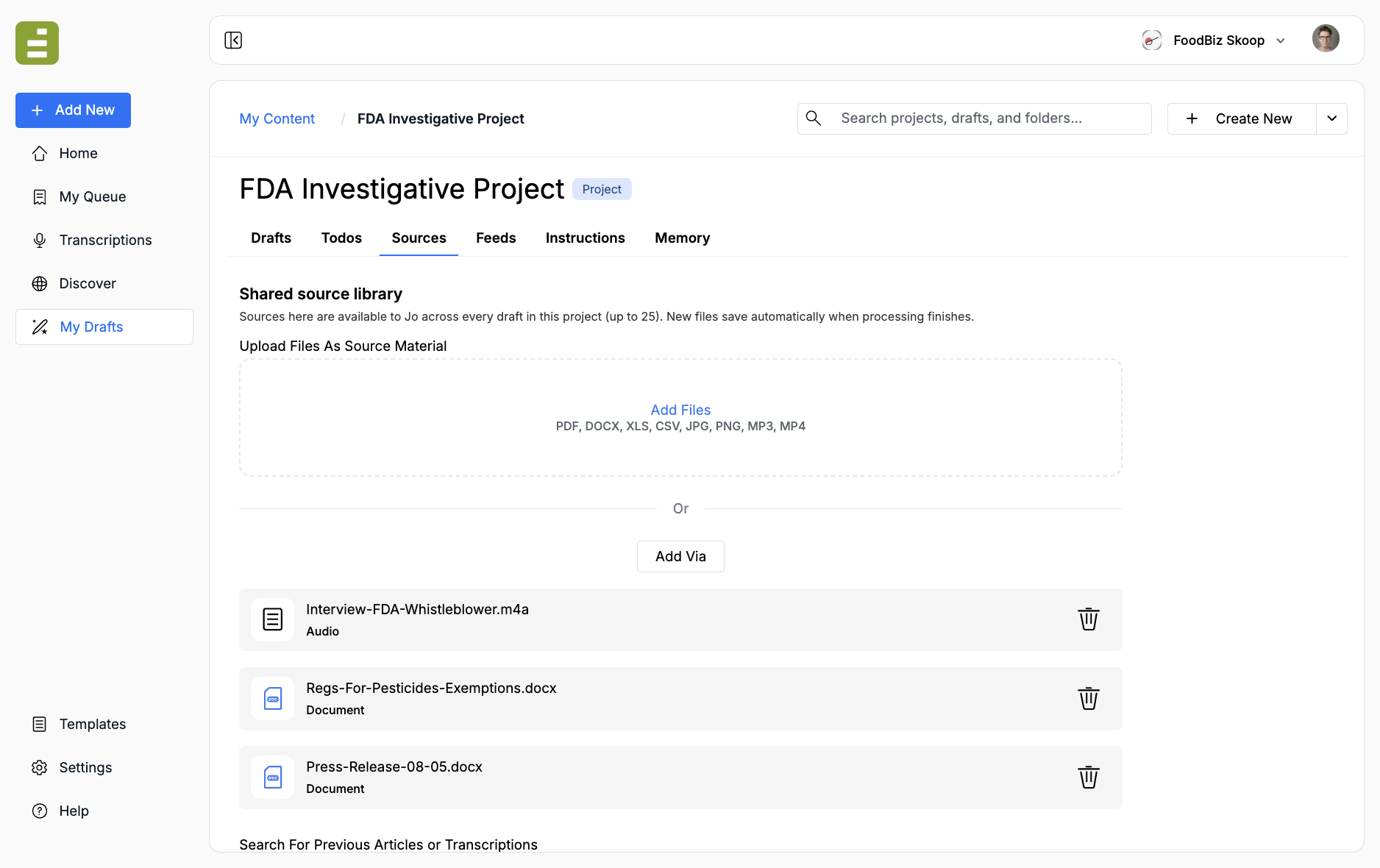
The library holds up to 25 sources. New files save automatically when processing finishes.
You can add:
- Audio and video, including MP3, M4A, and MP4
- Presentations, including PPT and PPTX
- Spreadsheets, including XLS, XLSX, and CSV
- Documents, including DOCX
- PDFs
- Images, including JPG and PNG
Add files
Section titled “Add files”- Drop files onto Upload Files As Source Material, or click Add Files
- Wait until processing finishes
- Confirm the file appears in the list
Use Add Via when the file is not already on your computer:
- Upload from Computer
- Add Via Google Drive
- Add Via Dropbox
- Add Via Webpage
- Add Plain Text
You can also Search For Previous Articles or Transcriptions at the bottom of the tab. That attaches an existing draft or transcription so Jo does not start from a blank brief.
Remove a source with the trash icon on its row. Give Jo a moment after a large upload. Audio and video take longer than a short memo.
Linked Discover feeds
Section titled “Linked Discover feeds”Open Feeds to choose which monitors Jo can use for this project.
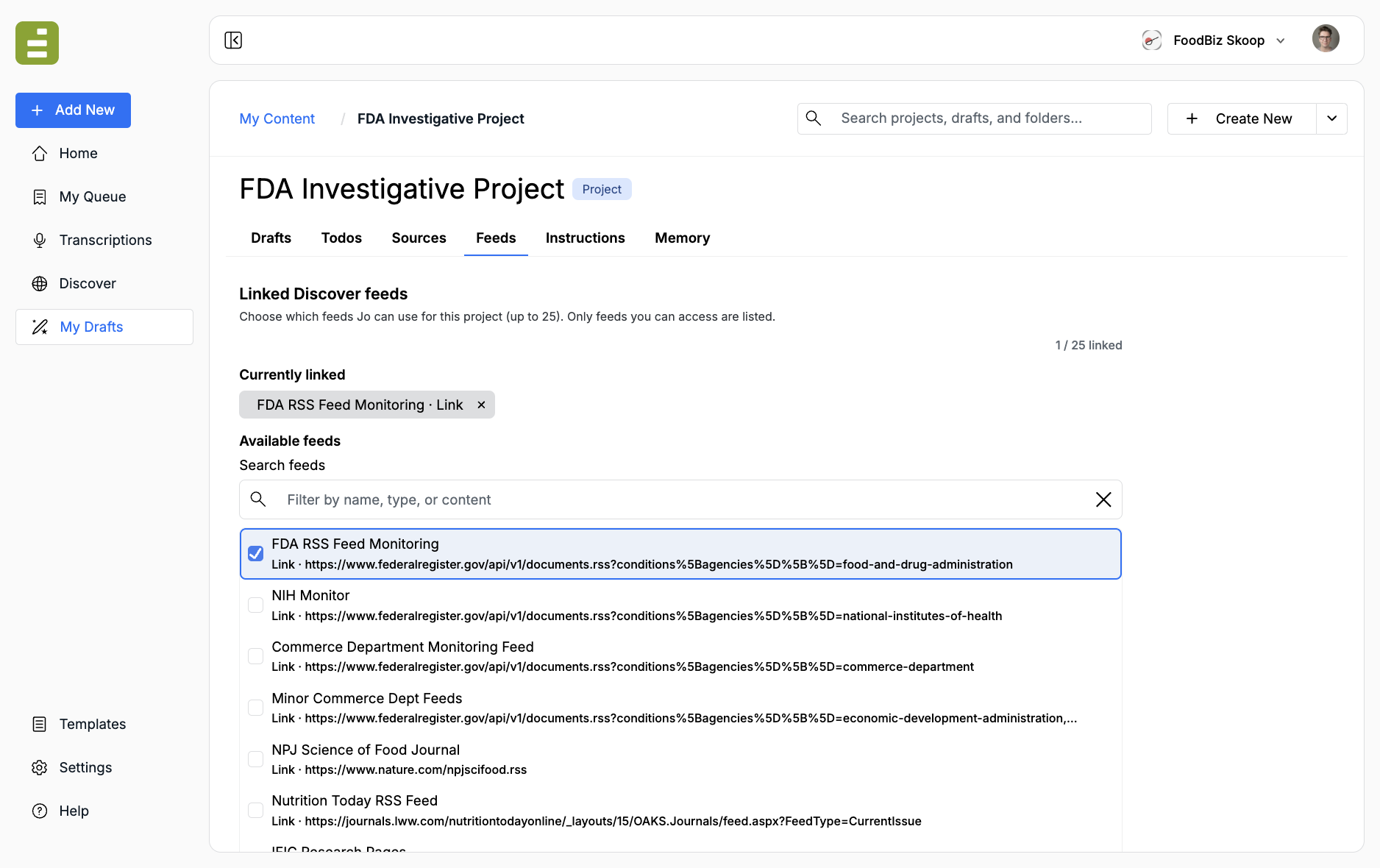
You can link up to 25 feeds. Only feeds you can access appear in the list.
- Search by name, type, or content if the list is long
- Check the feeds that belong to this assignment
- Click Save feeds
Linked feeds show as chips under Currently linked. Unlink one with the X on the chip, then save again.
Keep the set tight. Link the beat or regulator that belongs to the package, not every feed in the organization. If a URL watch is getting crowded, split it in Discover first. See Feed groups.
Jo can then use those feeds while working on drafts in the project. Standing rules for how Jo should write still live on Instructions and memory.