

Publish
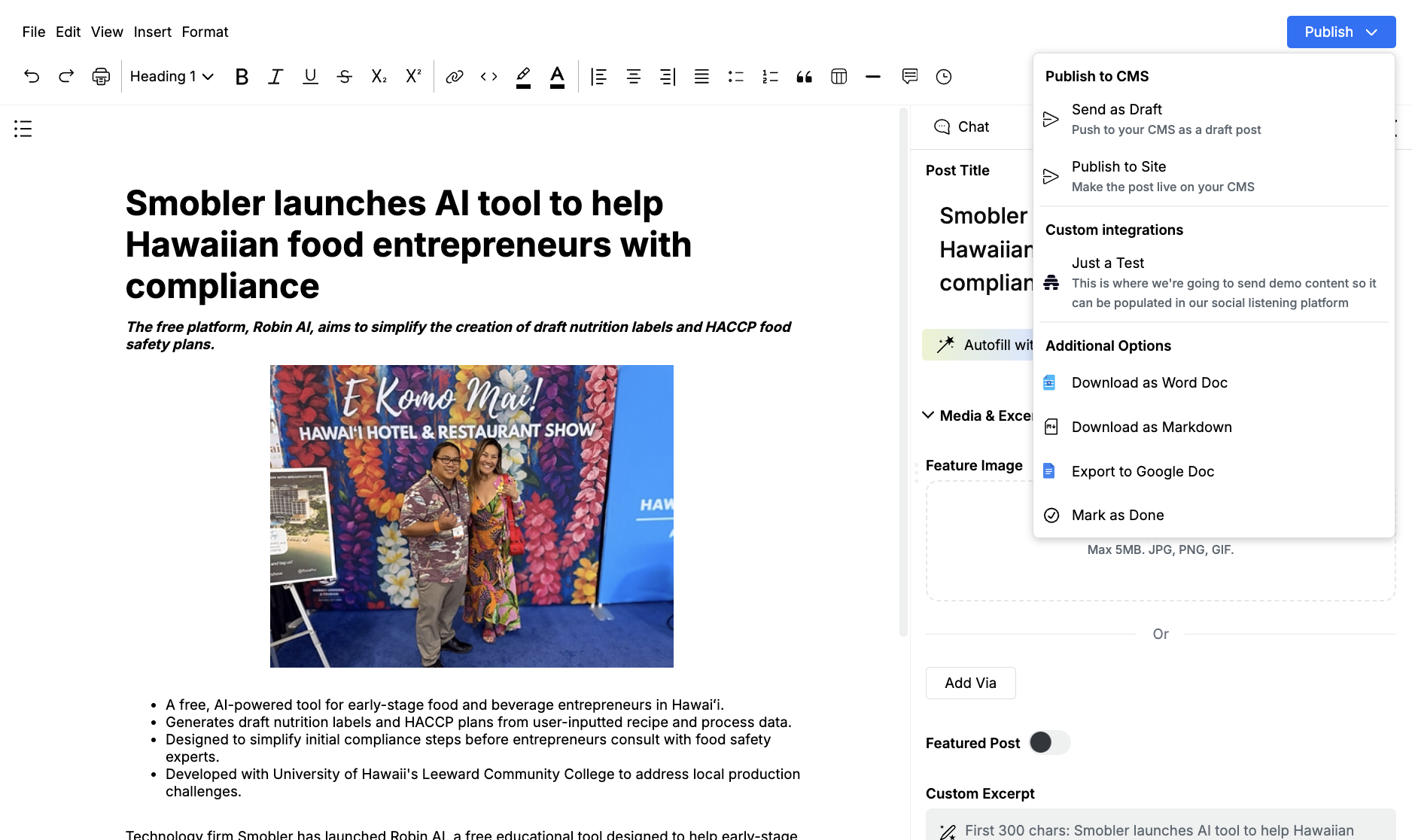
The blue Publish button on the menu bar is the handoff. It can push to your CMS, send JSON to a custom integration, download a file, or mark the draft done.
Fill post settings first. Accept or reject any pending Jo edits. Publishing is blocked until those marks are gone.
Publish to a CMS
Section titled “Publish to a CMS”An admin has to connect the CMS under Settings → CMS Publishing. If nothing is connected, the CMS items say Set up your CMS to enable.
When a CMS is connected you typically get:
- Send as Draft — push to the CMS without going live
- Publish to Site or Publish Post — make the post live
Some platforms also offer Schedule Post, or a separate Send as Product group. WordPress can list custom post types as their own section.
Publish to Site asks you to confirm. A toast follows: Sending to CMS as draft… or Publishing to site…
The handler maps title, body, excerpt, featured image, SEO fields, and any XML tags in the draft onto that CMS.
Custom integrations
Section titled “Custom integrations”Named destinations appear under Custom integrations. Each one is a connector an admin set up under Settings → Integrations — a webhook, Zapier, Airtable, beehiiv, Mailchimp, Omeda, or a similar endpoint.
Click the integration name to send the payload. A toast confirms the send. The JSON shape is configured on the integration, not in Content Studio. See Custom integrations and Payloads and XML tags.
Additional options
Section titled “Additional options”The same menu also has:
- Download as Word Doc
- Download as Markdown
- Export to Google Doc
- Mark as Done — sets the draft status and returns you to My Drafts
Use the downloads when someone outside Edisource needs a file. Use Mark as Done when the piece is finished but should not go to a CMS.
Automatic template runs land in My Queue first. From Studio, Publish is the path to the live site or a custom destination for a draft you already own.