

Theme Studio
Theme Studio is the editor for a document theme. The center is the page canvas. The left rail lists master page types. The right rail inspects the selection, text styles, components, and images.
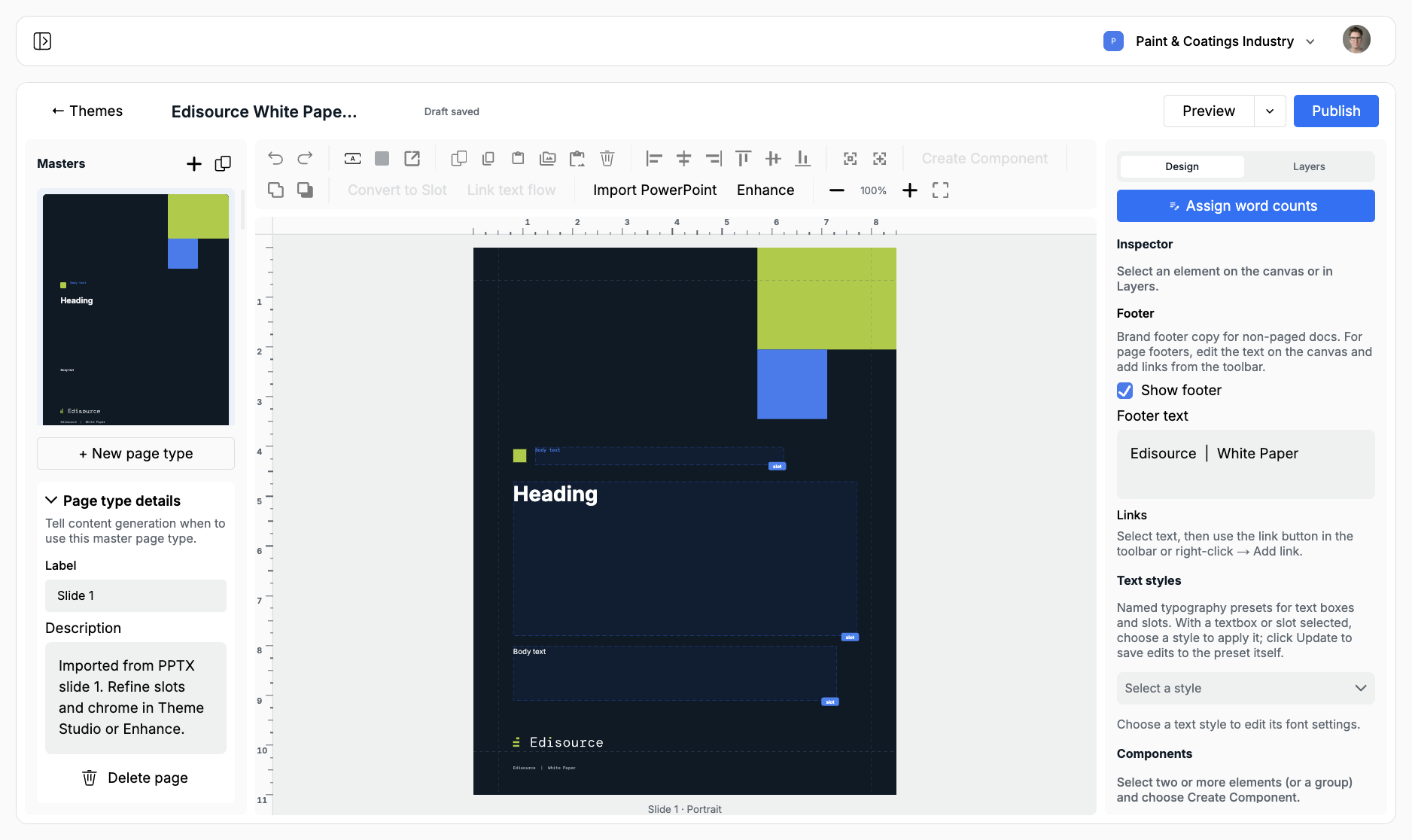
Open a theme from the library, or land here after Create. The title in the top bar is the theme name. Draft saved means autosave has the latest working copy.
The layout
Section titled “The layout”Masters on the left are the page types Jo can pick: a cover, a body page, a section opener, a closing page. Add one with + New page type, or duplicate the current master. Select a thumbnail to edit that page.
Page type details sit under the list:
- Label: The name Jo and editors see. Use Cover, Body, or Section opener, not Slide 1.
- Description: When content generation should use this page. Write it like a brief.
The canvas is the page. Rulers, zoom, and the toolbar sit above it. Static brand elements (logo, footer, colored blocks) stay as chrome. Boxes Jo should fill are slots, marked with a dashed outline and a slot badge.
The right rail has Design and Layers. Design holds the inspector, footer toggle, text styles, components, and the image library. Assign word counts opens the word-count panel.
A slot is a placeholder content generation fills at runtime. Chrome is the rest of the page: logos, shapes, locked footer copy.
Select a text box or shape and click Convert to Slot. Then, in the inspector:
- Label: Publisher-facing name (
Heading,Body,Pull quote) - Description: Guidance for Jo (
Lead paragraph, 40–60 words, no subheads) - Accepted blocks: What can land here — heading, paragraph, list, image, chart, table, divider, spacer
- Style bindings: Map roles such as heading or paragraph to theme text styles
- Capacity: Optional min/max words and blocks
- Flowable: Overflow continues onto the next page
- Adaptive text size: Shrink the type to fit the box, down to 6pt
Link text flow connects two or more slots so body copy fills the first, then continues into the next. Linked flows share one word-count total. Adaptive size stays off on a flow so overflow can move instead of shrinking.
Every master needs at least one slot. A page with only chrome cannot receive generated copy.
Brand and styles
Section titled “Brand and styles”Text styles are named presets (H1, body, quote). Bind slots to those names so generated copy inherits the right type. Editing a style updates every element that uses it.
Images is the theme library. Upload logos and other assets, then describe each one and set a role (logo, cover, product, decorative). Jo uses the description when choosing imagery.
Components are reusable groups — a callout card, a metric row — that you can place on more than one master.
Show footer and Footer text apply the same footer across pages when you want standing brand copy.
Enhance, import, and preview
Section titled “Enhance, import, and preview”Import PowerPoint on the toolbar extracts another .pptx into the theme you already have open. Use it to refresh colors and masters without creating a second theme.
Enhance asks AI to add typography, a palette, extra page types, headers and footers, or reusable components. It is a draft pass. Review the canvas before you publish.
Preview renders the current masters with placeholder copy. The menu also has AI preview, which writes a sample document into the theme so you can see real word counts on the page.
Soft checks
Section titled “Soft checks”The right rail shows Soft Checks when something will cause layout or generation problems: a missing page description, overlapping slots, a text slot with no style binding, a master with no slots.
Click Review. Each item highlights the problem on the canvas. Fix with AI can attempt the list in one pass. Soft checks do not block save. They do tell you the theme is not ready for generation.
Publish
Section titled “Publish”Click Publish when the masters, slots, and descriptions are ready. The first publish makes the theme active so Document templates can select it.
If the theme is already active, confirm Publish theme changes? Publishing updates the live theme body. Draft-only work stays private until you publish.
Design best practices covers word counts, adaptive text, and the descriptions Jo needs to pick the right page.