

Create a theme
Use this page the first time you add a theme. You will name it, choose who can use it, and pick a starting point. Every path opens Theme Studio so you can refine the result.
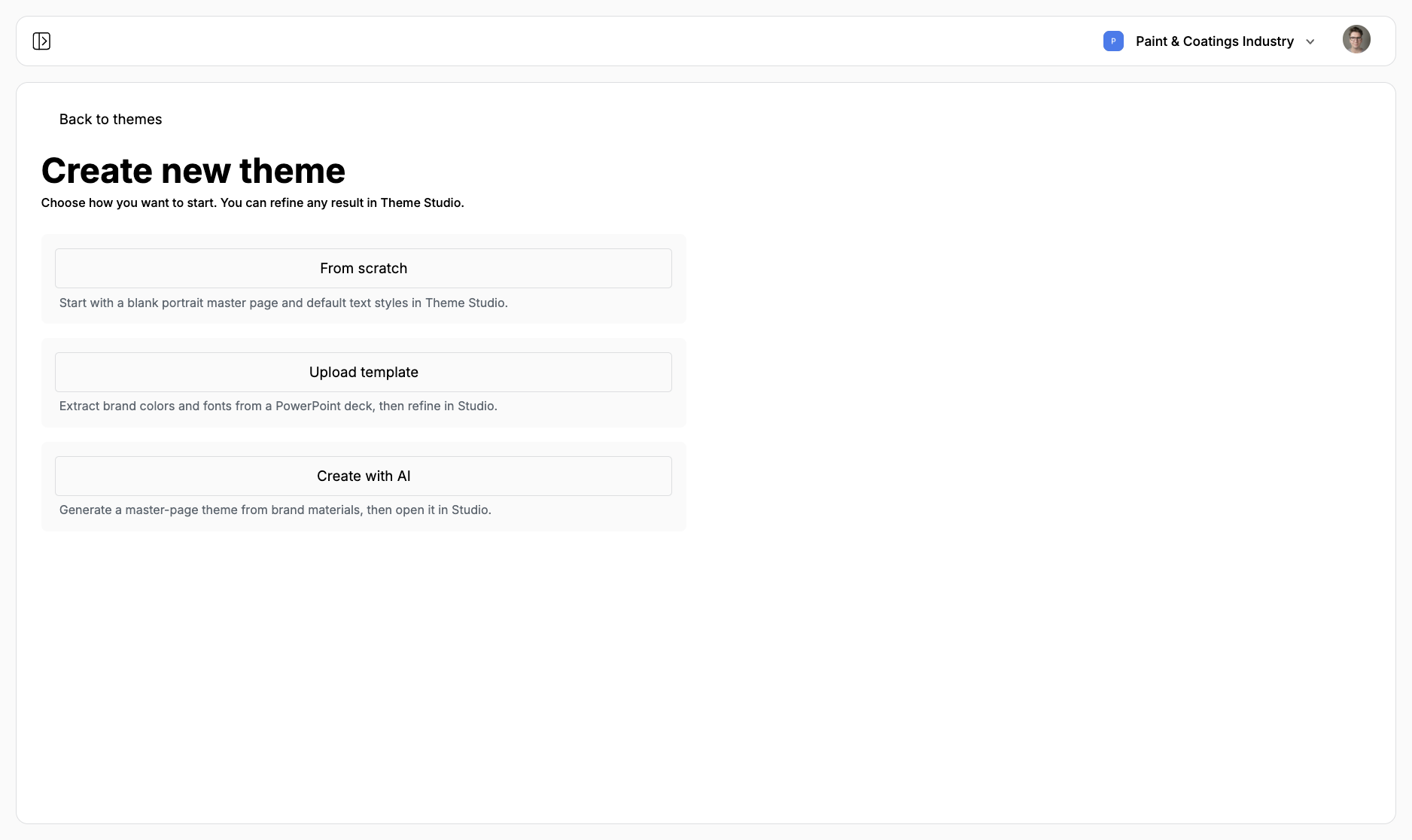
- Go to Templates → Themes.
- Click Create.
- Choose From scratch, Upload template, or Create with AI.
You can refine any result in Theme Studio. Start with the path that matches the materials you already have.
From scratch
Section titled “From scratch”Use this when you do not have a deck yet and want a blank portrait page.
- Click From scratch.
- Enter a Name.
- Choose Organization (shared with your team) or Personal (only you).
- Click Create theme.
Studio opens a Letter-size portrait master named Body Page, with default Inter heading and body styles and one Main content slot. Add page types, slots, and brand chrome from there.
Upload a PowerPoint
Section titled “Upload a PowerPoint”Use this when the newsroom already has a branded .pptx deck. Edisource extracts each slide into a master page, plus brand colors and fonts, then you turn those slides into slots Jo can fill.
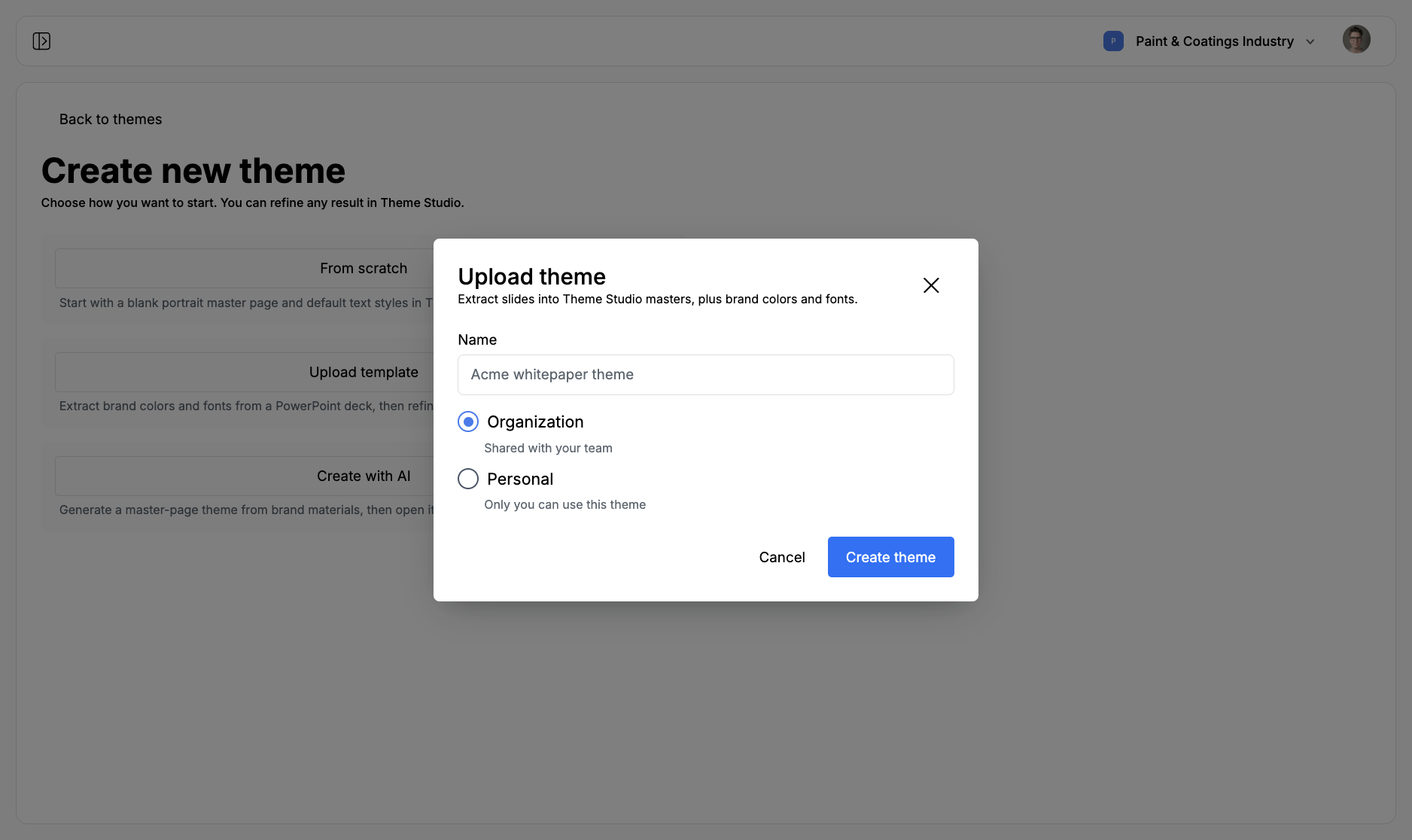
- Click Upload template.
- Enter a Name. The file name fills this in if you drop the deck first.
- Choose Organization or Personal.
- Drop a
.pptxfile, or click to browse. Other formats are rejected. - Click Create theme.
The extract becomes Theme Studio masters. Imported pages often keep labels like Slide 1 and a note that they came from PowerPoint. That is a starting point, not a finished theme. Rename the page types, convert text boxes into slots, set word counts, and write descriptions before you publish.
A deck that already looks like the finished product works better than a working file full of speaker notes and unused layouts. One slide per page type. Remove slides you do not want Jo to pick.
You can also import a .pptx later from the Theme Studio toolbar. Import PowerPoint merges slides, colors, and fonts into the theme you already have open.
Create with AI
Section titled “Create with AI”Use this when you have brand materials and want a first pass at a white paper or infographic theme.
- Click Create with AI.
- Choose White paper or Infographic.
- Enter a Name, an optional description, and Organization or Personal.
- Add at least one of: logos or other images, brand guidelines (
.docxor.pdf), example PDFs, or a brand deck (.pptx). Extra instructions are optional. - Generate, then open the result in Theme Studio.
AI themes still need a human pass. Check slots, word counts, and page-type descriptions the same way you would after a PowerPoint import.
After you create
Section titled “After you create”The new theme opens in Theme Studio as a draft. Autosave keeps the working copy. It does not appear on a Document template until you Publish.
Theme Studio covers masters, slots, preview, and publish. Design best practices covers the settings that keep generated documents readable.